
Bluetooth language update procedure
- Make
- Alfa Romeo
- Model
- Brera and Spider Factory Service Manual
- Year
- 2005–2010
- Section
- Accessories › Bluetooth language update procedure
BLUETOOTH LANGUAGE UPDATE PROCEDURE
Press the ESC button to suspend the update procedure at any time.
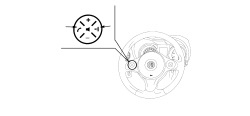
| CHECK TO BE PERFORMED | RESOLUTION IF THE CHECK IS NOT OK | |
|---|---|---|
| 1 | Disconnect the mobile phone enabled by the Bluetooth® system and remove from inside the vehicle. If the mobile phone is not removed from the vehicle and a call is received during the installation process, the procedure will not be successful. | |
| 2 | Insert the USB pen in the USB port of the diagnostic instrument. Insert the update CD in the tester, then turn on. Select the language in which instructions are to be read. When the final user licence appears, press I Accept. | You cannot continue if you do not press I Accept |
| 3 | In the main menu, select Create multilingual pen, wait for the software to be installed on the USB pen and remove | The USB pen is not supported by the diagnostic tester or software: use a compatible USB pen. Pens supported are with standard USB 1.0, 1.1 or 2.0 connectors and capacity up to 1 GB. The following models are certainly supported: Lexar™ JumpDrive® 2.0 512 MB, Memorex® Travel Driver 256 MB USB 2.0, Memorex® Travel Driver 1 GB USB 2.0, PNY® Attaché 256 MB USB 2.0, SanDisk® Cruzer™ micro 256 MB USB 2.0, SanDisk® Cruzer™ Mini 256 MB / 1 GB USB 2.0 and Sony® Micro Vault® |
| 4 | Press the START/STOP button (panel off). Remove the radio Op. 5570T80 CAR RADIO EQUIPMENT - R+R Press the START/STOP button (panel off). Check hat the message "Install language <selected language>? appears on the panel. The procedure will not be successful if the USB pen is removed during the installation procedure. Re-insert the pen, wait for 30 seconds and repeat this step | The installation procedure starts automatically: move on to Step 6 |
| 5 | Press the SRC or MAIN buttons to activate the installation procedure | |
| 6 | Check that the message "Update complate" appears after update | If a software update is available, install by running the test See Test 5570TP BLUETOOTH SOFTWARE UPDATING PROCEDURE |
| 7 | Press the START/STOP button (panel off). Wait 3 minutes. Press the START/STOP button (panel on) and check that the language update is complete | Repeat the entire procedure |
Press the ESC button to suspend the update procedure at any time.
| CHECK TO BE PERFORMED | RESOLUTION IF THE CHECK IS NOT OK | |
|---|---|---|
| 1 | Disconnect the mobile phone enabled by the Bluetooth® system and remove from inside the vehicle. If the mobile phone is not removed from the vehicle and a call is received during the installation process, the procedure will not be successful. | |
| 2 | Insert the USB pen in the USB port of the diagnostic instrument. Insert the update CD in the tester, then turn on. Select the language in which instructions are to be read. When the final user licence appears, press I Accept. | You cannot continue if you do not press I Accept |
| 3 | In the main menu, select Create multilingual pen, wait for the software to be installed on the USB pen and remove | The USB pen is not supported by the diagnostic tester or software: use a compatible USB pen. Pens supported are with standard USB 1.0, 1.1 or 2.0 connectors and capacity up to 1 GB. The following models are certainly supported: Lexar™ JumpDrive® 2.0 512 MB, Memorex® Travel Driver 256 MB USB 2.0, Memorex® Travel Driver 1 GB USB 2.0, PNY® Attaché 256 MB USB 2.0, SanDisk® Cruzer™ micro 256 MB USB 2.0, SanDisk® Cruzer™ Mini 256 MB / 1 GB USB 2.0 and Sony® Micro Vault® |
| 4 | Press the START/STOP button (panel off). Remove the radio Op. 5570T80 CAR RADIO EQUIPMENT - R+R Press the START/STOP button (panel off). Check hat the message "Install language <selected language>? appears on the panel. The procedure will not be successful if the USB pen is removed during the installation procedure. Re-insert the pen, wait for 30 seconds and repeat this step | The installation procedure starts automatically: move on to Step 6 |
| 5 | Press the SRC or MAIN buttons to activate the installation procedure | |
| 6 | Check that the message "Update complate" appears after update | If a software update is available, install by running the test See Test 5570TP |
| 7 | Press the START/STOP button (panel off). Wait 3 minutes. Press the START/STOP button (panel on) and check that the language update is complete | Repeat the entire procedure |
Parts & tools for this job For 2005 Alfa Romeo Brera
- TOOLDigital multimeterSearch: automotive digital multimeter
- PARTAssorted fuse kitSearch: car fuse assortment kit
- TOOLWire crimper and connector kitSearch: wire crimper connector kit
Links open Amazon search results in a new tab. As an Amazon Associate I earn from qualifying purchases.