
Intergrated control system (ics) panel
- Make
- Fiat
- Model
- Doblò Factory Service Manual
- Year
- 2000–2010
- Section
- Special accessories › Intergrated control system (ics) panel
INTERGRATED CONTROL SYSTEM (ICS) PANEL
The diagram below illustrates the configuration of the components for the N.I.T. (Telematic Info Connector)
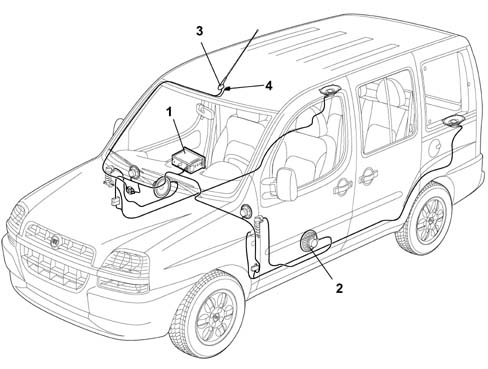
1 NIT module
2 Speakers
3 Radio/GPS/GSM aerial
4 Hands free microphone
System configuration levels
An integrated information and control system for several of the systems and devices fitted on the vehicle is available as an option on the entire vehicle range. This system, located in the centre of the dashboard and known as the N.I.T. (Telematic Info Connector) is available in two configuration levels: one BASIC level and one DE-LUXE level.
The BASIC version features the following modules and functions:
- Front control panel
- Radio
- CD player - Audio
- GSM module
- GPS module
- Assistance services
- LCD 128x64 pixel graphic display
The DE-LUXE version features the following modules and functions:
- Front control panel
- Radio
- CD-ROM player + CD - Audio
- GPS module
- GSM module + SIM Card reader
- Gyroscope
- Autonomous navigation with maps
- Assistance services
- 5'' TFT display
DESCRIPTION OF MODULES
The system, as described previously, can consist of various modules depending on the level chosen.
The individual modules carry out the functions described below.
FRONT CONTROL PANEL
The front control panel groups together: the control buttons, the CD/CD ROM and SIM CARD reader modules and the display; the display differs for the BASIC and DE-LUXE versions through the graphics and the road maps.
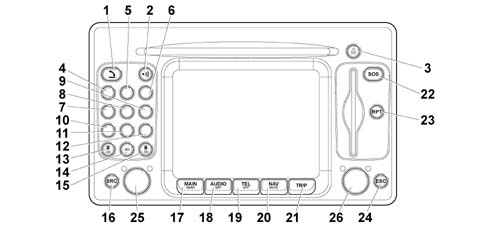
1. Telephone on/off button
2. Not used
3. CD eject button
4. Radio and telephone systems multi-purpose button
5. Radio and telephone systems multi-purpose button
6. Radio and telephone systems multi-purpose button
7. Radio and telephone systems multi-purpose button
8. Radio and telephone systems multi-purpose button
9. Radio and telephone systems multi-purpose button
10. Telephone system button
11. Telephone system button
12. Telephone system button
13. Radio, telephone and CD systems multi-purpose button
14. Telephone and CD systems multi-purpose button
15. Radio, telephone and CD systems multi-purpose button
16. Audio source selector button (radio/CD frequencies)
17. Main menu display button
18. Audio menu display button
19. Telephone menu display button
20. Navigation system display button
21. Trip menu display button
22. Emergency call button
23. Last navigation system sound instruction repeat button
24. Return to previous display button
25. ON/OFF knob and volume control
26. Selection and confirmation knob
ELECTRICAL CONNECTIONS
The NIT module is secured to the dashboard and connected to the vehicle''s electrical system through the connections illustrated in the diagram below:
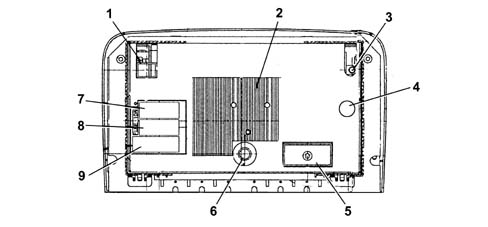
1. GSM aerial connector
2. Heat exchanger
3. GPS aerial connector
4. Radio aerial connector
5. Telephone/navigation system modules connector
6. Centering pin
7. Radio A connector
8. Radio B connector
9. Connector C not used
AUDIO CD PLAYER (BASIC version only)
The module consists of an Audio CD player capable of reading and managing audio type compact discs and playing the musical tracks recorded on them.
CD ROM PLAYER (DE-LUXE version only)
The module consists of a CD ROM player capable of reading and managing both CD ROMS (containing street maps) and audio CDs.
The CD ROMs are accepted by the NIT containing information files for the voice messages in the various languages and the map database needed for navigation.
The audio CDs, on the other hand are normally CDs available on the market.
GSM MODULE (both versions)
The Dual Band GSM module, structurally connected by a direct connection to the Sim Card reader (which allows recognition of the user SIM phone card) is, basically, an integrated cell phone.
There is also preparation for an external microphone (for hands free operation) and an additional telephone handset.
Audio operation:
There are 2 different inputs for the microphone and 2 different outputs for the speaker
SIM CARD READER (both versions)
The Sim Card reader is desiged for ''large'' type cards.
''Small'' Sim Cards can only be used with a special adapator.
This adaptor, available directly from the Provider (Omnitel, TIM, Wind, ecc.) together with the Sim or available commercially, is not supplied together with the NIT.
Composition of the module
The module consists of the following sections:
- Receiver
- Power audio amplifier
- Control logic
- CD interface
- Outside audio input interface
Interface connectors
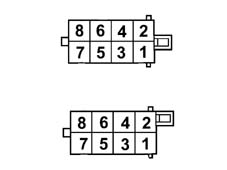
The diagram below shows the radio connector pin outs at the rear of the device
ISO connectors
This type of ISO connector is used for both the radio signals and the signals used by the NIT main electronic card.
8-way connector p/n 1/24502/90-91350-40 (A)
| Pin | Function |
|---|---|
| 1 | n.c. |
| 2 | n.c. |
| 3 | n.c. |
| 4 | Key on input (+Key) |
| 5 | 12 V for automatic aerial |
| 6 | n.c. |
| 7 | 12 V permanent |
| 8 | GND supply |
8-way connector p/n 1/24503/97-91350-40 (B)
| Pin | Function |
|---|---|
| 1 | Right rear speaker positive |
| 2 | Right rear speaker earth |
| 3 | Right front speaker positive |
| 4 | Right front speaker earth |
| 5 | Left front speaker positive |
| 6 | Left front speaker earth |
| 7 | Left rear speaker positive |
| 8 | Left rear speaker earth |
Connector for aerial
ISO NEW type coaxial connector
This connector also provides the supply for the amplified aerial.
Audio inputs
Telephone audio (analogue - mono)
Navigation audio (analogue - mono)
CD-DA audio player inside the NIT (digital - I2S format)
Audio outputs
4 channel amplified analogue audio output
Audio source management
Any one of the audio sources (see audio inputs) including the radio receiver can be selected.
It is also possible to mix the navigation system at the source selected.
The audio sources can be listened to through all the speakers.
Receiver specifications
RDS EON (including PTY Search, REG on/of, TA on/off)
Tuning into the following bands:
- USW (87.5-108 MHz) (FM)
- MW (153-279 KHz) (AM)
- LW (531-1602 KHZ) (AM)
- FM South America (as and alternative to FM)
Manual and automatic tuning into 5 Bands (FM1, FM2, FM3, MW, LW)
Max programming of 6 stations per band (30 stations in total)
LOC/DX sensitivity
RDS-TMC
Audio parameters:
The following parameters are managed:
- Fader
- Balance
- Bass
- Treble
- Loudness
- Digital volume control
- Soft Mute
- Equalizer with 5 frequency bands (adjustment +/- 6dB on each band)
GYROSCOPE
Angular speed sensor based on a piezoelectric ceramic element.
Technical specifications
The gyroscope features a maximum angular speed of +/- 80 degrees/second
GPS MODULE
The GPS module allows the NIT to interface with the GPS to determine the position of the vehicle on the earth''s surface.
There must be at least three satellite signals for the module to work properly.
SYSTEM SUPPLY
The events or components which directly or indirectly allow the user to interact the general operating state of the system are:
- the electrical signal linked to the position (ON or OFF) of the ignition key (+key)
- the On/Off button in the front panel.
- the SOS button in the front panel.
System operating states
The operating states of the NIT from the point of view of the supply and general operation are:
- Off State (off),
- On State (on),
- Stand By state (stand by).
Off State
All the Telematic Info Node functions are disabled and the various hardware modules are not supplied.
ON State
In the ON state, the NIT is completely activated, i.e. all the system functions are managed in accordance with the system configuration and the internal modules are operational, as are the internal communication lines.
Stand By State
In this state, the NIT is partially activated, but appears to the user exactly the same as in the OFF state.
In this case, the network management and (internal) location modules only remain activated, whilst the following modules are deactivated: Telephone, Radio, Audio, CD and CDC Audio, Voice Recognition, Voice Synthesis and Navigation System.
Switching on
The telematic info node can be activated in two ways:
- by turning the ignition key to the ON position
- by using the on/off button in the control panel (even with th ignition switched OFF0
In the first case, if the NIT was switched off, it comes on and finds itself in the ON or STAND BY condition (depending on what the system status was before it was switched off last time).
If the system was in the STAND BY condition before it was switched off last time, the user can move to the ON condition after having tuned the ignition key by using the On/Off button.
In the second case, the user can switch the system on (or change it from OFF to ON) by pressing the On/Off button or the ''Service Call'' button in this case, however, the PIN no. must be entered in order to be able to use the telephone.
Switching off
The user can switch the system off (either in the ON state or in the STAND BY state) by turning the ignition key OFF.
In this case, both the back up data and the system configuration are saved.
The switching off is, however, delayed if a phone call or a ''Service Call'' is in progress.
In this case, the NIT will switch off automatically when the call is ended by the user (if the call is longer than 20 minutes) or 20 minutes after the key has been removed (if the call is shorter than 20 minutes).
If the NIT, on the other hand, was on, with the ignition key switched OFF, using the ON/OFF button or after a ''Service Call'', the system will automatically switch off after the above mentioned time out has elapsed (20 minutes operating without the key) or when the On/Off button is pressed.
Stand By movement (false switching off)
From the ON state it is possible to move the Stand By state (an operation which appears to the user like switching off but in which, in reality, as described previously, the NIT is activated and prevents usage) when the user presses the On/Off button whilst the ignition key is in the ON position.
It is possible to exit the Stand By state and return to the ON condition using the On/Off button or by activating the ''Service Call'' button and entering the PIN no. to use the telephone.
SIGNALS AND CAN NETWORK
Since the NIT on the vehicle is not connected to this network, the main information has to be supplied via direct electrical signals.
These signals are:
- +key signal (ignition key signal - used to switch on the NIT the moment the key is turned ON)
- reverse gear engaged signal (to identify the direction of travel of the vehicle)
- milometer signal (to calculate the distance travelled by the vehicle)
- + lights signal (to modify the brightness of the screen)
LANGUAGES AVAILABLE
The languages available for both the instructions displayed and the navigation voice messages are:
- French
- English
- Italian
- Portugese (European)
- Spanish
- German
The language is selected in the NIT using a special configuration menu.
AUDIO
The possible audio sources are the standard sources (Radio Receiver, CD Audio) whose specifications are described in detail later in the chapter, the PTY31 alarms and Traffice Announcements, seen as separate functions and the sources linked to other modules such as the Telephone, the telephone Ringing and the navigation system Voice Synthesis.
General audio functions
The user can adjust the audio parameters using the following controls:
- Balance modification - The ratio between the volume of the left speakers and the right speakers is adjusted.
- Fader modification - The ratio between the volume of the front speakers and the back speakers is adjusted.
- Bass modification - The bass level is adjusted
- Treble modification - The treble level is adjusted
- Balance - The parameters for each of the 5 equalizer bands is adjusted
- Change of audio source - Any one of the audio sources can be selected
- Volume management - The volume of the different standard audio sources can be altered directly by the user. It is also possible to pre-define the volume of the PY31 Alarm/Traffice Announcement, the Telephone, the telephone Rining and the Navigation System separately.
- Loudness - Enabling/disabling of loudness function (amplificatino of bass and treble frequency range).
- Audio OFF - Disabling of audio for standard sources. In other words, these sources are muted.
- Stereo - Change between mono and stereo/
- Auto Volume Control - If enabled, the volume of the general source, whatever it is, is adjusted depending on the speed of the vehicle. In practice, the volume is increased by an offset proportional to the speed.
Interaction between Audio sources
The table below illustrates the possibilities of simultaneous operation of the audio sources available:
| Sources activated simultaneously | Standard | Telephone | Ringing | PTY31_A1 | Navigation system |
|---|---|---|---|---|---|
| Standard | X | X | |||
| Telephone | X | X | |||
| Ringing | X | ||||
| Voice Recognition | |||||
| PTY31_A1 | X | X | |||
| Navigation System | X | X | X | X |
System audio states:
Standard Sources:
- With one of the two standard sources activated Radio and/or CD (possibly interrupted by a ''Traffic Bulletin'' programme) the navigation imessages and information are available and have priority.
Telephone call in progress:
- With one of the standard sources activated, if a phone call is received, at the end of the conversation the source activated before the phone call will be returned to whilst the navigation messages and information are available at the same time as the phone call.
Ringing:
- The navigation messages are not enabled during the ringing which signals an incoming phone call.
PTY31 Alarm
- Due to the reception of a PTY31 message by the radio receiver. The navigation messages are available.
Standard Source
The typical Audio Set Up parameters (balance/fader ...) are treated as one for all Audio sources.
Only the volume follows a different path, the radio/CD sources have one single volume.
There are several volumes for the:
- Telephone
- Ring
- TA/PTY
- Navigation system
- Voice Recognition
When any source is activated, the user can alter its volume which remains like that until the next modification.
Only the Ring volume cannot be altered during the operation of the function, but has to be done using the telephone menu option.
The ring volume is the only one which cannot be modified in this way.
In other cases, the user can alter the volume of the source, at any time, using the volume control.
Traffic Announcement (TA) and PTY 31 Alarm
The TA volume is managed by the Audio module. This defines the TA volume starting from the standard audio source volume at the time the TA is activated. The user can then alter the volume during the TA using the volume control.
At the end of the TA, the volume returns to the value before the TA, whilst the setting made by the user will not be taken into account during the next TA.
The PTY31 source follows the same rules as the TA source as far as the volume management is concerned.
RADIO RECEIVER
FM, MW and LW type radio receiver with RDS, PTY and TP management
User functions available
Skip:
- Station search (forwards / backwards) When the station is found, the NIT tunes in automatically. If the AF mode is activated, only RDS stations are considered. If a particular PTY has been selected, then a PTY type search is conducted.
AutoStore:
- The six stations with the best reception are programmed on the valid band. If the AF mode is activated, only RDS stations are considered.
Manual tuning:
- A station can be tuned into manually by the user in the Step By Step mode in steps of 50KHz in FM or steps of 1KHz in AM
Band:
- One of the bands available is selected (FM1,FM2,FM3,MW,LW). The tuner will tune into the last station tuned into on the band
PTY:
- One of the PTY codes can be selected for searches.
If the stations provide this service, it is possible to define the type of programme one is interested in. In this way, the radio receiver will only suggest stations broadcasting the type of programme selected.
The following PTYs are available:
- News
- Information
- Education
- Culture
- Varied
- Rock Music
- Light Classical
- Other Music
- Finance
- Social Affairs
- Phone In
- Leisure
- Country Music
- Oldies Music
- Documentary
- Alarm
- Affairs
- Sport
- Drama
- Science
- Pop Music
- M.o.R.Music
- Classical
- Weather
- Children''s programmes
- Religion
- Travel
- Jazz Music
- National Music
- Folk Music
- Alarm Test
Memory
The user is capable of:
- recalling one of the pre-programmed stations.
- programming a station selected manually.
Configuration functions
Different operating modes can be used by the user. They are listed below.
Alternative Frequency:
- Activating this mode enables the frequency skip linked to the RDS Alternative Frequency function. In addition, any search only takes RDS stations into account.
Traffic Announcement - TA:
- The TA function is activated, in this way the radio receiver passes automatically to a TP (Traffic Programme) station which is broadcasing Traffic Announcements. In addition, any search only takes TP stations into account.(function only available if AF is activated).
Regional:
- If activated in conjunction with the AF, it only makes skips on the AF frequency possible towards stations with the same regional code as the current station.
Local/DX:
- Change between local and DX (distance) search modes
CD Audio
The Audio CD source and therefore the function can be selected at the NIT from the various audio sources.
This function is possible on the BASIC version thanks to an Audio CD player whilst on the DE-LUXE version there is a CD-ROM DA player.
The controls available to the user differ both through the direct buttons (front panel) and using the screen menu selection.
CD Audio controls
These controls are:
- Play: starts the listening to the audio track starting from the current position the disc. The tracks are played in the order they appear on the disc (in regular mode) or at random (in RANDOM mode).
- Pause: the listening in progress is halted and the CD laser remains in the current position.
- Stop: the listening in progress is interrupted and the CD laser positions itself at the start of the track sequence.
- Skip: the CD laser moves directly to the start of the previous track or the next one.
- Scan: it is possible to use this control to listen to the beginning of all the tracks on the CD. The actual sequence on the CD is followed.
- Eject: the user can eject the CD.
- Random: the tracks are played in a random order.
- Repeat: this allows the repetitin of a single track or an entire sequence and is repeated until the user stops it.
Lastly, it is possible to set the listening time displayed:
- time elapsed since the start of the current track.
- time remaining until the end of the current track.
- time elapsed since the start of the sequence.
- time remaining until the end of the sequence.
Dead Reckoning (DE-LUXE version only)
The module receives direction progress and variation data from the sensors, accumulates them and integrates them with the current position in order to produce an Estimated Position.
Sensors and Signals
The signals needed for the correct location of the vehicle are:
- Signals from the Milometer: supplied to the NIT via the physical signal (see Pin Out) Useful in determining the movement of the vehicle.
- GPS Signal: detected by a suitable aerial, it is deciphered by the GPS receiver inside the NIT. Useful for the location and for the calibration of certain parameters.
- Gyroscope Signal: provided by the gyroscope module inside the NIT. Useful in determining possible vehicle rotation.
- Reversing signal: supplied to the NIT via a physical signal (see Pin Out). Required for identifying the direction of travel of the vehicle.
External parameters
The external parameters which must be supplied to the NIT for correct operation are those relating to the rolling circumference of the tyre fitted on the vehicle.
Operation (DE-LUXE version only)
The main functions carried out are:
- Calculation of the angular variation in direction from the gyroscope signal
- Treatment of the milometer signal for calculting the movement carried out.
- Management of the communication with the GPR receiver and processing data received.
- Dynamic calibration of the factor transforming milometer impulses into decimetres (milometer scale factor) [The milometer scale factor expresses the ratio between the movement of the vehicle and the milometer impulses produced in the same time span. - The milometer scale factor can be used to convert the milometer impulses to vehicle movement.].
- Dynamic calibration of the gyroscope signal offset.
- Calculation of the Estimated Position of the Vehicle.
- Validation of the vehicle direction through the GPS (direction reset). The dead reckoning module, constantly estimates the so-called direction of the GPS using the south/north and east/west GPS speed components. The observation of these directions is integrated to allow the correction of the dead reckoning estimated direction. In practice, a number of consecutive directions are observed, the possible direction error variance is estimated and if this goes below certain levels the dead reckoning direction is reset assuming the estimate through the GPS speed components as more valid.
- Possible propagation of GPS position in case of temporary non availability.
- Memory buffer management for memorizing on board and vehicle position sensor calibration parameters. - This data is permanent because it is stored in the flash memory.
Navigation System (DE-LUXE version only)
The Navigation module is capable of carrying out the following functions.
Acquisition of RDS-TMS traffic information from Tuner module
The navigation module receives traffic information, from the radio receiver module, via RDC-TMC messages in the geographical areas where they are available. In any case, the information referred to is only textual (message useful for the driver) or graphic (icons which are positioned on a map).
It should be remembered that the Data Bases containing the associations between the codes received and the relevant info (geographic location which depends on the language set) are contained in the Navigation CD ROMs. The moment the user changes the language, the CD data base will be updated accordingly.
The following functions are managed by the RDS-TMD module:
- definition of a Geographical Area of interest in order to filter messages concerning different countries from the one the user is in.
- The RDS-TMC messages are stored in a volatile memory and are therefore lost when the system is switched off. As they are transmitted cyclically by the control unit, however, when the system is switched on, updated information will be received and made available to the user. If the user, on the other hand, places the NIT on stand by (at the key on), the data will still be available on leaving stand by, unless it is switched off in the meantime.
- the storing of and access to the data received will be managed according to different criteria (proximity to a particular place, priority of the event, class of the event, reception order).
- the entering, updating and cancelling of events from the file will be carried out with regard to the possible expiry time linked to the message, the arrival of new messages which replace the previous ones, the reception of a precise cancellation command.
- each message should be validated by at least a double reception before being made available to the user.
- extremely urgent events will be given special attention (for example with the immediate display of a test message on the screen)
The reception and display of RDS-TMC information is strictly connected to the tuning of the radio receiver into a station capable of transmitting this information. The moment the user changes the tuning, the information will be lost (because it is no longer valid) and will be replaced by any information received through the new channel.
A different audio source other than the radio can be selected by the user (CD, CDC...), but the radio receiver must be tuned into the RDS-TMC station to receive the desired messages.
Lastly, the RDS-TMC information is not available during navigation without a CD.
Location
The task of the location function is to supply all the other current vehicle position, direction and speed modules.
To do this it interfaces with the dead reckoning module from which it obtains data relating to the estimated movement, direction and speed; it also receives the data supplied by the GPS. This estimated position tends to differ from the current position as a result of sensor imprecision. To correct this error, every 30 metres an algorhythm, known as Map Matching, is activated which makes the correlation between the distance travelled by the vehicle and the road network in the map data base. It is possible to identify the correct position of the vehicle in the road network using this correlation.
As a result of the relatively large error range (about 300m), the position data supplied by the GPS is used if the distance from the current location is greater than appropriate levels relating to different navigation systems.
The GPS measurements used inside the NIT nagivation system are:
- Estimated position of the vehicle (Latitude / Longitude in radiants, Height in metres)
- Speed of the vehicle in m/s along the north - south / east - west axes.
- PDOP of the GPS point (in practice an estimate of the GPS position error variance).
- Quality data relating to the signal received: (number of satellites, S/N ratio, 3D point).
- Time-fix relating to the last measurement received (makes it possible to identify the time the measurement refers to).
Some of the sensors inside the NIT Navigation System are subject to possible imprecisions.
These sensors are:
- The milometer sensor
- The timer sensor, according to which the milometer sensor sampling is carried out.
- The gyroscope.
- The GPS system, in addition to measurement imprecisions (estimate of the radio signal flight time) is also affected by a selective availability error.
The probability of finding the vehicle within a 300 m radius around the GPS point is about 0.99 (or 99%). However, the 300 m error estimate should be considered as pessimistic.
The position correction algorhthym based on the GPS data comes into operation each time a new piece of GPS information becomes available (depending on the GPS cover about once a second), the correction algorhthym cannot, however, be recalled more often than 10 times per second.
As far as the type of levels used and their control logic is concerned, the difference between the GPS reading and the navigation estimate is measured continuously.
These differences are then inserted in a filter which estimates the GPS error variance. If the variance goes beow a pre-set level, the location corrects the position, taking the GPS gradually into account.
Route Guidance
Route Guidance involves all those activities designed to provide the navigation module with information to be used in guiding the driver to the desired destination.
The following activities are carried out.
Route calculation:
- Calculation of the route between the current position and the destination.
- Recalculation of the route in the case of deviation from the current route.
- Caculation of an alternative route.
Actual route guidance
- Identification of a point on the route (and calculation of the distance to the destination).
- Identification of junctions on the route.
- Identification of manoeuvres at the junctions on the route (and graphic and voice instructions for the user).
- Calculation of the distance to the next junction at which the user has to make a turn.
Operation
The user entering a destination activates the calculation of the route; the final result of this is to identify a chain of segments (route) which connect the current position of the vehicle to the destination.
It is possible to select several destinations which are managed in order or gradually as they are reached.
When there is a route, the route guidance produces all the information needed for the navigation module to guide the user to the destination. It calculates the actual distance from the destination and keeps it constantly updated; it explores the route ahead of the vehicle to search for the first junction (intersection of at least 3 roads) where the user will have to make a turn (they will have to follow a road which is not in the same direction as they are currently travelling along) and identifies the manoeuvre (e.g. a left turn) that the user will have to make; lastly, it calculates the distance to this junction and keeps it updated.
By checking that the vehicle is located along the route, the route guidance must take into account any deviation in which case the route must be recalculated.
The user can request an alternative route calculation, by selecting the desired distance on the original route, to prevent local viabiilty problems.
If an alternative route is found, the user should accept the alternative proposed.
User interface
Thanks to the route guidance activities, the user is given various assistance near a junction:
- zoom of the junction in other words display of the map on a reduced scale (1:5000) [DE-LUXE version only].
- display of a dynamic bar near the junction; bar which is presented starting from 350m (default) or 2.1 Km (auto location on motorway segment) from the junction [DE-LUXE version only].
- navigation voice messages. These give details of the type of junction and the distance from the junction. - They are given twice: a certain distance from the junction and just near it (e.g. ''turn right in 2 Km'', ''turn right''). The distance at which the first of the two instructions is given depends on the type of road and the speed of the vehicle. The possible settings are 2Km, 1Km, 500m, 300m, 200m and 100m.
Back Up management
When the system is switched off, the route calculated, the destination set and the navigation settings are saved as a back up (flash memory).
They are therefore available the next time the system is switched on, irrespective of whether the data base management is complete or reduced.
In the case, however, of a reduced data base, this information will only be available to the user after the navigation CD has been inserted again, because the map data base is not saved.
Complete data base management
The map data base interface supplies all the other map data system functions. This means that access to any map information (segments, areas, services, ...) for the other modules takes place through one of the functions available from this interface; a memory management is also implemented in order to ensure optimum performance of the system: part of the memory available is, in effect, allocated and contains information from the data base regarding an area which is far more extensive than the one displayed in order to have the data available the moment it is required.
If the map CD ROM is present then the navigation function uses the entire data base available.
Reduced data base managment with no CD ROM (listening to music)
It is possible to listen to a music CD during navigation. In this case the navigation function requires the map CD to be inserted during the route calculation and route guidance procedures.
At the end of these procedures, the system loads the map area containing the route calculated into the memory, thereby allowing the user to replace the map CD with a music CD.
This involves a fixed range of about 2 Km, with some limitations as far as the information included is concerned; for example, the availability of town and road names is only relevant for segments of the route.
If the areas driven through along the route feature particularly detailed maps and the route itself is very long, then not all of the route from the departure point to the destination can be memorized, only a part of it. In this case, when the user reaches the limits of the area mapped in the memory, the NIT will ask them to temporarily insert the navigation CD in order to update the necessary data.
The reduced data base in the memory makes it possible to deviate from the route without having to insert the CD ROM again. However, the efficiency of this recalculation depends greatly on the characteristics of the map for the original route.
The destination cannot, however, be altered.
The reduced data base is not saved as a back up; the CD ROM must be inserted again after switching the system off and on again in order to obtain any of the navigation functions.
If the user, on the other hand, places the NIT on stand by (at the Key On), the map allocated in the memory will still be available on exit from stand by unless the system is switched off in the meantime.
Map display (DE-LUXE version only)
If the navigation function is activated, the user can select the representation of the area map on the display with the features listed below:
- Possible scales: From 1:10,000 up to 1:20,000,000 (zoom available with scale from 100m to 200km per cm; the possible steps correspond to 1 cm for the following distances: 100m, 200m, 500m, 1Km, 2Km, 5Km, 10Km, 20Km, 50Km, 100Km, 200Km).
- North up or Heading up available
- Area colouring (parks, expanses of water, etc.)
- Road colouring according to the importance of the road.
- Town names. The names displayed depend on the scale activated (an algorhythm prevents overlap is also displayed). Depending on the scale activated, the following are displayed: 100/200 Km --> capitals and large towns; 50 Km -->medium sized towns as well; 5/10/20 Km --> small towns as well; 2 Km --> any towns as well; 500m/1Km --> even hamlets; 100m/200m --> even districts.
- RDS-TMC icon
- POI icon (only the following categories: Restaurants, Hotels, Service Stations, Car Parks). Only one category at a time is displayed for reasons of screen definition and space.
- Colouring of the route calculated (fuschia) in a completely different colour. This colouring is activated for the entire route.
Method for entering address
This consists of providing the system with the following location data:
- District or hamlet.
- Road name. Simply enter any of the words which make up the Place-Name (it is vital to enter a road or at least indicate the centre of the district/hamlet).
- Street number (if the number is not entered, the segment closest to the vehicle, belonging to the road selected, will be used as a reference).
Method for entering junction
This makes it possible to define the point as a junction between two roads. The former is defined as in the previous case (district or hamlet, place-name), the second road is selected from a list of roads which form a junction with the former in the same district or hamlet (in other words, if a district is specified then we have all the roads in the district which form a junction with it, whilst if a hamlet is specified, then we only have the roads in the hamlet which form a junction).
Method for entering Points of Interest (POI)
This consists of entering the following information, in order, to select a particular POI (in relation to which other information can be obtained).
Request for name: the following must be entered:
- District
- Type of POI (Hotel, station, etc.)
Name of POI (Mercure, Novotel, etc.)
Request for nearby services: the following must be entered:
- Type of POI (Hotel, station, etc.)
- Selected from list of those closest to the vehicle location.
Request for services close to destination set previously: the following must be entered:
- Type of POI (Hotel, station, etc.)
- Selected from the list of those closest to the destination selected:
Request for services close to a general address: the following must be entered:
- Type of POI (Hotel, station, etc.)
- Address
- Selection from the list of those closest to the address selected.
Agenda
Selection of locations from those entered previously by the user in the agenda
Previous destination memory
Selection of location from previous destinations.
The list of previous destinations consists of 10 elements corresponding to the last 10 destinations set (in other words entered into the list of active destinations).
Usage
Once a precise geographic location is selected, one of the activities described above can be carried out.
Individual or multiple destinations:
- The system calculats the optimum route for reaching the location(s) set. Up to 10 active destinations can be defined.
- The system calculates the route to the first location on the list. Having reached this, the NIT asks the user whether they wish the next route to be calculated. And so on until the list is exhausted.
Relocation: - This makes it possible to set the location as the vehicle position. This has the sole aim of relocating the vehicle if the following two conditions occur simultaneously:
- The vehicle is transported with the engine switched off (ferry)
- The GPS constellation is not visible (underground car park, tunnel)
Memorizing in agenda. - The location can be memorized in an agenda in order to be recalled easily later on. The system allows a descriptive text to be associated with the location. The maximum number of positions is 200. It is possible to memorize both a point belonging to one of the map segments and an unmapped geographic point (latitude, longitude) in the agenda, selected in ''Atlas'' mode (in this case, however, no description will be automatically associated with the point).
Name of road driven along and location
The name of the road driven along and the district appear constantly in a special window if the map display is selected.
Arrow on map
An icon in the shape of an arrow represents the location of the vehicle on the map (if the latter is displayed). The vehicle point refers to the barycentre of the symbol (TBD point of the arrow)
Traffic information
Starting with the RDS-TMC information described previously, the user receives the following traffic information.
Icon on map
The system can be configured to display the icon on the map corresponding to any traffic jams. Only certain types of traffic jams are displayed.
Explanatory text
An explanatory text is associated with each event. There are two ways of accessing this text:
- If there is map, select the icon and when confirming the system will display the text corresponding to that case.
- From the menu, access the list of types of event, select the type and access the list of all corresponding events.
Route Guidance
The route guidance or the instructions that the NIT is capable of giving for the user to manage to follow the pre-determined route are based on the following functions.
Voice messages
These are part of the general set of NIT voice messages, pre-recorded with a female voice
Repetition
The user can ask for the message to be repeated; there are the following possibilities according to when the request is made:
- no message has been synthesized for the next junction and the junction is more than 2 Km away: No repetition
- no message has been synthesized for the next junction and the junction is less than 2 Km away: Send message for junction (the distance is rounded off through a defect in one of the levels used.
- the first message (type of junction and distance) has already been synthesized for the next junction: Send second message (type of junction only)
- the second message (type of junction only) has already been synthesized but the junction has not yet been passed: Send second message (type of junction only)
- the junction has been passed: Send or message or not for the next junction according to the distance from it.
Zoom type junction on map (DE-LUXE version only)
The system can be configured to show, as a manoeuvre is approaching, the junction enlarged in great detail with explanations of the route to follow.
Pre-defined pictogram type junction
The navigation screen permanently shows simplified pictograms of the next two manoeuvres to be made beyond the map (DE-LUXE version only).
On the DE-LUXE version the pictogram for the first junction is highlighted by the position and the colour (fuschia).
Name of the road to take
When approaching a junction, the system indicates the name of the road to take at the end of the manoeuvre.
Compass driving
The moment the user defines a destination, an arrow appears indicating the direction to follow to reach the set destination.
When starting from a point which is not on the map or if the vehicle is not located on a segment, this indication is the only one given by the route guidance. The calculation of the route will, in effect, only be carried out when the vehicle is located on a map segment.
Function disabling (RG-off)
The route guidance function can be disabled. In this case, the user will be given no indication of the route (neither voice messages or pictograms of the junction).
The map only (only on the DE-LUXE version) will be displayed with the current poitn of the vehicle and the route still highlighted (fuschia).
Disabling voice messages
There is a mute function for the voice instructions with the navigation pictograms maintained.
Selection of display modes (L4 only)
Map:
- North up
- Heading up
- Automatic (becomes N.U. on less detailed scales)
Junction zoom YES/NO
Characteristic areas design YES/NO (characteristic areas refer to topographical areas with specific identification functions such as parks, stretches of water, industrial areas, urban areas, etc.).
Route calculation configuration
Less time/less distance
Motorway YES/NO
Route Guidance YES/NO
RDS TMC icon YES/NO
POI icon YES/NO
List of maps available
Each navigation CD contains the map of a single country or a given zone, in accordance with the table below and the determination of the areas in the European data base figure.
| Navigation CD | Areas included |
|---|---|
| Germany | from G1 to G7 |
| France | from F1 to F5 |
| Benelux | BB, NL |
| UK | from E1 to E6 |
| Italy | I1, I2, I3 |
| Central Europe [Austria - Switzerland] | CA, A1, I1, G1, G6 |
| Spain/Portugal | K1, K2, K3, [K4 partial] |
Each CD, in addition to one of the areas mentioned above, also contains the complete European motorway network with motorway maps and service areas.
the motorway maps contain the names of certain towns which can be reached from the various motorway exits (exactly the same as the actual motorway maps).

Emergency services (NIT)
The following functions can be activated manually via a special button (''Service Call'') which makes it possible to send an automatic service call to one or more Service Providers:
- Medical aid
- Mechanical service
- Traffic information
- Point of Interest
It is also possible to activate a call to a ''private number'' unconnected to a service provider but defined by the user.
Operating modes
Press ''Emergency Call'' button
''Services'' screen appears on the NIT display with ''Medical aid'' function displayed.
If the user does not change the default selection within 10 secs., using one of the buttons, a call is made to the Service Provider for ''Medical aid''.
Otherwise the user can select ''Mechanical service'' (in which case the call will be made to the Service Provider for ''Mechanical service''), ''Private number'' or exit from the service screen by cancelling the call.
The automatic activation of the call can be enabled or disabled by the user through the configuration menu.
Telephone module
The telephone module allows normal telephone activities, the management of short messages and the transmission of data.
A secondary activity is support for the Service Call to the Provider described in the appropriate chapter.
Functions available to the user
Telephone functions
Thanks to the telephone module it is possible to:
- accept an incoming phone call.
- refuse an incoming phone call.
- send a telephone call.
SIM data base access functions
The possibilities for the Sim Card data base are:
- reading the list of telephone numbers stored on the SIM;
- entering a telephone number on the SIM.
- cancelling a telephone number from the SIM.
- copying the entire SIM onto another SIM.
Information is also provided on the state of the SIM (SIM Card correctly inserted or not) and on the space available in the SIM memory.
Last numbers function
The module is capable of taking into account the last 10 numbers called to make it easier for the user to call numbers used regularly.
SMS message functions
The module manages SMS messages for both the user and a Service Provider.
It is therefore possible to:
- display messages received but not yet read (complete list or selected message).
- display messages received already read and memorized (complete list or selected message).
- store a message received.
- cancel a message (as soon as it is received or one already stored).
- send a message to a particular number entered by the user.
- define the reference Service Provider number for SMS messages.
- reply to a message.
- call the sender of the message by phone.
GSM state display function
It is possible to obtain information on the:
- aerial signal quality
- name of the network operator
- presence of any SMS messages received and not yet read.
- any credit in the case of a pre-paid SIM Card.
Configuration function
The following are possible:
- ''call divert'': it is possible to divert incoming calls to another telephone number specifying the type (Voice, Data ...)
- network operator management: the module manages both the selection of the network opertor (manual or automatic search) and the use of a list of preferred operators (with display, cancellation, entering and overwriting operations).
- automatic reply: the user can select a number of rings, after which the module automatically accepts the incoming call.
- security: use of PIN code, PUK, display of number of attempts at entering PIN remaining before PUK code request, change of PIN code.
General usage modes
In order to use the telephone module, the PIN security code must be entered by the user each time the telephone is switched on after it has been switched off (the telephone is switched off when the NIT is in the OFF state, the NIT is in the stand by state, the telephone is in the OFF state) (unless the ''PIN request exclusion'' has been entered in the configuration parameters).
Without a SIM card or with a SIM card but without the PIN code entered, only emergency calls can be made (112) but not normal calls by the user or Service Calls.
If the incorrect PIN is entered three times, the module requests the PUK code to release the activities.
The options linked to entering the PIN are:
- enabling the NIT to remember the last PIN entered (and to enter it automatically the next time the SIM is inserted).
- disabling the PIN on the SIM.
- changing the PIN.
The modification of these options is protected by an obligatory PIN request in order to be able change the current settings.
DIRECTORY
There are two different directories inside the NIT: one for telephone usage and the other for navigation usage.
The aim for both is to facilitate the entering operation (of a telephone number or destination) required from the user not making them have to go through a rather long process every time.
This operation can be carried out once and the result is stored in the NIT under a mnemonic name; later on, it is simply necessary to identify one of the possible choices stored in the memory by selecting it from a list or by entering the mnenomic name.
Both the directories are also stored in a back up memory (flash memory); this implies that the information recorded is kept even after the system is switched on and off repeatedly or the battery is disconnected.
Telephone directory
The fields in this telephone directory are:
- name: mnemonic label for fast access to the directory.
- telephone number: number which is used by the NIT for possible call.
- origin: origin of the item in the directory (NIT memory or SIM CARD).
The name and number can be entered by the user whilst creating a new item in the directory. In this case, the original field will indicate that the item is stored definitively in the directory inside the NIT.
Either the Name or the Number can be on the SIM Card which the user has inserted into the NIT SIM Reader. The system will also display information such as the telephone directory items. With this aim in mind, after inserting the Card, the module which manages the directory will read all the items on this Card and, if the name/number pair is not already in the NIT directory, it will produce a copy, creating new temporary items. In this case, the original field will indicate that the item comes from the SIM CARD.
This type of items are cancelled from the directory the moment it is extracted or the system is switched off.
The following functions relating to the telephone directory are available to the user:
- entering new item
- cancelling existing item
- voice selection for telephone call
- modifying name field or number field for individual item.
There is also the possibility of definitively copying all the items from the SIM Card onto the NIT directory (the original field will therefore be modified).
Navigation directory
The fields in the navigation directory are:
- name: mnemonic label for fast access to the directory.
- description of the geographical place defined by the user: string consisting of name of town / name of road or name of associated POI ...
- co-ordinates: place co-ordinates (not available to the user and for internal use for possible locations or route calculations).
The name can be entered by the user whilst creating a new item in the directory whilst the description and co-ordinates are selected by accessing the map data base.
The following telephone directory functions are available to the user:
- entering new item
- cancelling existing item
- selecting item (by name) for calculating route/vehicle location
- modifying name field for individual item.
TELEPHONE/NAVIGATION MODULE CONNECTOR AND PIN OUT
View of connector
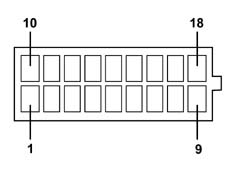
TELEPHONE/NAVIGATION MODULE CONNECTOR AND PIN OUT
18-way MQS connector
| Pin | Function |
|---|---|
| 1 | Not connected |
| 2 | Not connected |
| 3 | Reverse Signal Input |
| 4 | ''Service Call '' Repeat Button (outside E-Call) |
| 5 | Microphone output (to outside E-Call) |
| 6 | Hook (input from Intimity receiver) |
| 7 | Audio signal (output to Intimity receiver) |
| 8 | Microphone input (input from Intimity receiver) |
| 9 | Microphone input |
| 10 | Not connected |
| 11 | Milometer signal input |
| 12. | GND RF |
| 13 | Microphone supply (from outside E-call) |
| 14 | Ref. Microphone (to outside E-call) |
| 15 | + Lights signal input |
| 16 | Ref. Audio (input from Intimity receiver) |
| 17 | Ref. Microphone (output to Intimity receiver) |
| 18 | Ref. Microphone. |
NIT information
The information which can be obtained is divided into three categories:
- EEPROM data: This is data relating to the NIT configuration, the number of times overheating is recorded, the number of Key Ons since the last overheating and the details of internal errors.
- RAM data: This data relates to: the insertion or not of a CD and the CD play time, the presence or not of the CD Changer and the play time of the CD in the CD Changer, the presence or not of a SIM
- Identification data: This is the data which identifies the system hardware and software.
EEPROM data
This consists of:
Internal error details or signalling of error in the following functions:
- communication with GSM module
- communication with GPS module
- communication with radio module
- communication with CD module
- Main Board
Configuration or information on the presence of certain modules which are not always provided for in the NIT; these modules are:
- Telephone
- Services
- Voice Recognition
- TFT colour display
- Outside E-CALL module
Number of overheatings; this is a simple counter.
Number of Keys On since the last overheating; this too, involves a counter.
RAM data
This data is the volatile memory is valid when the diagnosis is activated. It includes:
- CD data: The playback time since the start of the track (expressed in seconds) is indicated. There is also a check as to whether the NIT recognizes the presence of a CD or not.
- Presence of SIM Card: There is a check as to whether or not the NIT recognizes the presence of a SIM Card in the SIM Reader.
SELF-DIAGNOSIS
The NIT is capable of self-diagnosing five possible types of error:
These are:
- Fault in the casing connection (each casing is diagnosed separately).
- Fault in the GPS aerial
- Fault in the AM/FM aerial
- Overheating fault
- General internal error
The following information is available for each type of error:
- the error code [DTC - Diagnostic Trouble Code]
- the DTC status (present / memorized but not present / absent).
- the conditions in which the error occurred (overheating)
- an error counter.
Product SW update
Loading a new SW version onto the NIT can be done as follows according to the levels referred to:
- as far as the DE-LUXE version is concerned, an updated Software version can be loaded by CD ROM
- the BASIC model, on the other hand, only has a CD Audio and not ROM player. The downloading therefore requires the intervention of the dealer/service centre which, using special equipment connected to the K line (serial ISO9141) allows the SW to be read and transferred to the NIT.
Electrical Absorption
The L4 level NIT absorption figures are:
Ioff = 2.2 mA
Normal operation (Vbattery 13.5 volt) = 3.8 Amp
Max operation (Vbattery 13.5 volt) = 10.5 Amp
Impulsive (battery attachment) 24 Amp (for a time < 2 ms)
Parts & tools for this job For 2000 Fiat Doblò
- TOOLDigital multimeterSearch: automotive digital multimeter
- PARTAssorted fuse kitSearch: car fuse assortment kit
- TOOLWire crimper and connector kitSearch: wire crimper connector kit
Links open Amazon search results in a new tab. As an Amazon Associate I earn from qualifying purchases.