
Intergrated control system (ics) panel
- Make
- Alfa Romeo
- Model
- 147 Factory Service Manual
- Year
- 2000–2004
- Section
- Special accessories › Intergrated control system (ics) panel
Intergrated control system (ics) panel
GLOSSARY
AF (ALTERNATIVE FREQUENCY):
Radio function which makes it possible, whilst receiving an RDS programme broadcast by several transmitters on different frequencies, to automatically switch to the frequency with the best reception.
BALANCE
Radio function which makes it possible to adjust the sound distribution between the left and right side speakers.
BASS
Radio function which makes it possible to adjust the acoustics (LOW TONES)
EON
Radio device function which makes it possible to receive information on traffic conditions from radio channels not currently tuned into, temporarily interrupting the station being listened to.
FADER
Radio function which makes it possible to adjust the distribution of the sound between the speakers
FM
Long wave radio transmission frequency between 8705 and 108 MHz.
GPS (GLOBAL POSITIONING SISTEM)
Satellite location system, whose purpose is to provide any user the possibility of deciding his position on the earth's surface.
GSM
Communication standard for mobile equipment (GSM= Global System for Mobile Communcation) currently used in about 90 countries, enjoying optimum coverage.
LOUDNESS
Radio function which makes it possible to improve the sound by increasing the low tones.
LW
Long wave radio transmission frequency between 153 and 279 kHz.
MW
Long wave radio transmission frequency between 531 and 1602 kHz.
CONNECT
Info Telematic Node
POI (Point of interest)
Consists of typing in a sequence of information in order to select a particular point of interest (in relation to which information can be obtained)
PTY
Radio function which makes it possible, with the RADIO mode activated, to select the type of programme, e.g. NEWS (news and current affairs), AFFAIRS (politics and events), etc. for the radio stations which provide this type of information.
PTY31
Alarms on extraordinary events (e.g. floods, earthquakes) which are broadcast from enabled radio stations
RDS (RADIO DATA SYSTEM)
Radio broadcasting system intended for radio transmission in the range from 87.5 to 108.0 MHz
RG (Route Guidance)
Route guidance assisted with speech and written messages
TA
Radio function which makes it possible, if set, to receive traffic news broadcasts irrespective of the current radio operating mode.
If a CD is playing, this is interrupted and the volume is automatically increased.
TFT (THIN FILM TRANSISTOR)
Technology used for making high-resolution liquid crystal screens.
TP (TRAFFIC PROGRAMME)
RDS transmitter with traffic news.
TREBLE
Radio function which makes it possible to adjust the acoustics (High Tones)
SIM (Subscriber Identication Mobile)
Phone card
SMS ( Short Mesage System )
Short messages)
PIN ( Personal Identification Number )
Personal identification number
PUK ( Pin Unblocking Key )
Code for unblocking phone after three incorrect PIN code entries
DTMF ( Dual Tone Multi Frequency )
Key with two frequency tones
CONNECT
The CONNECT system is shown below.
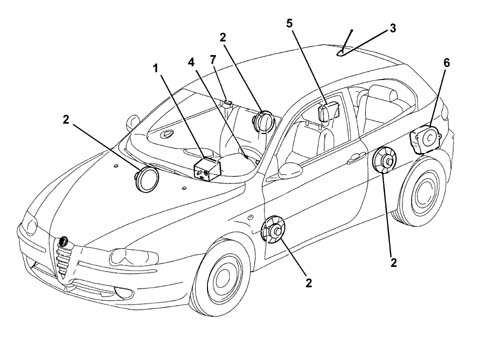
1 - Connect module
2 - Loudspeakers
3 - Radio/GPS/GSM aerial
4 - Steering wheel controls (opt)
5 - CDC (opt)
6 - BOSE subwoofer (opt)
7 - Hands-free microphone
Specifications
Introduction
The Telematic Info Node (CONNECT) is an electronic device connected to the B-CAN network which incorporates the radio, music CD player, Navigator and the GSM car 'phone with Voice Recognition module. The TIN is mounted at the centre of the dashboard and occupies 2 DIN slots (1 DIN slot corresponds to the standard dimensions of a car radio).
Cars fitted with CONNECT also have an instructions document for use of the radio/CD, car 'phone and Navigator
The external components which complete the CONNECT functions are:
- Loudspeakers, in the two versions HIGH level and HI FI level (see subgroup 5570T)
- The radio aerial with radio, telephone and satellite navigator functions
- A CD CHANGER with 10-disc loader supplied as OPT (see subgroup 5570T)
COMPOSITION
Architecture
The CONNECT is constructed with the following architecture; inside, there is a Master Module which coordinates the following modules:
- FM/AM radio module
- CD-ROM+CD-Audio player module
- GPS navigator module
- GSM Dual Band telephone module
- SIM card reader module for telephone function
- Integrated module for recognition/speech command for telephone function
- External module consisting of a 5' display in TFT technology
Options:
- Management of external CD CHANGER module (if present)
- Steering wheel controls for controlling the radio, CD/CDC player, car 'phone and speed commands.
- Trip management (on-board computer)
- Service Management (Targa Services)
Front panel
The front panel, shown below, is made out of a single part moulded in polycarbonate. It comes with two plug arrangements for versions with and without a phone card (A).
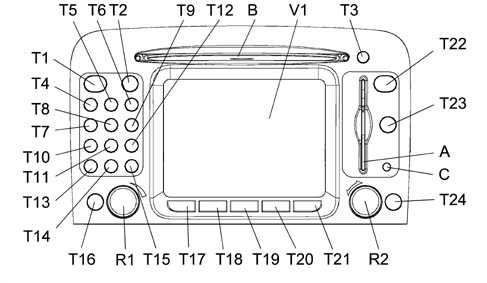
The front pane is the same on all versions, apart from the plug arrangement. It features twenty-four keys (T1 - T24) and two rotating selectors (R1-R2).
Some controls have mulitiple functions that depend on active system operating conditions.
Activation of the selected function is controlled, in some cases, by the length of time for which the key is pressed (short or long), as shown in the following function descriptions:
T1
Single press
TELEPHONE: has the function of sending the outgoing call following the dialling of the number in the TELEPHONE menu.
Any application (in the case of an incoming call): has the function of acquiring the incoming call
Prolonged press
Any application (in the case of an incoming call): has the function of rejecting the incoming call
T2
Single press
VOICE RECOGNITION: activates the voice recognition function.
Prolonged press
VOICE RECORDER: activates the recording of 30 seconds of user speech
T3
The function of this button is to allow the CD to be taken out of the player.
T4
Single press
TELEPHONE application: this is the telephone button '1'
Any application (excluding TELEPHONE)
Source = FM1/FM2/FM3/MW1/MW2/LW: this is the button which selects the first programme memorised in that band
Prolonged press
Any application (excluding TELEPHONE)
Source = FM1/FM2/FM3/MW1/MW2/LW: this is the button for memorising, in the first position of the current band, a station selected previously, with R2 in fine mode or with T13/T15 in SKIP mode
T5
Single press
TELEPHONE application: this is the telephone button '2'
Any application (excluding TELEPHONE)
Source = FM1/FM2/FM3/MW1/MW2/LW: this button selects the second programme memorised in that band
Prolonged press
Any application (excluding TELEPHONE)
Source = FM1/FM2/FM3/MW1/MW2/LW: this button is for memorising, in the second position of the current band, a station selected previously, with R2 in fine mode or with T13/T15 in SKIP mode
T6
Single press
TELEPHONE application: this is the telephone button '3'
Any application (excluding TELEPHONE)
Source = FM1/FM2/FM3/MW1/MW2/LW: this button selects the third programme memorised in that band.
Prolonged press
Any application (excluding TELEPHONE)
Source = FM1/FM2/FM3/MW1/MW2/LW: this button is for memorising, in the third position of the current band, a station selected previously, with R2 in fine mode or with T13/T15 in SKIP mode
T7
Single press
TELEPHONE application: this is the telephone button '4'
Any application (excluding TELEPHONE)
Source = FM1/FM2/FM3/MW1/MW2/LW: this is the button which selects the fourth programme memorised in that band
Prolonged press
Any application (excluding TELEPHONE)
Source = FM1/FM2/FM3/MW1/MW2/LW: this button is for memorising, in the fourth position of the current band, a station selected previously, with R2 in fine mode or with T13/T15 in SKIP mode
T8
Single press
TELEPHONE application: this is the telephone button '5'
Any application (excluding TELEPHONE)
Source = FM1/FM2/FM3/MW1/MW2/LW: this button selects the fifth programme memorised in that band.
Prolonged press
Any application (excluding TELEPHONE)
Source = FM1/FM2/FM3/MW1/MW2/LW:this button is for memorising, in the fifth position of the current band, a station selected previously, with R2 in fine mode or with T13/T15 in SKIP mode
T9
Single press
TELEPHONE application: this is the telephone button '6'
Any application (excluding TELEPHONE)
Source = FM1/FM2/FM3/MW1/MW2/LW: this is the button which selects the sixth programme memorised in that band
Prolonged press
Any application (excluding TELEPHONE)
Source = FM1/FM2/FM3/MW1/MW2/LW: this button is for memorising, in the sixth position of the current band, a station selected previously, with R2 in fine mode or with T14/T15 in SKIP mode
T10
TELEPHONE application: this is the telephone button '7'
Any application (excluding TELEPHONE)
Source = CDC: this button selects the CD preceding the current one in the CDC loader
T11
TELEPHONE application: this is the telephone button '8'
T12
TELEPHONE application: this is the telephone button '9'
Any application (excluding TELEPHONE)
Source = CDC: this button selects the CD following the current one in the CDC magazine
T13
TELEPHONE application: this is the telephone '*' button
Any application (excluding TELEPHONE)
Source = FM1/FM2/FM3/MW1/MW2/LW: this button skips backwards in frequency, stopping at the first transmitter with an audible signal
Source = CD, CDC: button for skipping to the previous track.
T14
Single press
TELEPHONE application: this is the telephone '0' button
Any application (excluding TELEPHONE)
Source = CD, CDC: this is the PLAY/STOP button of the audio CD player (if there is an audio CD inserted in the player).
Prolonged press
Any application (excluding TELEPHONE)
Source = CD, CDC: this is the PAUSE button
T15
TELEPHONE application: this is the telephone '#' button
Any application (excluding TELEPHONE)
Source = FM1/FM2/FM3/MW1/MW2/LW: this button skips forwards in frequency, stopping at the first transmitter with an audible signal
Source = CD, CDC: button for skipping to the next track.
T16
The button (SRC) in question is for selecting (in rotation) the possible audio sources relating to the radio system; following repeated presses (FM1-FM2-FM3-MW-CD-CDC).
T17
Single press
MAIN: Pressing this button activates the MAIN application (screen summarising all the applications in operation)
Prolonged press
DARK: this is for darkening the display without losing the functions of the TIN system, which continues to operate as if nothing had happened.
You can return to the graphic mode by pressing any of the buttons T17-T21
T18
Single press
AUDIO: Pressing this button activates the AUDIO application
Prolonged press
AUDIO OFF: this deactivates the audio (radio) module, preventing radio reception and playing of CD tracks.
The audio module can be reactivated by pressing T19 again; in this case the situation (configuraiton, selected radio station, CD track being played) will be the same as that present when switched off.
T19
Single press
TEL: Pressing this button activates the TELEPHONE application
Prolonged press
TELEPHONE OFF:
This deactivates the telephone module, preventing the reception and transmission of calls and the display of telephone info.
The tel. module can be reactivated by pressing the T18 button again and of course the Emergency Call button.
T20
Single press
NAV: Pressing this button is for activating the NAV application
Prolonged press
NAV MUTE is for muting only the Route Guidance speech messages. The speech function is reactivated by prolonged pressure on the button (T20).
T21
TRIP: Pressing this button activates the TRIP application
T22
Press this CONNECT button (T22) to display the INFORMATION AND ASSISTANCE SERVICES menu.
T23
RPT: This is used to make the system repeat the last voice command (which was perhaps difficult to hear or accidentally disregarded)
T24
ESC: This button is for exiting from any selection list or going up from one submenu level to the next one up.
R1
This is used for switching the system on/off (button function), and for adjusting the volume (encoder function).
R2
This is used for selecting the desired function in the various user menus and confirming by pressing (key/encoder function).
V1
The screen is TFT technology and its size is 5'
A
Slot for Sim Card
B
CD slot
C
Optical sensor for automatically switching display lighting between night and day settings.
Connector layout
The connector layout is shown below
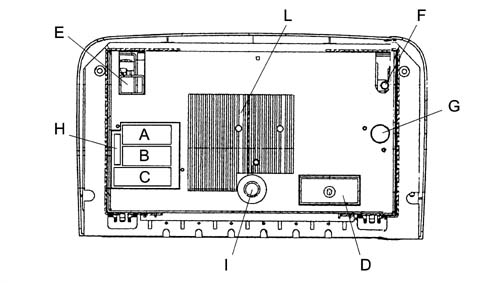
A - Radio connector
B - Radio connector
C - Radio connector
D - Services connector
E - GSM aerial connector
F - GPS aerial connector
G - Radio aerial connector
H - 10 amp. fuse
I - Centring pin
L - Heat sink
Pin out
Pin-out of the assembly
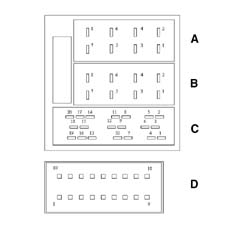
Connector A (8 pin)
1 - B-CAN bus (B)
2 - BOSE amplifier input
3 - B-CAN bus (A)
4 - Key inserted input (+15)
5 - 12V for automatic aerial
6 - N.C.
7 - Permanent 12V
8 - GND supply (earth)
Connector B (8 pin)
1 - Right rear loudspeaker (+)
2 - Right rear loudspeaker (-)
3 - Right front loudspeaker (+)
4 - Right front loudspeaker (-)
5 - Left front loudspeaker (+)
6 - Left front loudspeaker (-)
7 - Left rear loudspeaker (+)
8 - Left rear loudspeaker (-)
Connector C (20 pin)
1 - N.C.
2 - N.C.
3 - N.C.
4 - N.C.
5 - N.C.
6 - 12 V ignition controlled for BOSE amplifier
7 - N.C.
8 - N.C.
9 - N.C.
10 - Input 1 for steering wheel buttons
11 - Input 2 for steering wheel buttons
12 - Reference for steering wheel buttons (earth)
13 - CD-Changer reception
14 - CD-Changer transmission
15 - 12V permanent for CD-Changer
16 - 12V ignition controlled for CD-Changer
17 - GND (earth) for CD-Changer
18 - Audio reference from CD-Changer (earth)
19 - Audio L signal from CD-Changer
20 - R audio signal from CD-Changer
Connector D (18 pin)
1 - N.C.
2 - N.C.
3 - N.C.
4 - N.C.
5 - N.C.
6 - Hook (input from intimity receiver) (receiver raised information)
7 - Audio signal (output towards intimity receiver)
8 - Microphone input (input from intimity receiver)
9 - Microphone input
10 - N.C.
11 - N.C.
12 - GND (earth)
13 - N.C.
14 - N.C.
15 - N.C.
16 - Audio reference (input from intimity receiver)
17 - Microphone reference (output to intimity receiver)
18 - Microphone reference
Introduction
Switching the system on/off and stand-by
The system can assume one of the following conditions:
- off, with all the functions disabled;
- normal status, with all the functions activated or able to be activated;
- stand-by, with the functions partly activated and the screen dark
System activation
The system is activated automatically when the ignition is turned ON and it assumes the status activated before it was switched off last time (normal or stand-by).
When the ignition key is turned OFF or removed, the system comes on by pressing the left knob (T16) or the SOS button (T22) for a 'Service Call' (the PIN number must be entered in order to use the telephone).
Turning the system off
The system switches off automatically when the ignition key is turned to the OFF position. The conditions and functions activated before the system is switched off are memorized and will be restored the next time it is switched on.
The switching off is delayed if a phonecall or an emergency call is in progress or if there is a change of language for the voice instructions by about 20 minutes after the call has ended or at the end of the function.
If the system has been switched on using the knob (T16) or the button (T22) with the ignition key in the OFF position or extracted, it is switched off by pressing the knob (T16) again or it switches off automatically about 20 minutes later to preserve the battery.
Stand-by (dark)
Whilst the system is operating with the ignition key inserted, it can be placed in the stand-by mode by pressing the MAIN button (T17) at length. This operating condition (Dark) corresponds to a dark screen with the volume off, but the system continues to work invisibly and therefore the telephone is ready to receive calls.
If the limit of an activated function is exceeded in the stand-by mode, a warning is displayed.
To return to normal operating conditions, press the MAIN button (T17) or the emergency call button (T22) briefly (the PIN number must be entered in order to use the phone).
Volume adjustment
To increase the volume: turn knob (T16) clockwise
To reduce the volume: turn knob (T16) anticlockwise
During adjustment, volume level is shown graphically on the display (this type of display is present only on the main menu for the radio source).
The volume of the PTY31 Alarm/Traffic Announcement (TA), phone, phone ringer and voice recognition may be adjusted separately.
Automatic volume reset during phone calls
During phone calls, the radio volume is reset automatically and the display shows the phone symbol.
Mute function (audio volume reset)
Hold key (T18) down to deactivate volume of the audio system (Radio, CD, CDC) with any operating mode active (MAIN, NAV, TRIP); the radio thus goes off and the message 'Audio OFF appears on the display Give key (T18) a short press to turn the radio back on. This reactivates the audio function with the relevant screen.
Nav mute function (exclusion of navigation system voice messages)
Hold the NAV key down to deactivate the navigation system voice instructions (T20). The volume gradually decreases (Soft Mute function) and the message 'NAV MUTE appears on the display.
Give the NAV key (T20) a long press to deactivate the NAV MUTE function: the volume will gradually increase (Soft Mute function) to the previous setting.
With the NAV MUTE function active, all other navigation system functions can be used and the MUTE function will be ignored if traffic information is received with the TA function active or an emergency alarm is received.
Soft mute function
When the MUTE function (audio system) or NAV MUTE (navigation system) is turned on or off, the volume falls or rises gradually (Soft Mute function). The Soft Mute function is activated when one of the six preselection keys numbered 1 to 6, key (T13) or key (T15) is pressed to tune the radio stations.
Anti-theft protection
The CONNECT system has an anti-theft protection system based on the exchange of information with the electronic control unit (Body Computer) which prevents it from being used on another vehicle even if it is equipped with a Body Computer. The protection system means that the telematic system cannot be used once it has been extracted from the dashboard and stolen.
This 'recognition' procedure is carried out each time the engine is started.
This system guarantees maximum security and prevents the secret code having to be entered each time after the radio supply is disconnected (for example when the battery is disconnected). Each time it is reconnected an automatic test procedure is conducted; if the result of the test is positive, the system starts to work, whilst if the codes compared are not the same, the display shows a message on the display which asks the user to enter the 4 digit secret code
Entering the secret code
The four digit secret code, represented by black asterisks, should be entered using the telephone keypad and confirmed by pressing the knob (R2). The figures entered are shown by red asterisks which replace the black ones.
If one of the code digits needs correcting, press the ESC button (T24) briefly to cancel it, then enter the correct digit. Pressing the ESC button (T24) for longer cancels the entire secret code entered.
After entering and confirming the secret code, a message appears on the display advising the user that the recognition procedure is in progress. If the outcome of the test is positive, the system starts to work normally, whilst if it is not, the screen for entering the code appears again. The system will not work until the correct code has been entered.
The secret code has to be entered for the CONNECT to work after it has been connected to the vehicle's electrical system for the first time or to a different Body Computer from the original one or after a replacement of the system.
Personal data
If the system fails, it cannot be repaired. Instead the full system must be replaced and this entails the loss of any personal data in the memory.
Thermal protection
This complex strategy makes use of several sensors. The following functions are disabled/enabled according to passenger compartment interior temperature:
- up to 75ºC the system works normally,
- from 75ºC to 85ºC, the volume is limited, the CD player (audio and maps) is disabled and the phone works normally,
- at 85ºC the phone is disabled,
- at 90ºC the system is completely disabled.
The user must wait for passenger compartment temperature to drop below the limit to resume the interrupted function; this condition is signalled by the message on the display disappearing followed by the function being reactivated.
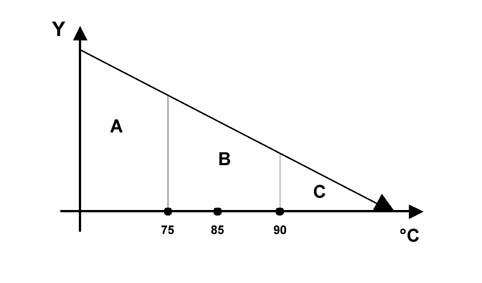
Y. Functions
A. Functions active
B. Volume reduction from 75° C, audio/map CD deactivated from 75° C, phone deactivated from 85° C
C. Self-deactivation
Protection against overheating
The telematic system components come with an overheating protection function that cuts off operation when the relevant module temperature exceeds a set limit.
In this case, the function activated by the module that has reached the temperature limit is deactivated and a message for the user appears on the display.
The user must wait for the module temperature to drop below the limit to resume the interrupted function; this condition is signalled by the message on the display disappearing followed by the function being reactivated.
Conversely, to exit from the message screen immediately and activate a different function, press the ESC key (T24).
The can network
The TIN is a+15 node connected to the B-CAN network; this means that at Key OFF, the CONNECT is not connected to the network and cannot be reactivated by the network.
The Key On signal is in fact a direct signal to TIN.
Information received
The information the CONNECT receives from the network is as follows:
- general information
- insufficient battery voltage signal
- switching on of lights
- key status
- reverse gear
- LCD screen brightness
- vehicle speed
- current time (hour/min.)
- right odometer signal
- left odometer signal
- set-up information (from instrument panel node)
- unit of measurement for distances
- unit of measurement for temperature
- selected language
- trip information (from instrument panel node)
- unit of measurement for fuel consumption
- instantaneous consumption
- average consumption
- current range
- average speed from reset
- distance travelled from reset
- total travel time since reset
- average speed from time xx:yy
- distance travelled from time xx:yy
- total travel time from time xx:yy
Information transmitted
The information which the CONNECT sends on the network is:
- Navigation information
- distance to next manoeuvre
- pictogram relating to the manoeuvre
- name of entry channel
- audio information
- active audio source (radio,CD,CDChanger)
- active radio band
- radio tuner frequency
- CD track number
- disc number in CDC
- RDS string
- Telephone information
- Number called or caller and possible associated name in the heading.
- Presence of SMS message.
- Incoming call.
- Navigator set-up information
- Presence of radio tuner module
- Presence of GSM module
- Presence of GPS module
- Presence of navigator module
- Presence of Voice Recognition module
Languages
The languages available for both the strings displayed and the voice navigation messages are:
- French
- English
- Italian
- Dutch
- Spanish
- German
The language is selected on NQS which, via the CAN network, informs the CONNECT of the settings entered by the user.
Once the Connect has received the command, it automatically updates the new setting.
If the voice recognition module is present, the Connect activates a manual setup procedure under the guidance of visual messages.
Steering wheel controls
The controls for the main functions of the CONNECT system are duplicated on the steering wheel for easier operation.
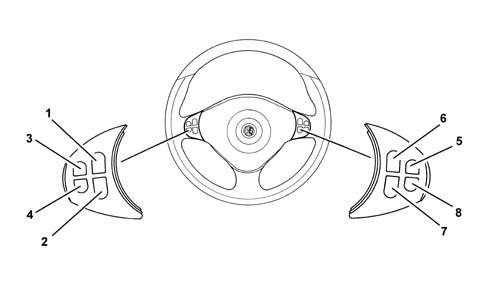
1 - Volume increase button
2 - Volume decrease button
3 - Mute button
4 - Voice recognition button: voice recognition activation/deactivation (short press), voice message storage (long press)
5 - Radio frequency range selection button (FM1,FM2,FM3,LW,MW) and listening sources available (Radio - CD - CD-Changer if fitted)
6 - Multifunction key: Radio: call up preset stations (from 1 to 6); CD Player: next track selection CD-Changer: selection of next track on CD being played
7 - Multifunction key: Radio: recall preset stations (from 6 to 1); CD Player: selection of previous track CD-Changer: selection of previous track on CD being played
8 - Accept incoming call (short press) Send last number dialled (short press) Send number dialled using telephone keypad (short press) Refuse incoming call (long press) End call in progress (long press)
OPERATION
Main screen (main)
The main screen allows the most important system data to be displayed without offering selection elements.
The MAIN screen appears by turning the ignition key to the ON position or by pressing the MAIN button (T17). It supplies the following information for the various active functions.
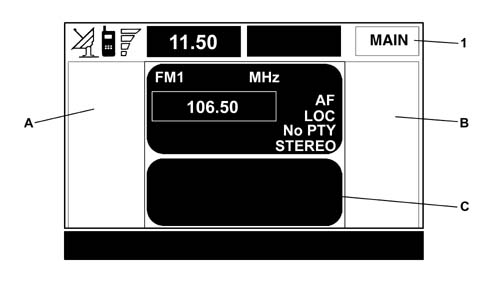
1 Screen display active
A Area reserved for Navigation system information (if active)
B Area reserved for menu display
C Area reserved for phone information (if active)
Radio
The following are shown on the display when the radio is in operation:
- frequency band and station selected,
- station name or frequency after tuning,
- frequency only when searching for a station,
- 'TA code if the Traffic information reception function is activated.
- 'TP code of the selected station is enabled to transmit information on traffic conditions;
- 'EON code if EON (Enhanced Other Network) information is received;
- 'AF code if the alternative frequency search function is activated;
- 'DX/LOC code according to sensitivity setting of radio station search;
- 'STEREO/MONO code according to the selected station transmission type;
- Name and frequency of stations stored using preselection keys 1 to 6.
Compact disc (cd) player
The following are shown on the display when the CD player is in operation:
- CD number (if CD-Changer installed) and track number (number of track currently playing);
- 'TA if the traffic information reception function is activated.
Telephone
The following are shown on the display when the phone is in operation:
- name of the network service provider and intensity of the reception signal;
- name or telephone number and conversation duration while the caller is connected;
- residual credit on phone card;
Symbols relating to the telephone settings:
- call ringer off
- transfer function on
- disablement function on
- phone inactive or no access to network
- SMS message received, not read;
- Display of 'no card' warning if the SIM card is not inserted,
- Display of 'enter PIN or 'card faulty' or 'network search' or 'emergency only' or 'enter PUK warning, as appropriate;
- Display of 'dialling interrupted' warning if the call is momentarily suspended;
- Display of 'end call' warning;
- Display of 'no connection' warning if the network connection is interrupted;
- Display of 'busy' warning;
- Display of 'call not accepted' warning,
Time
Time is displayed using the 24 hour clock 'hh:mm'.
Outdoor temperature
Outdoor temperature is displayed in ° C/F.
Pop-up menu
When selector (R2) is pressed when the main screen is displayed, a pop-up menu appears with the following functions:
- Mem. Voice: allows replay and deletion of voice messages recorded by the user
- Setup: allows access to a new screen with the following system adjustment functions:
- Day lighting
- Night lighting
- Automatic
When the day or night 'lighting' function is selected and confirmed using knob (R2), display lighting can be altered within the available range of values. When the exterior lights are turned on, the system switches between the two settings 'Day lighting' and 'Night lighting'.
The 'Automatic' function switches the display lighting from the day setting to the night and viceversa according to passenger compartment light intensity measured by an optical sensor (C) on the front panel.
Press ESC key (T24) to make the menu disappear from the display.
Radio mode (audio)
Introduction
The audio system is activated by pressing the AUDIO button (T18) briefly, which gives access to the main radio main functions.
The radio is always set to receive stations in RDS (Radio Data System) mode.
The radio Tuner has the following functions:
- RDS EON including PTY, REG on/off, TA on/off functions
- Tuning to the following bands:
- FM (87.5-108 MHz)
- MW (531-1602 kHz) in 9kHz steps
- MW (530-1710 kHz) in 10kHz steps
- LW ( 153-279 kHz)
- Manual and automatic tuning on 5 bands (FM1,FM2,FM3,MW,LW)
- Memorisation of 6 stations per band (total 30 stations)
- Settable LOC/DX sensitivity
- RDS-TMC
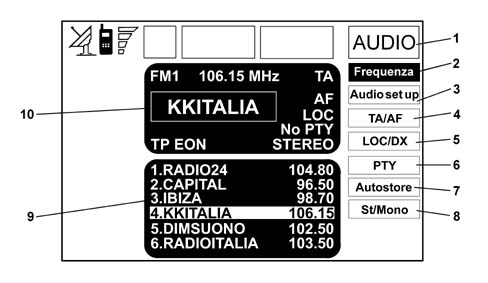
1 Screen display active
2 Frequency setting menu
3 Audio setting menu
4 TA/AF mode setting menu
5 LOC/DX mode setting menu
6 PTY mode setting menu
7 Autostore mode setting menu
8 Stereo/Mono mode setting menu
9 Stored station display
10 Data display: station active and settings active
When the AUDIO key (T18) is pressed for longer with the audio system working and any operating mode active, the MUTE function is activated. The radio thus goes off and the message 'Audio OFF appears on the display. To turn the radio back on, press the key briefly to reactivate the audio function with the associated screen.
Available sound sources are displayed cyclically in the audio system when the SRC (T16) key is pressed repeatedly:
- Radio (FM1, FM2, FM3, LW, MW)
- CD (if a CD is inserted)
- CD-Changer (if fitted).
Radio
- The following settings are availabe in audio mode:
- Treble
- Bass
- Loudness
- Equalizer (excluding versions with the BOSE HI-FI system).
- Equal. Man
- SDV
- Bal/Fader
- Frequency
- Audio setup
- TA/AF
- LOC/DX
- PTY
- Autostore
- St./Mono.
Cd
The following functions are available in CD mode:
- TA
- Scan
- Shuffle
- CD setup
- Audio setup.
If the CD is not inserted then the display will show 'No CD-DA
When the CD is selected, playing begins from the last track played previously or the first track when the CD is inserted. To listen to the previous or next track on the CD, press the keys << (T13) o >> (T15) respectively.
To interrupt CD play, press the PLAY / STOP / PAUSE key briefly. To resuming playing the CD, press the PLAY / STOP / PAUSE key (T14) briefly To pause the CD, give the PLAY / STOP / PAUSE key (T14) a long press.
To remove the CD from its slot, press the EJECT key (T3).
Cd-changer
If a multiple CD player is installed, select the CDC source (CD-Changer) using the SRC key (T16) to display the following functions:
- TA
- Scan
- Shuffle
- CDC setup
- Audio setup.
When the CD-changer is selected, playing begins from the last CD played previously or the first CD after inserting the loader. Use keys v (T7) or ^ (T9) to change the CD being played. Use keys << (T13) or >> (T15) to listen to the previous or next track on the CD being played.
If the selected CD is not in the loader, the display shows the message 'NO CD.
If the CD being played is not legible or is not an audio CD, the display shows the message 'CD Error'.
The lower part of the display shows CDs available in the loader and the corresponding total listening time.
Voice activated cellular telephone (tel)
The CONNECT comes with a Dual Band GSM mobile phone (900-1800MHz) with handsfree option.
Frequencies are as follows:
- (Rx) 925-960 MHz / 1805- 1880 MHz
- (Tx) 880-915 MHz / 1710- 1785 MHz
The GSM (Global System for Mobile Communication) standard is currently used in many countries and offers excellent coverage. Contact your network service provider for information on areas served by the GSM network now and in the future.
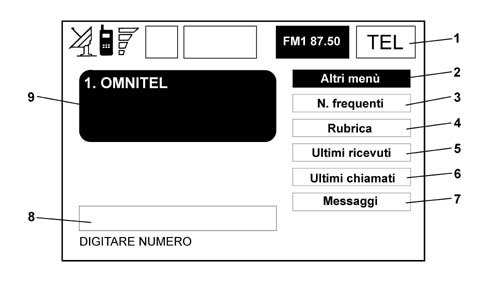
1 Screen display active
2 Select next screen after menu
3 Activate frequent number display
4 Activate phone list
5 Activate last calls received
6 Activate last calls made
7 Activate SMS menu
8 Display number entered
9 Display network provider
The cellular telephone functions are displayed by pressing the TEL button (T19) or the telephone button (T1) briefly.
If you call up the phone screen using key (T1), the last number called will appear on the display without the call being activated. Press key (T1) again to make the call. Press the ESC key (T24) to go back to the main phone screen.
Introduction
The cell phone comes with the following convenient functions:
- PIN code (Personal Identification Number) to prevent the phone being used by unauthorised callers
- PIN change
- activation/deactivation of PIN request on activation
- acceptance or rejection of incoming calls
- send a telephone call
- emergency calls (even without SIM card and without entering PIN code)
- reading of phone numbers stored on the SIM card
- input of a new phone number on the SIM card
- deletion of a phone number from the SIM card
- copy of one element at a time from SIM and Connect and vice versa
- information on SIM card status (correct or incorrect entry and space available in memory)
- access to a list of the last 10 numbers dialled to facilitate recurrent calls
- access to a list of the last 10 incoming calls
- SMS message function that allows SMSs to be received and sent
- activation and deactivation of access to the SIM (Subscriber Identification Module) phone card
- access to and modification of lists of frequently dialled numbers and phone list
- manual dialling
- DTMF (Dual Tone Multi Frequency) settings that allow repeat dialling and prevent transmission of individual PINs
- select network service provider
- set call reception volume and sound
- display residual credit if SIM card is prepaid
- display signal field intensity
- phone inactive or network service inactive or phone not connected to network
- call signal deactivated
- 'transfer' function activated
- 'preclusion' function activated
- SMS message received and read
- SMS message received but not read
- SMS message written and sent
- SMS message written but not sent
Insert phone card
If a valid SIM card is not inserted when the phone function is called up, a warning message appears on the display.
Inserting a valid SIM CARD renders the telephone operational and gives access to the functions The phone card must be inserted into slot (A) until it clicks home. The invitation to enter the card PIN code confirms that the card has been correctly inserted.
When the card is inserted, the phone operating system can be accessed by pressing the TEL key (T19) or the phone key (T1).
To withdraw the SIM card, press it lightly into its slot and release; The system pushes it out slightly and it can be withdrawn.
Extraction of the SIM card with the phone active may cause a temporary malfunction; before removing the SIM card, the user must turn off the phone using the TEL OFF key (T19) or the CONNECT system using the ON/OFF key (R1).
If the phone malfunctions because the SIM card is extracted with the phone in operation, normal operation will be restored when the car is turned off and on.
Entering 3 incorrect PIN codes in succession blocks the card. The card can be released by entering either the PUK code (Pin Unblocking Key) or the new PIN (minimum of 4 characters, maximum of 8).
The SIM reader is for the 'large' type of SIM Card. 'Small' SIM Cards can only be used with a suitable adapter. This adapter is supplied directly by the Provider together with the SIM or may be obtained commercially.
Accepting calls
If a call is receivd while a phone call is in progress, the name of the caller (if on the list) and the number (if available) will be shown on the display with the options 'Accept' or 'Reject'. Use knob (R2) to selet and confirm options.
If you accept the new call, the previous call will be put on hold until the new call is finished or until the first caller decides to hang up.
If you reject the incoming call, the message disappears from the display and you can continue with the first call undisturbed.
Regardless of which system operating mode is active (radio, CD player etc), incoming calls are indicated on a screen that shows the name (if in the list) and number (if available) of the caller and an invitation to accept or reject the call.
To accept the call, press phone key (T1) briefly. Hold key (T1) down for longer to reject the call.
To cut off a call, give phone key (T1) a long press.
Phone call
To make a phone call, select the 'cell phone' function using key (T19), then press phone key (T1) after dialling the phone number using the keypad on the left side of the control panel or calling the number using one of the menu functions (phone list, frequent numbers, last numbers received or called).
When the call is sent, information about the current call is displayed on the left side of the display, the radio sound is deactivated, the connection is made and, if the subscriber calls responds, the counter is started for the duration of the call.
Hold the ESC key (T24) down to stop sending a call.
Voice controls
The user can use the voice recognition function to control the CONNECT by voice in order to carry out certain phone functions.
There are two different methods for the voice activation function:
- with voice identification;
- without voice identification.
In the first case the system is capable of recognizing the command by comparing the voice command with a sample memorized previously.
In the second case the system is capable of receiving voice commands irrespective of the voice.
Voice commands have priority over the controls on the front section of the system and those on the steering wheel (if fitted).
Voice recognition and message storage operations are immediately interrupted by an incoming call; In this case, the entire operation must be repeated at the end of the call. The arrival of SMS text messages does not interrupt operations.
Voice commands without voice identification
Voice controls that can be given to the system without voice identification are shown in the following table:
| Service required | Voice command to be given |
|---|---|
| Entering the PIN code | Enter PIN code |
| Call a phone number | Call the number |
| Calling a number in the phone list | Select a name |
| Call the last number selected | Recall |
| Enter a voice sample (*) | |
| Listen to the contents of the phone book | Read the names |
| Delete a voice sample | Delete the name |
| Delete all voice samples | Delete all names |
(*) This operation must be started from the phone list submenu by selecting 'New Voice Command'.
During the 'conversation' with the voice recognition system, the user may modify the flow of the conversation by using the key words listed in the following table:
| Function required | Voice command to be given |
|---|---|
| Suspend the operation | Suspend/Stop/Interrupt |
| Delete the last information supplied by the user | Delete |
| Repeat last information received | Repeat |
| Carry out the required service | Send |
| Carry out the function proposed by the system | Yes |
| Do not carry out the function proposed by the system | No |
Voice messages
This function allows the user to record and replay six voice messages, in order, with a total maximum duration of 30 seconds for each message. If the memory is full, the oldest message is overwritten. When the time available elapses, the operation ends automatically.
The recording activated by the user can last for a maximum of 30 seconds, and is terminated automatically at the end of this available time.
However, the user can interrupt it manually.
Both the beginning of the recording and the end (either terminated by the user or because the memory has run out), are identified by an appropriate acoustic message (double beep).
The Voice Memo allows you to listen to voice messages from the last message recorded and then all previous messages. Once the buffer is full, the messages are played again from the first (in a continuous loop).
The Voice Memo allows the entire buffer available for recording to be deleted.
Navigation system (nav)
General information
The satellite navigation system is activated by pressing the NAV key (T20) which gives access to the main functions.
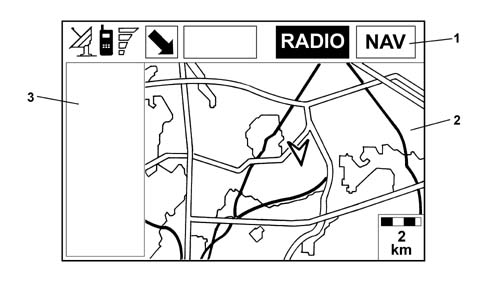
1 Screen display active
2 Screen layout display
2 Display of pictogram information
The navigation system in the CONNECT makes it possible to reach a pre-established destination by means of visual instructions (pictograms/maps) and acoustic instructions. The navigation system is fast, convenient, safe and - above all - very flexible to use because it allows you to call up programmed destinations or reference points such as hotels, places of historical interest, public organisations, fuel stations or Alfa Romeo dealers.
The position of the vehicle is determined by means of the GPS (Global Positioning System) on board the vehicle. The GPS system is equipped with an aerial and a receiver module integrated in the telematic system. The system dynamically processes the satellite signals, the signals coming from the left and right milometers, the reversing signal and the information from the gyroscope incorporated in the navigation calculator, integrating them with the current position of the vehicle to produce an 'estimated vehicle point'.
This estimated position tends to differ from the current position as a result of sensor imprecision. To correct this error, every 30 metres an algorithm is activated, called Map Matching, which correlates the journey made by the car with the road network present in the map data base.
The signals coming from the left and right milometers make it possible to determine the movement of the vehicle and whether it has turned off (identified by the difference travelled between the left and right wheels), whilst the reversing sensor identifies the direction of travel.
The Alfa Romeo navigation system helps the driver while driving and advises on the best route to the set destination by means of voice and graphic information.
The suggestions given by the navigation system do not release the driver from full responsability for manoeuvres carried out in traffic while driving the car and for respecting the highway code and other traffic regulations. The responsibility for road safety is always expected from the driver of the vehicle.
GPS reception is difficult under trees, between high buildings, in multi-storey car parks, in tunnels and anywhere where the satellite aerial reception could be obstructed.
If the battery has been disconnected fro the car, the GPS system takes about 15 minutes to become activated.
The GPS navigation system takes a few minutes to pinpoint the new car position after it has been turned off and the car driven without the system active (e.g. on a pick-up truck).
If there is no satellite information, the on board system uses information from the ABS sensors for an analysis of the data.
The GPS satellite aerial should not be covered by metal or damp objects.
This car's instantaneous position is identified in the navigation CD-ROM and shown on the display together with the topographical features of the area memorized on the CD. Access to the data on the CD-ROM requires a brief wait whilst the maps are displayed.
The system constantly compares the information coming from the wheel sensor, the GPS aerial and the gyroscope in order to automatically compensate for variations in temperature, pressure or any other eventuality which could affect the position reading in any way.
The precise autoadjustment of the navigation system requires 50/100 km to be covered after first activation and when the tyres are changed.
If the wheel grip conditions are poor (for example slipping on ice), the system will temporarily give an incorrect position reading.
During the autoadjustment the position reading is incomplete.
The navigation system is completely managed by the telecoms system therefore the only operations which may be necessary are replacing the CD-ROM with one with a map for another area or with an updated map.
Internal functions (localisation)
The GPS measurements used inside the CONNECT nagivation system are:
1 - Estimated position of the vehicle expressed as Latitude / Longitude
Latitude/Longitude values refer to the satellite and are expressed as radiants and Height in metres. The Latitude indicates the reference parallel.
Parallel zero is the equator. Car position is therefore defined as the meridian arc between the point of the car and the reference parallel.
It is essential to indicate whether the latitude is North or South, i.e. it is necessary to specify the hemisphere within which the car is located: North or South, the maximum value is 90°.
The longitude indicates the reference meridian.
The zero meridian passes through Greenwich (near London). The car's position is therefore defined as a parallel arc between the car's point and the reference meridian.
It is essential to indicate whether the longitude is East or West, the maximum value is 180°.
2 - Vehicle's speed in m/s along the south-north / east-west axes.
3 - PDOP of the GPS point (in actual fact an estimate of the variance on the GPS position error).
4 - Quality data relating to the signal received: (number of satellites, South/North relationship, point in 3D).
5 - Time-fix relating to the last measurement made (makes it possible to identify to which instant the measurement refers).
Operation
Access is gained to the page with the main navigation functions by pressing the NAV key (T20) briefly with the ignition on.
When the NAV key is pressed for longer, the navigation system Mute function is turned on and it does not provide audible instructions any more. When the Mute function is on, the message 'Nav Mute' is shown on the display. Give the NAV key (T20) another long press to deactivate the Mute function.
The first time the navigation function screen is called up after each power on, a page is displayed that explains how to use the system. Before continuing to use the system, this must be confirmed by pressing the NAV key (T20) again. This page will not be displayed again as long as the ignition remains on.
The following message is displayed on the screen:
'The Alfa Romeo navigation system guides you through the traffic and helps you reach your destination. The highway code in each country must be respected. These take priority over the manoevres indicated by the navigation system. The driver has sole responsibility for driving the car and observing the highway code.'.
Screen elements and functions
The main informations and functions supplied and managed by the navigation system are as follows:
- acoustic and visual instructions with indication of distance from destination and estimated time of arrival;
- Detailed maps in different colours with different scales, two and three-dimenstional perspective, to show the position of the vehicle, the route and the destination clearly;
- Personalization of the navigation system with the possibility of entering pre-memorized destinations with the name of the road and street number;
- Automatic storing of the last 8 destinations;
- Name of the road currently being driven along;
- Possibility of selecting the route according to one's preferences;
- Information on current position;
- Information on journey time;
- Fault diagnosis of the sysem and warnings about possible problems.
If the system contains an incorrect CD-ROM or an audio CD or no CD ihas been inserted, the display invites you to enter a CD whenever the system required a navigation CD-ROM to compute the route or update a map.
Navigation functions are managed mainly using the knob:
- turn the knob to magnify the map to different levels;
- press the knob to call up the first menu page on the screen;
- access later menu pages by selecting the 'Other menu' option and confirming using the knob;
- the menu page disappears when the knob is pressed again.
Graphic instructions
The manoeuvres to be carried out are displayed on the main navigation function page and the MAIN page (T17) by means of arrows and symbols.
The arrow at the bottom represents the next manoeuvre (turn left, turn right, turn around, go straight on or reverse direction) while the arrow or symbol at the top represents the one after that. The number shown under the arrow indicates the car's distance from the turning.
The small arrow low down on the right of the display (on the MAIN page) or in the top box (on the main page of the navigation function) indicates the destination direction. The estimated time of arrival and the distance left to travel are also indicated near this arrow.
Audible instructions
The audible instructions guide you to the destination recommending the manoeuvres to be made and, in particular, the manoeuvre is announced first and then detailed instructions are given.
It is possible to have these instructions repeated by pressing the RPT button.
Navigation cd-rom drive
The navigation system CD-ROM drive is located on the front of the telecoms system and is also used for the audio CD. It is not therefore possible to use the audio player and the navigation system drive simultaneously. The navigation system can, however, operate partially even without the navigation system CD-ROM inserted.
In this case, when the key is pressed to expel the CD-ROM with the navigation function activated (so an audio CD can be inserted), one of two things may happen:
- the system cannot currently compute the required route;
- the route computed before the navigation system CD-ROM was extracted is still valid.
In the first case, the car position alone will be displayed and you will be asked to insert the navigation system CD-ROM.
In the second case, the system is able to provide instructions to the destination and asks the user if the guide is to be maintained or not.
If the user selects and confirms NO, the system continues as in the first case. If YES is selected, the system stores the relevant part of the map; this operation takes a few instants and the display asks the user to wait.
When the CD-ROM is loaded, it is ejected and the system resumes the navigation system function with the maximum scale of '2 km'; in this case, not all the route may be visible.
Under these conditions, navigation is limited and and certain functions and commands will not be available. The information shown in the map will also be restricted.
When the navigation system is no longer able to continue guiding the driver to the destination, or the car leaves the portion of the map that has been loaded, the display asks the user to load the navigation system CD-ROM. If the user does not insert the CD-ROM the system operates as described in the first case above, i.e. suspending the map information and continuing using GPS information (car location and number of satellites available).
When the new CD-ROM is inserted, the system software will automatically be updated with the new maps or new functions. During the operation, a message will be displayed asking the user to wait and at the end the destination memory will be empty.
Navigation system menu
The system contains three menu pages that are shown on the display after selecting the navigation function page using the NAV key (T20), pressing knob (R2) and selecting the 'Other menu' item present on each menu page.
The functions accessible from the various menu pages are shown below:
The functions accessible from the first menu page are:
- Other menus
- Address
- Points of interest
- Last destinations
- Phone list
- RDS TMC.
Functions accessible from the second menu page are:
- Other menus
- Atlas
- Change screen
- Alternate routes
- Delete destination
Functions accessible from the third menu page are:
- Other menus
- Enabled to compute route
- Map preferences
- Route preferences
Address - enter destination
To enter the destination selected in the first menu page, select the 'Address' function to display the submenu with the options 'City', 'Street', 'Street number', '2nd street', 'Map' and 'OK. These fields always display the data for the last destination.
City
The destination city name is entered by selecting the City option under the 'Address' function submenu using knob (R2) and displaying the page to set the name.
The screen displays all the charcters and the options 'Delete' (to delete the entire row), 'Del. Car.'(to delete the last letter entered), 'List' (list of filed items compatible with characters entered) and 'Space' (to enter a blank space between characters). A zoom on the lower part of the display can also be used to highlight the selected character.
To enter characters, select and confirm using knob (R2).
When entering the name of the town it is advisable, after having entered several characters, to select 'list', then the destination directly using the knob (R2).
When 'List' is selected, the system searches the stored list quickly for a city name that corresponds to the charcters entered so far. The city field is filled in automatically as soon as the city corresponds with one on the list.
To speed up character input, the system goes immediately to the end and beginning of the list when you move your cursor in front of the first character and after the last respectively.
If a possible combination between two characters exists (a letter of the alphabet and a symbol), this is automatically replaced by the corresponding single character: e.g. if you enter firstly 'E followed by ' ¨ ' the two characters are replaced by the single character 'Ë'. The space and the symbols., - _ ' ( ) are used to separate words.
After entering the chosen city name, press the knob to confirm and go on to the next page to enter the street; or press the ESC key (T24) to go back to the previous screen without entering a new city.
'street'
The destination street name is entered after entering the city by selecting the item 'Street' in the 'Address' function submenu and confirming using knob (R2). The page is displayed for entering the name.
To enter the destination street name, proceed as with 'City'.
If you enter the character '@' instead of the street, the destination will be set as the centre of the selected city and the 'Street number' and '2nd street' fields need not be completed.
The navigation system always leads you to the centre in the case of very small towns.
After setting the street name, press the knob to confirm and go to the next page to enter the street number; or press the ESC key (T24) to return to the previous screen without entering a street.
'street number'
The destination street number is entered after entering the street by selecting the item 'Street number' in the 'Address' function submenu and confirming using knob (R2). The page is displayed for entering the number.
The screen displays all the characters and numbers and the options 'Delete' (to delete the entire row), 'Del. Car.' (to delete the last character entered), 'OK (to confirm input) and 'Space' (to enter a blank space between characters). A zoom at the bottom of the screen also highlights the number selected.
To enter the numbers, select and confirm using knob (R2).
'2nd street'
This option allows you to enter the name of a second street that intersects with the first street entered in order to set the crossroads between the two as the destination.
The second street name is entered after entering the city and first street by selecting the item '2nd Street' in the 'Address' function submenu and confirming using the knob. The page is displayed for entering the name.
To enter the name of the second street, proceed as for 'City'.
'ok'
After entering the city name, street and street number, select and confirm 'OK using knob (R2); or press the ESC key (T24) to go back to the previous screen without keeping the new settings.
Confirm 'OK to access a new screen with the functions 'Destination' and 'Phone list' that allow you to decide what to do with the new destination entered.
'destination'
When you select 'Destination' you can choose between the options 'Input', 'Replace' and 'Delete'.
The 'Input' function allows you to all a new destination to the list with the last 8 destinations set and specify the position. The selected position must be selected and confirmed using the knob. If no space is available in the list, space can be made available using the 'Delete' key.
Use the 'Replace' function to change the new destination set for a previous destination. After displaying the destination by scrolling down the list using knob (R2), press knob (R2) and then select the position where you wish to enter the destination and press knob (R2) again.
The list appears if it contains at least one destination; otherwise the new destination is automatically entered in the first position on the destination list.
When you enter a new destination or replace it with one on the list, after confirming the navigation system notifies the user that it has started to compute the route and the navigation system CD-ROM cannot be removed until it has finished.
The 'delete' function displays up to 8 destinations to be eliminated from the memory. To delete a destination, select and confirm using knob (2).
'phone list'
This function allows you to associate a name (e.g. 'Home') to the stored destinations so you can call it easily.
A name can be entered to associate with the destination after selecting the 'Name' option in the 'Phone list' submenu and confirming using knob (R2) to display the relevant page.
The screen displays all the characters and numbers and the options 'Delete' (to delete the entire row), 'Del. Char.' (to delete the last character entered), 'OK (to confirm input) and 'Space' (to enter a blank space between characters). A zoom at the bottom of the screen also highlights the number selected.
To enter characters, simply select and confirm using knob (R2).
After entering the name, confirm with 'OK. The system notifies the user if the name is already present and offers the opportunity to change it. If the user decides to change it, the display shows a window with the name to be corrected. Otherwise, the system goes back to the main page of the navigation system function and stores the new destination with the name already present in the list.
'map'
If you select this function in the destination input menu, part of the map is displayed with the destination identified by a cursor in the shape of a white cross.
The map is always shown with the north uppermost and to a scale of 100 metres.
The right part of the display contains the options '< >' (horizontal movement) and '^ v' (vertical movement), 'Scale' and 'OK, that can be activated by knob (R2).
The movement functions are used to move the cursor, which represents the destination, directly to the map to modify the destination.
The 'Scale' function allows you to alter the scale of the map. Available scales are: 100 metres, 200 m, 500 m, 1 km, 2 km, 5 km, 10 km, 20 km, 50 km, 100 km, 200 km.
After entering the settings, confirm by selecting 'OK. If the destination has been altered by moving the cursor directly to the map, a new screen appears with the functions 'Destination', 'Phone list', 'Info service', 'RDS TMC and 'Locate'.
The 'Destination' and 'Phone list' functions have already been described. The 'Info service' function provides information on a selected service, while the RDS TMC function is described in detail further on.
The 'Locate' function allows you to display the car's position on the map using a symbol.
Points of interest - useful services on file
This function allows you to access a file with information on and the location of useful destinations of general interest, e.g. restaurants, museums, stations etc., divided according to category.
When you select 'Points of interest' on the first page of the navigation system menu, you access a submenu with the following service selection criteria:
- Near to car
- Near to destination
- Near to address
- Name
The procedure for entering information on the selected service (category, city, street, street number) is the same as for the 'address' function.
'near car'
Identifies the required services nearest to the current position of the car. Available options are 'Category' and 'Service List'.
After entering the selected service, the relevant and information and location may be accessed using 'Info' and 'Map'. Select 'OK to confirm the selection
'near destination'
Allows you to identify the required services nearest to the destination set. Available options are 'Destination', 'Category' and 'Service list'.
After selecting the destination and service selected, service information and location can be accessed using 'Info' and 'Map'. Select 'OK to confirm the selection.
'near address'
Allows you to identify the required service nearest to the address set. The options available are 'Category', 'City', 'Street', 'Street no.' and 'Service list'.
After entering the selected service, the relevant and information and location may be accessed using 'Info' and 'Map'. Select 'OK to confirm the selection.
'name'
Selecting a service by 'Name' allows you to set a known service as a destination by entering 'Category', 'City' and 'Service name'.
After confirming the selected service, the relevant information and location can be accessed using 'Info' and 'Map'. Select 'OK to confirm the selection.
Last destinations
When you select 'Last destinations' on the first page of the navigation function menu, you access a list with the last 10 destinations entered. Enter and confirm a destination to access a map with the destination represented by a cursor in the shape of a white cross.
For a description of options available with this new screen see 'Map' in the paragraph 'Address - Enter destination'.
List - list of destinations
Select and confirm the function 'Phone list' on the first page of the navigation menu to gain access to a page with characters for entering the chosen destination 'Name'. To enter a name, proceed as described previously for 'Address': select 'List' to gain direct access to a list of filed destinations (e.g. 'Home').
Confirming a destination gives access to a screen that shows other stored information and the functions 'Destination', 'Modify', 'Delete' and 'Map'.
For information on the use of these functions and the corresponding submenus, see the previous paragraph 'Address - Enter destination'.
Rds tmc - public utility information
When you select the function 'RDS TMC on the first navigation system menu page using the knob (R2), you will gain access to the 'Near car' and 'Near address' functions that allow you to identify a geographical point on which you want RDS TMC information of general interest (e.g. accidents, tail-backs, traffic crawling, fog etc.).
RDS TMC information may be represented by symbols that appear on the map or on a list of events. The navigation system is able to manage RDS TMC messages and also supply locations.
The following list (continually being updated) shows RDS TMC message symbols and their meanings:
- 1 Tail-back
- 2 Accident
- 3 General danger
- 4 Work in progress
- 5 Road up
- 6 Compulsory direction
- 7 No through road
- 8 Slippery road
- 9 Ice/Snow
- 10 Fog
- 11 Wind
- 12 Funeral/Procession/ Demonstration
- 13 Risk of explosion
- 14 Traffic crawling
- 15 Notice board lighted panels faulty
- 16 Parking
- 17 Forecasts
RDS TMC events are classified using a number and a category; the categories are as follows:
- A. Traffic (information on traffic and road conditions)
- B. Weather information (information on atmospheric conditions)
- C. General information (information of a general nature)
Atlas - entering destination on a map
Select the 'Atlas' function on the second page of the navigation menu to enter a destination directly on the map. The display shows the map and a cursor in the form of a white cross that represents the destination.
The map is always shown with the north uppermost and to a scale of 100 metres.
The right side of the display shows the options '< >' (horizontal movement) and '^ v' (vertical movement), 'Scale' and 'OK.
The movement functions allow you to move the cursor directly on the map to move the destination.
The 'Scale' function allows you to alter the scale of the map. Available scales are: 100 metres, 200 m, 500 m, 1 km, 2 km, 5 km, 10 km, 20 km, 50 km, 100 km, 200 km.
After making the settings, confirm by selecting 'OK. After confirmation, the map displays a new screen with the functions 'Destination', 'List', 'Service Info', 'RDS TMC and 'Locate'.
The 'Destination' and 'List' functions are as already described in the paragraph 'Address - Entering destination'.
The 'Service Info' function provides information on a selected service, while the 'RDS TMC function has also already been described.
The 'Locate' function allows you to display the car's position on the map using a symbol.
Enable to compute route
The option 'Enable to compute route', accessible from the third page of the navigation menu, is used to enable or disable the guide function (YES/NO). While the car position and recommended route continue to be tracked, the voice messages, display of the sequence of manoeuvres and computing of distance to next manouvres may be activated/deactivated.
Map preferences
When this function is selected on the third page of the navigation menu, you can access to a new page with the following submenu:
- Map design
- Zoom in on junction
- Icon design
- Message design
- RDS-TMC design
- Area design
- OK
'map design'
This function allows you to choose the orientation of the map on the display.
Available options are:
- Oriented north
- Oriented automatically
Map position is not updated in real time but after the car has driven a certain distance or changed direction through at least 5 degrees.
When the first option is set, the map is shown oriented to the north and the car icon is oriented accordingly.
When you select automatic orientation, the navigation system automatically displays the map oriented in the direction of the car when a low scale is set (from 100 m to 2 km) and oriented to the north with other scale values (5 km to 200 km).
'rds tmc design'
This option allows you to deactivate or activate the way RDS TMC events are represented on the map using icons ('NO,'Traffic', 'Weather', 'Info').
To deactivate the icon representation, select and confirm 'NO. To activate, select one of the categories from the list and confirm. Only one events category may be represented on the map at a time.
'area design'
Select this function to gain access to the following map representation options:
- NO (representation of roads, rivers etc. using segments)
- 2D (representation using segments and coloured polygons)
- 3D (3-D representation).
Route preferences
When this function is selected from the third page of the navigation menu, you access a new page that allows you to enter user preferences in the route calculation. The navigation system automatically makes available only options that are actually available.
Available functions are:
- Route type
- Motorway
- OK
'route type'
This function allows you to select one of the main route calculation criteria, i.e. 'Less time' or 'Less distance'.
In the first case, the navigation system will select a route that includes mainly motorways and fast roads, while the second option will identify the shortest distance.
'motorway'
The user uses this option to establish whether the navigation system should include motorways in the route (YES/NO).
On board (trip) computer
To access the on-board computer screen, press the TRIP button (T21). To return to the MAIN screen, press the ESC button (T24).
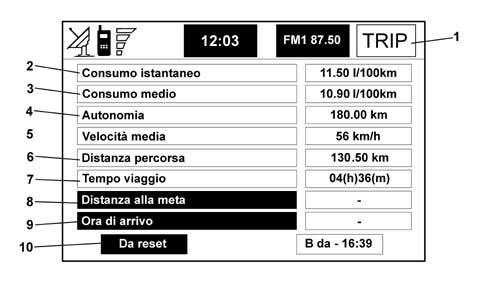
1 Screen display active
2 Instantaneous fuel consumption
3 Average fuel consumption
4 Range
5 Average speed
6 Distance travelled
7 Journey time
8 Distance to destination
9 Indication of arrival time
10 Parameter reset function
The on-board computer provides useful information, some of which is calculated starting at different times according to the type of function: 'From reset' or 'B from hh:mm'.
To activate the selected function, select the corresponding icon using knob (R2).
When the 'From reset' function is set, the on-board computer provides information relating to the last manual zeroing of the computer.
With the 'B from hh:mm' function, the information is determined starting from the last manual zeroing of the computer or automatically from the last time the engine was switched off (ignition key turned to the OFF position) separated from the next starting by a period of at least two hours.
The data stored on the on board computer (average speed, distance travelled and journey time) are reset manually using commands on the instrument panel display (see User Handbook). This information also appears on the display (for about 4 seconds) whenever knob (R2) is turned.
The parameters of both functions are always available so that the user can move from one to another
The following information is available:
- Instantaneous consumption
- Average fuel consumption
- Range
- Average speed
- Journey distance
- Journey time
- Distance to the destination
- Arrival time
The distance from the destination and the arrival time are available with the navigation system activated.
The system stops indicating residual range for values lower than 15 km (dashes are shown instead of the range value in km).
In the case of refilling with the fuel warning light on, the system onlyupdates the remaining range figure if, when the refilling takes place, the quantity of fuel in the tank is above about 1/4 of the capacity (18 litres). For lower refuelling values, the range value prior to the refuelling continues to be indicated.
'instant consumption'
Indicates vehicle fuel consumption while driving and is therefore useful for showing fuel consumption for the driving style adopted. This value is the same as the two on-board computer functions ('From reset' and 'B da hh:mm').
The value is expressed as l/100 km: litres per 100 kilometres.
'average fuel consumption'
Indicates average fuel consumption measured since last refuelling.
The value is expressed as l/100 km: litres per 100 kilometres
'range'
Indicates the distance in kilometres the car still has to travel before it will need refuelling.
The calculated journey range depends on the amount of fuel still present in the tank and the average fuel consumption.
'average speed'
Indicates average car speed calculated from the last manual reset ('from reset' function) or automatic reset ('B da hh:mm' function) of on-board computer.
The value is expressed in 'km/h' (kilometres per hour).
'journey distance'
Indicates distance in kilometres travelled by the car since the last manual reset ('from reset' function) or automatic reset ('B da hh:mm' function) of on-board computer
The value is expressed in 'km' (kilometres).
'journey time'
Indicates time since the last manual reset ('from reset' function) or automatic reset ('B da hh:mm' function) of on-board computer.
The value is expressed in '(h) (m)' (hours and minutes).
'distance to destination'
This information, present only when the navigation function is active, indicates distance (in kilometres) between current car position and the set destination.
'arrival time'
This information, present only when the navigation function is active, indicates the estimated time at which the set destination will be reached. The time is indicated in 'hh:mm' (hours and minutes).
The indicated arrival time is obtained by increasing the remaining journey time by some 30%, calculated on the basis of average speed added to current time.
Information and assistance services (targa services)
You can access the 'Services' function by pressing the CONNECT button (T22).
The function allows the use of a series of GSM subscriber services ('Targa Services') for medical assistance, breakdown assistance and information.

To enable this service, proceed as follows.:
CONNECT TARGA SERVICE
Operative information for enabling remote information services.
Connect code registration
Switch on the CONNECT by pressing the knob (R1).
A message will appear indicating that the SIM Card is not inserted and that the services are not available.
Press ESC (T24); and then the CONNECT button (T22) to start the activation process.
Turn the knob (R2) stopping on te word Settings, then press the same button.
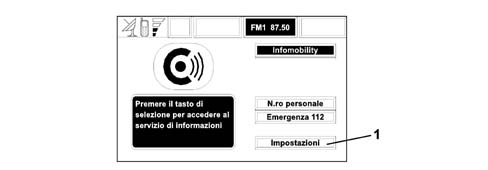
A screen will appear at this point; the CONNECT code can be read on the first line.
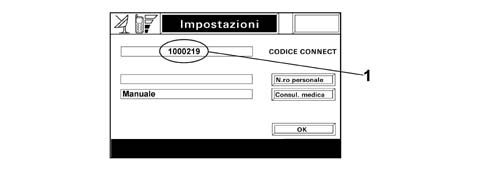
Copy the CONNECT Code onto the CONNECT Targa Service activation form and complete all sections of this form.
Send the form to the fax number given on the actual form (0039 02 937 76 438).
The Contact Centre will guarantee that the data for activating the service will be entered by the next working day.
Activation of connect targa service
Insert the SIM phone card (credit card format) in the special slot (B) with the integrated chip (gold section) facing the engine compartment and the right side of the vehicle; if the SIM card is the plug-in format (small format), it must be fitted in the special adaptor before being introduced into the slot.
Only the original adapator which comes with the vehicle and is available from the Parts Dept. by quoting no. 46820098 should be used.
If the SIM card is protected by a PIN, enter the code and confirm by pressing the button (R2).
Press the TEL button (T19).
Using the telephone keypad, dial the Contact Centre freephone number which is given for each language/market in the special form; for easy reference, below is a list of the freephone numbers for the main European countries:
| Freephone number | Country/Language |
|---|---|
| 08000232905 | Holland |
| 0800835183 | Switzerland (French) |
| 0800835184 | Switzerland (German) |
| 0800835185 | Switzerland (Italian) |
| 08001833768 | Germany |
| 0800293045 | Austria |
| 0800917076 | France |
| 08000964823 | Great Britain |
| 080078423 | Belgium (French) |
| 080078424 | Belgium (Flemish) |
| 900976944 | Spain |
| 0800564952 | Italy |
Press the button with the telephone symbol (T1) and wait for the Contact Centre to answer.
Press the CONNECT button (T22); a message will appear saying that the services are not enabled.
Press the ESC button (T24).
Follow the operator instructions. After a few seconds the buttons will be indicated with the words Medical Assistance and Roadside Rescue; this means that all the CONNECT Targa services have been successfully activated.
Use of 'targa sys' connect function
When the CONNECT button (T22) is pressed, the service call screen appears.
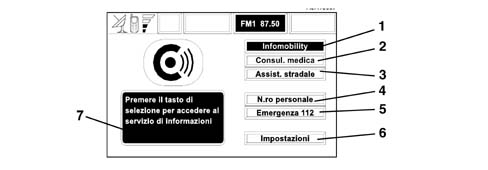
1 Services menu
2 Medical assistance request function
3 Roadside rescue function
4 Call number set function
5 Emergency call button
6 Settings menu
7 Messages area
Whichever page was previously shown on the display, all other operations are interrupted and the volume of all audio sources is reset (except the phone). The new conditions are maintained while the assistance call is active and the screen remains on the display.
A 112 emergency call can always be made even if there is no card in the slot and no PIN has been entered. For other assistance calls, if the PIN number has not been entered, the user will be asked to enter it when the CONNECT key (T22) is pressed.
The assistance call menu comprises the following functions:
- Infomobility (*)
- Medical assistance ((*)
- Roadside rescue (*)
- Personal number
- Emergency 112
- Settings
(*) Functions requiring subscription to Targa Services
'infomobility'
When the 'Infomobility' function is selected and confirmed using knob (R2), a message is sent to the service provider with an information request.
When the provider receives the message, it activates a phone link. When the link is active, the user may ask to forward the information request to the operator.
If the telecoms link with the service provider cannot be activated, a warning message appears on the display. The telecoms system attempts to reconnect to the service provider information service in any case.
Some information will be sent directly by the operator while other information will be sent via SMS messages that are received regardless of which function is active (MAIN, AUDIO, etc.). The message appears directly above the screen active at the time, inside a window that contains functions 'Save', 'Delete', 'Map' and 'Call'.
If the 'Save' option is selected, the message will be stored, while if 'Delete' is selected, it will be eliminated from the display and from memory.
If 'Map' is selected, the point on the geographical map will be displayed automatically, with the possibility of inserting it as the destination of the navigation system. In this case the message will also be stored automatically.
If 'Call' is selected, the telephone number contained in the message will be dialled automatically and the message will be stored.
If a message sequence is received, a special window will be opened for each one and it will be possible to carryout the save, delete, display on map or call telephone number operations.
All message received will be saved unless they are deleted. The list with all the messages is visible at the bottom of the display, in the main screen of the 'Infomobility' function.
Each message is identified by an icon indicating type, date and time sent.
To access individual messages in the list, which may contain traffic information, points of interest or weather information, activate the 'Select' function using knob (R2), then turn to scroll through the list of messages (including the part that cannot be seen). When the message you want to read is highlighted, press knob (R2) to display on the screen.
An icon with a 'T identifies messages with traffic information (e.g. accidents).
When the message contains geographical information to help locate the point, the options 'Delete' and 'Map' are made available when the display appears.
When 'Delete' is selected and confirmed, the message is removed from the list permanently, while 'Map' displays the map that shows the position of the point of interest from the event.
An icon with an 'i' identifies messages with information on points of interest or general information.
When the message is displayed, the 'Delete', 'Map' and 'Call' options are available.
When 'Delete' is selected and confirmed, the message is removed from the list permanently, while 'Map' displays a map that shows the position of the point of interest that may also be used as destination or inserted in the system list. With the 'Call' button, when present, a call can be sent directly to the number indicated in the message.
The icon with an 'i' also identifies messages with general information (weather conditions, atmospheric events, etc.).
When one of these messages, not accompanied by geographical information for location, is displayed, only the 'Delete' option is available, which allows it to be removed from the list permanently.
'medical services'
When this function is selected and activated, a medical assistance request message is forwarded - including the car position to enable location by the Targa Services operator.
The message is forwarded after a waiting time of 10 seconds.
When Automatic medical assistance is activated by means of the 'Settings' function (described below), the message is sent when the CONNECT key (T22) is pressed with no further need to select a specific function.
To prevent accidental call-outs, when Automatic medical assistance is selected, the user is allowed a time of 15 seconds after pressing the key by accident to stop it. All you have to do it turn knob (R2) to another option.
The number of the medical assistance centre cannot be set by the user.
'roadside assistance'
When this function is selected and activated, after 10 seconds a roadside rescue request message is forwarded - including the car position to enable location by the Targa Services operator.
The number of the roadside rescue centre cannot be set by the user.
For both Roadside Rescue and Medical Assistance requests, if the telecom transmission is not successful, the freephone number for the required service will be dialled automatically, to report the need for assistance (the telephone call will only be successful if there is GSM coverage of the area where the car is).
'personal number'
When this function is selected and activated, a phone call is automatically forwarded to a number set previously by the user.
The setting of this number is described under the next function 'Settings'.
'emergency 112'
When this function is selected and activated, a call is sent out directly to the public emergency services.
'112' is the emergency services number for all countries where this public service is available. A 112 emergency call can always be made even if there is no card in place.
'settings'
When this function is selected and activated, a new screen is accessed which proposes the display of the CONNECT CODE (code identifying the system terminal), memorisation of the 'Personal number' and configuration of the type of 'Medical Assistance', as described above.
The phone number entered in the space corresponding to 'Personal no.' identifies the user who will be called in an emergency.
Selecting the type of forwarding used for 'Medical Assistance' calls activates or deactivates the automatic transmission of the medical assistance request message when the button is pressed (T22).
When the call has been sent, the display shows a 'call sent' message for 4 seconds.
If the assistance call cannot be forward for any reason, the display shows a notification message, asking you to press knob (R2) to go back to the main screen.
If a phone call arrives after activating the assistance call function, the notification will not be shown on the display but the ringing will be heard.
If the user decides to accept the call and presses the phone key (T1) briefly, the assistance call screen disappears. If the user rejects the call with a long press on the phone key (T1), the assistance call continues.
CONNECT INTERNAL DIAGNOSIS
Internal diagnosis simply allows the display of the status (OK - NOT OK) of the main functions of the CONNECT system. For a more thorough diagnosis, use the Examiner.
To carry out the internal diagnosis, proceed as follows:
- switch on the Connect and make sure that the Radio is working; if it is not, switch it on by pressing the AUDIO button (T18)
- press the MAIN button (T17)
- press the right knob/button (R2) to display the main menu shown in the figure.
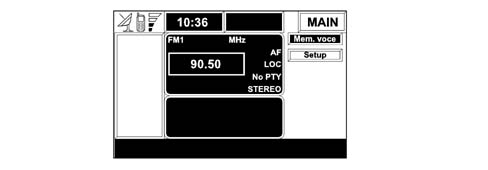
press the AUDIO button (T18) for a few seconds until the words 'AUDIO OFF appear
enter the assistance password by pressing in sequence the buttons 1-2-3 (T4, T5, T6)
press the right knob/button (R2) to confirm; this gives access to the 'Assistance' menu, shown in the figure
select Assistance by turning the right knob/button (R2), and confirm by pressing the right knob/button (R2) (OK)
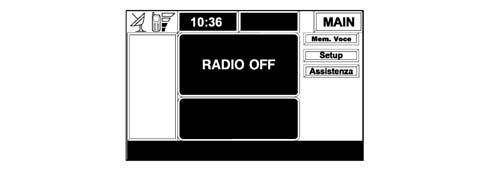
From the 'Assistance' menu it is possible to access the 'Radio', 'Diagnosis' and 'OK sub-menus and from them other sub-menus as shown in table 1.
Assistance menu navigation diagram
| Radio | EUROPE AMERICA JAPAN SOUTH AMERICA | |||
|---|---|---|---|---|
| Assistance | Diagnosis | GSM | SW Version Sim Card Aerial Signal Communication | |
| Radio | SW Version Aerial Chambers Communication CD Changer Internal CD BOSE system | |||
| GPS | Aerial Receiver S/N ratio No. of satellites SW Version | |||
| INPUT | Front panel Steering wheel controls Interior lights Key signal | |||
| CAN navigation | Reverse gear RIGHT CAN milometer LEFT CAN milometer Milometer scale factor RIGHT/LEFT ratio Milometer calibration reset | |||
| CAN diagnosis | EEPROM data | Internal error code Configuration code Overheating no. Key-on no. since overheating | ||
| Option Identification | Design no. Alfa Romeo HW NIT number HW NIT version SW NIT number SW NIT version Homologation number ISO Code Production date | |||
| DTC | Left front chamber Right front chamber Left Rear Chamber Right Rear Chamber GPS aerial AM/FM aerial Internal error | |||
| OK | ||||
Description of the menu
Radio: The operating frequency field is modified according to the area of usage
Diagnosis: Internal diagnosis menu and operation of controls on the Connect panel and the steering wheel
OK: confirmation of new settings before exiting the Assistance menu
Radio menu
The Radio menu consists of:
- EUROPE
- AMERICA
- JAPAN
- SOUTH AMERICA
Diagnosis menu
The Diagnosis menu consists of:
- GSM
- RADIO
- GPS
- INPUT
- NAVIGATION FROM CAN
- CAN NETWORK DIAGNOSIS
Description of sub-menu
Menu: assistance/diagnosis/gsm
The following is displayed in the GSM menu:
- the number of the GSM module software version
- whether or not the SIM-Card is present
- the aerial signal represented by a numerical value
- communication: a bar which changes colour (OK) green, (NOT OK) red; indicates communication between the GSM module and the centre Connect internal unit
Press the ESC button (T24) to exit the menu
Menu: assistance/diagnosis/radio
The following is displayed in the Radio menu:
- the number of the Radio module software version
- aerial, a bar which changes colour (OK) green, (NOT OK) red
- chambers, a bar which changes colour (OK) green, (NOT OK) red
- communication: a bar which changes colour (OK) green, (NOT OK) red indicates *- communication between the Radio module and the centre Connect internal unit
- presence or absence of CD-Changer
- internal CD, a bar which changes colour (OK) green, (NOT OK) red
- presence or absence of Bose system
Press the ESC button (T24) to exit the menu.
Menu: assistance/diagnosis/gps
The following is displayed in the GPS menu:
- aerial, a bar which changes colour (OK) green, (NOT OK) red
- receiver, a bar which changes colour (OK) green, (NOT OK) red
- s/n ratio, Signal/Noise (OK) green, (NOT OK) red, number of satellites, the bar can be different colours: Green, Yellow, Red depending on the satellites visible, plus the number of satellites visible
- GPS module software version
Press the ESC button (T24) to exit the menu.
Menu: assistance/diagnosis/input
The following is displayed in the INPUT menu:
- front panel, recognition of buttons when pressed
- steering wheel controls, recognition of buttons when pressed
- interior lights, ON/OFF (referring to side lights)
- key signal, ON/OFF
Press the ESC button (T24) to exit the menu.
Menu: assistance/diagnosis/can navigation
The information reaching the GPS from the CAN lines is displayed in the CAN Navigation menu:
- reverse gear signal ON/OFF
- right CAN milometer, a bar which changes colour: (OK) green, (NOT OK) red, plus *- milometer signal received from CAN network displayed
- left CAN milometer, a bar which changes colour: (OK) green, (NOT OK) red, plus *- milometer signal received from CAN network displayed
- milometer scale factor, a bar which changes colour: (OK) green, (NOT OK) red, plus difference between right and left displayed
- right/left ratio, (OK) green, (NOT OK) red, plus difference between right and left displayed
- milometer calibration reset, calibration operation for recognizing ratio between milometers.
It is advisable to carry out the milometer Reset operation each time the tyres are changed.
To carry out this operation:
- select 'Reset milometer calibration'
- press the T2 knob/button (OK); the system asks whether you wish to Reset or cancel
- confirm (OK) using the knob/button (T/2); After driving along a straight route for several kilometres *- the calibration will reach optimum precision levels.
Menu: assistance/diagnosis/can diagnosis
A further menu is displayed inside the CAN Diagnosis menu
EPROM data, displaying:
- internal error code
- configuration code
- number of overheatings
- number of keys-on since last overheating
Press the ESC button (T24) to exit the menu.
Identification Option, this screen shows all the information relating to the Connect system:
- Part no. Alfa Romeo
- HW NIT number
- NW NIT version
- SW NIT number
- SW NIT version
- Homologation number
- ISO code
- Date of manufacture
Press the ESC button (T24) to exit the menu.
DTC, this screen shows the counting of the no. of overheatings and the temperature of the following components:
- Left Front Chamber
- Right Front Chamber
- Left Rear Chamber
- Right Rear Chamber
- GPS aerial
- AM/FM aerial
- Internal error
Press the ESC button (T24) to exit the menu.
SYSTEM SOFTWARE UPDATE
The procedure comprises the following operations:
- Checking the software version loaded.
- Software update.
- Final check on the correct update.
Checking the software version loaded.
Turn the ignition key to the ON position and the Alfa Romeo logo will appear on the CONNECT display
Activate the internal diagnostic procedure for the CONNECT system by carrying out the operations listed below in order:
- make sure that the Radio is working; if it is not, switch it on by pressing the AUDIO button (T18-Fig. 1)
- press the MAIN button (T17)
- press the right knob/button (R2 to display the main menu
press the AUDIO button (T18) for a few seconds until the words 'AUDIO OFF appear
enter the password by pressing the numbers 1-2-3 (buttons T4, T5, T6) on the telephone keypad in order
press the right knob/button (R2) to confirm; this gives access to the Assistance menu
select Assistance by turning the right knob/button (R2)
confirm by pressing the right knob/button (R2)
select 'Diagnosis' by turning the right knob/button (R2)
confirm by pressing the right knob/button (R2)
select 'CAN Network Diagnosis' by turning the right knob/button (R2)
confirm by pressing the right knob/button (R2)
select 'Identification Option' by turning the right knob/button (R2)
confirm by pressing the right knob/button (R2) and check that the Identification Option menu is displayed
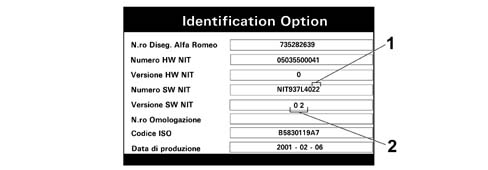
Read the last two digits of the software number (1) and the CONNECT software version (2); if the number/version is less than the update release, continue with the procedure, otherwise the update is not required (in the example the number/version is 22 - 0 2)
Press the 'Connect' button (T22); after a few seconds the Information and Assistance Services menu will be displayed
Select 'Settings' (1) by turning the right knob/button (R2)
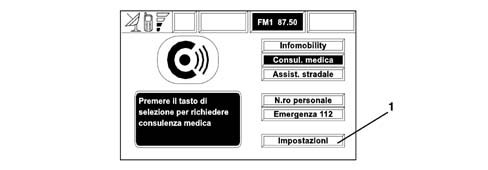
Confirm by pressing the right knob/button (R2) to display the Settings screen
Make a note of the 'CONNECT CODEnumber (1)
Turn the ignition key to the OFF position and wait until the CONNECT system switches off
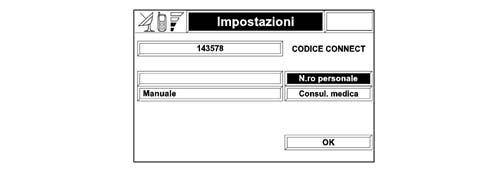
Software update
Turn the ignition key to the ON position and the Alfa Romeo logo will appear on the CONNECT display
Insert the update CD (supplied by the Parts Dept.) into the special housing (B) and wait for a few seconds until the words 'Error cd' appear. If the words 'Error cd'do not appear, press the button (T3), extract the CD, turn the ignition key to the OFF position and repeat the procedure from the beginning.
Turn the ignition key to the OFF position
Press the left knob/button (R1) and switch the CONNECT system on
Wait for the loading programme to start which is indicated by the display of the words 'Flash programming in progress - Do not turn off the system'
After the loading programme screen has appeared, immediately press the numbers 1-2-3-4 on the telephone keypad in order (buttons T4, T5, T6, T7) and confirm by pressing the right knob/button (R2)
During the software update cycle the CONNECT system must not be switched off or any operations carried out on any of the CONNECT system buttons or the vehicle's electrical system (e.g. disconnecting the battery).
If the operation described has been carried out correctly, the telephone keypad will flash twice, if this does not happen, start again from the previous step.
After the keypad has flashed twice, wait for the update cycle to end (7 minutes maximum); when the operation is completed the words 'Result ok' will appear, the CD will be ejected and should be removed immediately
If the CD is not removed immediately when it is automatically ejected by the Connect system it may be automatically reinserted by the system which will automatically reactivate the loading procedure with the words 'Flash programming in progress - Do not turn off the system' appearing. In this case it is necessary to wait for the re-updating cycle to end and the CD to be automatically ejected (as in the previous step).
Press the left knob/button (R1) and switch off the CONNECT system
Turn the ignition key to the ON position and the Alfa Romeo logo will appear on the CONNECT display
The software update is concluded
Turn the ignition key to the OFF position and wait for the CONNECT system to switch off
Checking correct update
Turn the ignition key to the ON position and the Alfa Romeo logo will appear on the CONNECT display
Activate the CONNECT system internal diagnostic procedure repeating all the operations described in the previous paragraph 'Checking software loaded' until the display of the Identification Option menu.
Read the last two digits of the software number and the software version for the CONNECT system to check that the update has been carried out.
Press the 'Connect' button (T22) to display the Information and Assistance Services menu
Select 'Settings' using the right knob/button (R2)
Confirm by pressing the right knob/button (R2) to display the Settings screen
Check that the 'CONNECT CODE'number is the same as the one noted previously. If it is the same, the procedure has been carried out successfully.
In cases where it is impossible to update the software or if there are any problems relating to the Nav+ CONNECT system, before making any replacements, contact TE.SE.O Product (for the Italian Market T.D.A. - Technical Dealer Assistance) notifying them of the old and the new 'CONNECT CODE numbers.
Gps/gsm/radio aerial
Components
The aerial is fitted in the rear part of the roof, and it consists of:
- fishpole aerial
- aerial mounting with amplifier and supply cable
- radio aerial cable
- telephone aerial cable (1800/900 MHz band)
- GPS aerial cables
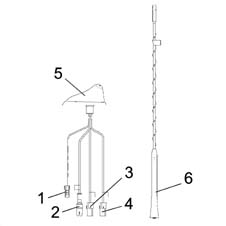
1 - Aerial amplifier power supply cable
2 - Radio cable
3 - GSM telephone cable
4 - GPS navigator cable
5 - Aerial base with built-in amplifier
6 - Aerial
GLOSSARY
AF (ALTERNATIVE FREQUENCY):
Radio function which makes it possible, whilst receiving an RDS programme broadcast by several transmitters on different frequencies, to automatically switch to the frequency with the best reception.
BALANCE
Radio function which makes it possible to adjust the sound distribution between the left and right side speakers.
BASS
Radio function which makes it possible to adjust the acoustics (LOW TONES)
EON
Radio device function which makes it possible to receive information on traffic conditions from radio channels not currently tuned into, temporarily interrupting the station being listened to.
FADER
Radio device function which makes it possible to adjust the distribution of the sound between the speakers.
FM
Long wave radio transmission frequency between 8705 and 108 MHz.
GPS (GLOBAL POSITIONING SISTEM)
Satellite location system, whose purpose is to provide any user the possibility of deciding his position on the earth's surface.
GSM
Communication standard for mobile equipment (GSM= Global System for Mobile Communcation) currently used in about 90 countries, enjoying optimum coverage.
LOUDNESS
Radio device function which makes it possible to improve the sound by increasing the low tones.
LW
Long wave radio transmission frequency between 153 and 279 kHz.
MW
Long wave radio transmission frequency between 531 and 1602 kHz.
CONNECT
Telematic Info Connector
POI (Point of interest)
Consists of typing in a sequence of information in order to select a particular point of interest (in relation to which information can be obtained)
PTY
Radio function which makes it possible, with the RADIO mode activated, to select the type of programme, e.g. NEWS (news and current affairs), AFFAIRS (politics and events), etc. for the radio stations which provide this type of information.
PTY31
Alarms on extraordinary events (e.g. floods, earthquakes) which are broadcast from enabled radio stations
RDS (RADIO DATA SYSTEM)
Radio broadcasting system intended for radio transmission in the range from 87.5 to 108.0 MHz
RG (Route Guidance)
Route guidance assisted with speech and written messages
TA
Radio function which makes it possible, if set, to receive traffic news broadcasts irrespective of the current radio operating mode.
If a CD is playing, this is interrupted and the volume is automatically increased.
TFT (THIN FILM TRANSISTOR)
Technology used for making high-resolution liquid crystal screens.
TP (TRAFFIC PROGRAMME)
RDS transmitter with traffic news.
TREBLE
Radio function which makes it possible to adjust the acoustics (High Tones)
SIM (Subscriber Identication Mobile)
Phone card
SMS ( Short Message System )
Short messages)
PIN ( Personal Identification Number )
Personal identification number
PUK ( Pin Unblocking Key )
Code for unblocking phone after three incorrect PIN code entries
DTMF (From Multi Frequent Tone)
Key with two frequency tones
CONNECT
The CONNECT NAV system is shown below
1 - Connect module
2 - Loudspeakers
3 - Radio/GPS/GSM aerial
4 - Steering wheel controls (opt)
5 - CDC (opt)
6 - BOSE subwoofer (opt)
7 - Hands-free microphone
Specifications
Introduction
The Telematic Info Node (CONNECT) is an electronic device connected to the B-CAN network which incorporates the radio, music CD player, Navigator and the GSM car 'phone with Voice Recognition module. The TIN is mounted at the centre of the dashboard and occupies 2 DIN slots (1 DIN slot corresponds to the standard dimensions of a car radio).
Cars fitted with CONNECT also have an instructions document for use of the radio/CD, car 'phone and Navigator
The external components which complete the CONNECT functions are:
- Loudspeakers, in the two versions HIGH level and HI FI level (see subgroup 5570T)
- The radio aerial with radio, telephone and satellite navigator functions
- A CD CHANGER with 10-disc loader supplied as OPT (see subgroup 5570T)
COMPOSITION
Architecture
The CONNECT is constructed with the following architecture; inside, there is a Master Module which coordinates the following modules:
- FM/AM radio module
- CD-ROM+Audio CD + MP3 Player module (if fitted).
- GPS navigator module
- GSM Dual Band telephone module
- SIM card reader module for telephone function
- Integrated module for recognition/speech command for telephone function
- External module consisting of a 5' display
Options:
- Management of external CD CHANGER module (if present)
- Steering wheel controls for controlling the radio, CD/CDC player, car 'phone and speed commands.
- Trip management (on-board computer)
- Services management (TARGASYS).
Front panel
The front panel, shown below, is made out of a single part moulded in polycarbonate. It comes with two plug arrangements for versions with and without a phone card (A).
The front pane is the same on all versions, apart from the plug arrangement. It features twenty-four keys (T1 - T24) and two rotating selectors (R1-R2).
Some controls have mulitiple functions that depend on active system operating conditions.
Activation of the selected function is controlled, in some cases, by the length of time for which the key is pressed (short or long), as shown in the following function descriptions:
T1
Single press
TELEPHONE: has the function of sending the outgoing call following the dialling of the number in the TELEPHONE menu.
Any application (in the case of an incoming call): has the function of acquiring the incoming call
Prolonged press
Any application (in the case of an incoming call): has the function of rejecting the incoming call
T2
Single press
VOICE RECOGNITION: activates the voice recognition function.
Prolonged press
VOICE RECORDER: activates the recording of 30 seconds of user speech
T3
The function of this button is to allow the CD to be taken out of the player.
T4
Single press
TELEPHONE application: this is the telephone button '1'
Any applicatoin (excluding TELEPHONE)
Source = FM1/FM2/FM3/MW1/MW2/LW: this is the button which selects the first programme memorised in that band
Prolonged press
Any applicatoin (excluding TELEPHONE)
Source = FM1/FM2/FM3/MW1/MW2/LW: this is the button for memorising, in the first position of the current band, a station selected previously.
T5
Single press
TELEPHONE application: this is the telephone button '2'
Any applicatoin (excluding TELEPHONE)
Source = FM1/FM2/FM3/MW1/MW2/LW: this button selects the second programme memorised in that band
Prolonged press
Any application (excluding TELEPHONE)
Source = FM1/FM2/FM3/MW1/MW2/LW: this button is for memorising, in the second position of the current band, a station selected previously.
T6
Single press
TELEPHONE application: this is the telephone button '3'
Any applicatoin (excluding TELEPHONE)
Source = FM1/FM2/FM3/MW1/MW2/LW: this button selects the third programme memorised in that band.
Prolonged press
Any application (excluding TELEPHONE)
Source = FM1/FM2/FM3/MW1/MW2/LW: this button is for memorising, in the third position of the current band, a station selected previously.
T7
Single press
TELEPHONE application: this is the telephone button '4'
Any applicatoin (excluding TELEPHONE)
Source = FM1/FM2/FM3/MW1/MW2/LW: this is the button which selects the fourth programme memorised in that band
Prolonged press
Any applicatoin (excluding TELEPHONE)
Source = FM1/FM2/FM3/MW1/MW2/LW: this button is for memorising, in the fourth position of the current band, a station selected previously.
T8
Single press
TELEPHONE application: this is the telephone button '5'
Any applicatoin (excluding TELEPHONE)
Source = FM1/FM2/FM3/MW1/MW2/LW: this button selects the fifth programme memorised in that band.
Prolonged press
Any application (excluding TELEPHONE)
Source = FM1/FM2/FM3/MW1/MW2/LW:this button is for memorising, in the fifth position of the current band, a station selected previously.
T9
Single press
TELEPHONE application: this is the telephone button '6'
Any applicatoin (excluding TELEPHONE)
Source = FM1/FM2/FM3/MW1/MW2/LW: this is the button which selects the sixth programme memorised in that band
Prolonged press
Any applicatoin (excluding TELEPHONE)
Source = FM1/FM2/FM3/MW1/MW2/LW: this button is for memorising, in the sixth position of the current band, a station selected previously.
T10
TELEPHONE application: this is the telephone button '7'
Any applicatoin (excluding TELEPHONE)
Source = CDC: this button selects the CD preceding the current one in the CDC loader
T11
TELEPHONE application: this is the telephone button '8'
T12
TELEPHONE application: this is the telephone button '9'
Any applicatoin (excluding TELEPHONE)
Source = CDC: this button selects the CD following the current one in the CDC magazine
T13
TELEPHONE application: this is the telephone '*' button
Any applicatoin (excluding TELEPHONE)
Source = FM1/FM2/FM3/MW1/MW2/LW: this button skips backwards in frequency, stopping at the first transmitter with an audible signal
Source = CD, CDC: button for skipping to the previous track.
T14
Single press
TELEPHONE application: this is the telephone '0' button
Any applicatoin (excluding TELEPHONE)
Source = CD, CDC or MP3: this is the PLAY/STOP button of the audio CD player (if there is an audio CD inserted in the player).
Prolonged press
Any application (excluding TELEPHONE)
Source = CD, CDC: this is the PAUSE button
T15
TELEPHONE application: this is the telephone '#' button
Any applicatoin (excluding TELEPHONE)
Source = FM1/FM2/FM3/MW1/MW2/LW: this button skips forwards in frequency, stopping at the first transmitter with an audible signal
Source = CD, CDC or MP3: button for skipping to the next track.
T16
The button (SRC) in question is for selecting (in rotation) the possible audio sources relating to the radio system; following repeated presses (FM1-FM2-FM3-MW-CD-CDC).
T17
Single press
MAIN: Pressing this button activates the MAIN application (screen summarising all the applications in operation)
Prolonged press
DARK: this is for darkening the display without losing the functions of the TIN system, which continues to operate as if nothing had happened.
You can return to the normal display by pressing any of the buttons (T17-T21)
T18
Single press
AUDIO: Pressing this button activates the AUDIO application
Prolonged press
AUDIO OFF: this deactivates the audio (radio) module, preventing radio reception and playing of CD tracks.
T19
Single press
TEL: Pressing this button activates the TELEPHONE application
Prolonged press
TELEPHONE OFF:
This deactivates the telephone module, preventing the reception and transmission of calls and the display of telephone info.
T20
Single press
NAV: Pressing this button is for activating the NAV application
Prolonged press
NAV MUTE makes it possible to deactivate the NAV application
T21
TRIP: Pressing this button activates the TRIP application
T22
Press this CONNECT button to display the INFORMATION AND ASSISTANCE SERVICES menu.(TARGASYS)
T23
RPT: This is used to repeat the last voice command
T24
ESC: This button is for exiting from any selection list or going up from one submenu level to the next one up.
R1
This is used for switching the system on/off (button function), and for adjusting the volume (encoder function).
R2
This is used to select the desired function from the various user menus (button function) and to confirm it by pressing (encoder function).
A
Slot for Sim Card
B
CD slot
Connector layout
The connector layout is shown below
A - Radio connector
B - Radio connector
C - Radio connector
D - Services connector
E - GSM aerial connector
F - GPS aerial connector
G - Radio aerial connector
H - 10 amp. fuse
I - Centring pin
L - Heat sink
Pin out
Pin-out of the assembly
Connector A (8 pin)
1 - B-CAN bus (B)
2 - BOSE amplifier input
3 - B-CAN bus (A)
4 - Key inserted input (+15)
5 - 12V for automatic aerial
6 - N.C.
7 - Permanent 12V
8 - GND supply (earth)
Connector B (8 pin)
1 - Right rear loudspeaker (+)
2 - Right rear loudspeaker (-)
3 - Right front loudspeaker (+)
4 - Right front loudspeaker (-)
5 - Left front loudspeaker (+)
6 - Left front loudspeaker (-)
7 - Left rear loudspeaker (+)
8 - Left rear loudspeaker (-)
Connector C (20 pin)
1 - N.C.
2 - N.C.
3 - N.C.
4 - N.C.
5 - N.C.
6 - 12 V ignition controlled for BOSE amplifier
7 - N.C.
8 - N.C.
9 - N.C.
10 - Input 1 for steering wheel buttons
11 - Input 2 for steering wheel buttons
12 - Reference for steering wheel buttons (earth)
13 - CD-Changer reception
14 - CD-Changer transmission
15 - 12V permanent for CD-Changer
16 - 12V ignition controlled for CD-Changer
17 - GND (earth) for CD-Changer
18 - Audio reference from CD-Changer (earth)
19 - Audio L signal from CD-Changer
20 - R audio signal from CD-Changer
Connector D (18 pin)
1 - N.C.
2 - N.C.
3 - N.C.
4 - N.C.
5 - N.C.
6 - Hook (input from intimity receiver) (receiver raised information)
7 - Audio signal (output towards intimity receiver)
8 - Microphone input (input from intimity receiver)
9 - Microphone input
10 - N.C.
11 - N.C.
12 - GND (earth)
13 - N.C.
14 - N.C.
15 - N.C.
16 - Audio reference (input from intimity receiver)
17 - Microphone reference (output to intimity receiver)
18 - Microphone reference
Introduction
Switching the system on/off and stand-by
Access to the system can be achieved in two different ways:
- Automatic turning on with the ignition key in the ON position
- Manual turning on by pressing the knob (R1)
Automatic turning on
When the ignition key is turned to the ON position the CONNECT system comes on automatically and all the functions described in this chapter are either activated or can be activated.
Manual turning on
When the ignition key is in the OFF position and the knob (R1) or the button (T22) is pressed, the CONNECT system comes on with all the following modules available:
- MAIN
- AUDIO
- NAV
- TEL
In this way the SETUP and TRIP modules can be activated, however, no parameter change or language change operation or any other type of adjustment can be validated. (These limitations are due to the fact that, with the vehicle switched off (key in OFF position), the internal date transmission devices are not working).
The system starts to work when the ignition key is in the ON position.
Turning the system off
There are two different ways of switching the CONNECT system off:
- switching off independent of the ignition key
- switching off dependent on the ignition key
To make this choice, access the SETUP menu.
When the first mode is activated the system can be switched off by pressing knob (R1).
When the second mode is activated the system can be switched off by turning the ignition key to the OFF position. With the engine running or the panel on, the system can be switched off by pressing knob (R1).
There is a 20 minute delay in switching the system off if there is a destination set or a telephone call is in progress.
Antitheft protection
The CONNECT is protected against theft and unauthorized systems by means of an 'authentication procedure'.
This type of check involves other devices installed on the vehicle including the Body Computer which uses messages exchanged via the telematic network and is activated each time the system is switched on.
The procedure is not activated if the CONNECT system is switched on using the knob (R1) or the button (T22) and if the ignition key is in the OFF position. In this case the CONNECT system works normally without carrying out the authentication procedure.
Entering the secret code
If the ignition is switched ON, the user is asked to enter the 4 digit Master Code to allow access to the standard functions.
The Master Code is unique to each CONNECT system and cannot be deleted.
To enter the code, a special screen must be accessed.
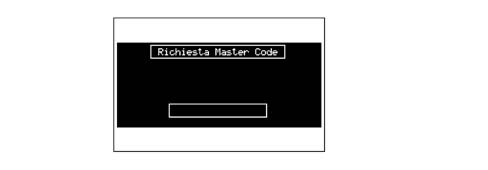
After having entered the code, a second screen indicates that the authetication procedure is in progress.
If the correct code has been provided the system is fully enabled; conversely, if an incorrect code has been entered, the screen is cancelled and the previous screen with the words 'The code entered is incorrect' appears. Enter the master code or switch the system off using the ON button.
There is no limit to the number of incorrect codes that can be entered.
The secret code has to be entered for the CONNECT to work after it has been connected to the vehicle's electrical system for the first time or to a different Body Computer from the original one or after a replacement of the system.
The can network
The TIN is a+15 node connected to the B-CAN network; this means that at Key OFF, the CONNECT is not connected to the network and cannot be reactivated by the network.
The Key On signal is in fact a direct signal to TIN.
Information received
The information the CONNECT receives from the network is as follows:
- general information
- insufficient battery voltage signal
- switching on of lights
- key status
- reverse gear
- LCD screen brightness
- vehicle speed
- current time (hour/min.)
- right odometer signal
- left odometer signal
- setup information (from the instrument panel node)
- unit of measurement for distances
- unit of measurement for temperature
- selected language
- trip information (from instrument panel node)
- unit of measurement for fuel consumption
- instantaneous consumption
- average consumption
- current range
- average speed from reset
- distance travelled from reset
- total travel time since reset
- average speed from time xx:yy
- distance travelled from time xx:yy
- total travel time from time xx:yy
Information transmitted
The information which the CONNECT sends on the network is:
- Navigation information
- distance to next manoeuvre
- pictogram relating to the manoeuvre
- name of entry channel
- audio information
- active audio source (radio,CD,CDChanger)
- active radio band
- radio tuner frequency
- CD track number
- disc number in CDC
- RDS string
- Telephone information
- Number called or caller and possible associated name in the heading.
- Presence of SMS message.
- Incoming call.
- Navigator setup information
- Presence of radio tuner module
- Presence of GSM module
- Presence of GPS module
- Presence of navigator module
- Presence of Voice Recognition module
Languages
The languages available for both the strings displayed and the voice navigation messages are:
- French
- English
- Italian
- Dutch
- Spanish
- German
The language is selected on NQS which, via the CAN network, informs the CONNECT of the settings entered by the user.
Once the Connect has received the command, it automatically updates the new setting.
If the voice recognition module is present, the Connect activates a manual setup procedure under the guidance of visual messages.
Steering wheel controls
The controls for the main functions of the CONNECT system are duplicated on the steering wheel for easier operation.
1 - Volume increase button
2 - Volume decrease button
3 - Mute Button _ 4 - Voice recognition button: voice recognition activation/deactivation (short press), voice message storage (long press)
5 - Radio frequency range selection button (FM1,FM2,FM3,LW,MW) and listening sources available (Radio - CD - CD-Changer if fitted)
6 - Multifunction key: Radio: call up preset stations (from 1 to 6); CD Player: next track selection CD-Changer: selection of next track on CD being played
7 - Multifunction key: Radio: recall preset stations (from 6 to 1); CD Player: selection of previous track CD-Changer: selection of previous track on CD being played
8 - Accept incoming call (short press) Send last number dialled (short press) Send number dialled using telephone keypad (short press) Refuse incoming call (long press) End call in progress (long press)
OPERATING
Main screen (main)
The main screen allows the most important system data to be displayed without offering selection elements.
The MAIN screen appears by turning the ignition key to the ON position or by pressing the 'MAIN button (T17).
Three information fields are displayed
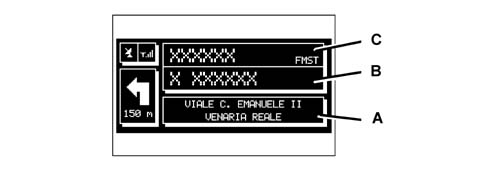
A Navigation: current position (road and town), symbol for the next turn and distance or location data if the Navigation CD is not inserted
B Telephone: GSM provider (if the telephone is off 'TEL OFF is shown); plus the indicator bar shows the intensity of the field.
C Audio Source: the RDS string, station tuned into and frequency or CD track.
Radio mode (audio)
Radio
The audio system is activated by pressing the AUDIO button (T18) briefly, which gives access to the main radio main functions.
The radio is always set to receive stations in RDS (Radio Data System) mode.
The radio Tuner has the following functions:
- RDS EON including PTY, REG on/off, TA on/off functions
- Tuning to the following bands:
- FM (87.5-108 MHz)
- MW (531-1602KHz) in steps of 9KHz
- MW (530-1710 kHz) in steps of 10KHz
- LW ( 153-279 kHz)
- Manual and automatic tuning on 5 bands (FM1,FM2,FM3,MW,LW)
- Memorisation of 6 stations per band (total 30 stations)
- Settable LOC/DX sensitivity
- RDS-TMC
If the FM radio source is activated (FM 1/2/3), the display will show the current radio situation:
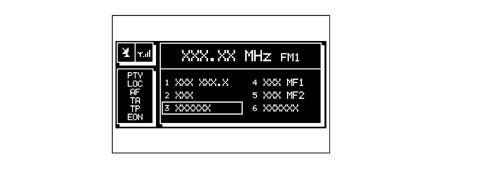
FM band activated: FM1, FM2, FM3.
Frequency of station tuned into.
Frequency unit of measurement (MHz).
Number of station programmed and RDS channel name
Along the vertical line of the left panel:
- PTY code if selected,
- AF,
- sensitivity of turning during the search (LOC for 'local', DX for 'distance'),
- MONO/STEREO reproduction,
- TA.
Pressing the knob (R2) gives access to the menu that allows all the functions listed above to be set.
Available sound sources are displayed cyclically in the audio system when the SRC (T16) key is pressed repeatedly:
- Radio (FM1, FM2, FM3, LW, MW)
- CD (if a CD is inserted)
- CD-Changer (if fitted).
- MP3 player (if fitted).
Audio
The following adjustments are available jointly for all the AUDIO sources:
- INFO
- BASS
- TREBLE
- LOUDNESS
- EQUALIZER
- EQUALIZ. MANUAL
- AUTO. VOL. ADJUST.
- BALANCE/FADER
- AUTOCLIP DETECT
- MAX. VOL. AT ON
- OK
These adjustments are accessed using the right knob (R2b) by selecting the 'Audio setup' function from the main menu for one of the audio sources
Cd
The following functions are available in CD mode:
- TA
- Scan
- Shuffle
- CD setup
- Audio setup.
Cd-changer
If a multiple CD player is installed, select the CDC source (CD-Changer) using the SRC key (T16) to display the following functions:
- TA
- Scan
- Shuffle
- CDC setup
- Audio setup.
Mp3 mode
The CONNECT system is capable of recognizing the type of Compact Disc inserted.
During the recognition stage the words 'MP3 exploration in progress ..' appear on the display.
Given that an MP3 CD can contain thousands of MP3 files, a maximum limit of 999 music tracks is set. If the user inserts an MP3 CD which contains more than 999 tracks (files), the system will only consider the first 999 files and the warning 'ATTENTION, ONLY THE FIRST 999 TRACKS OF THE MP3 CD INSERTED WILL BE MANAGED BY THE SYSTEM appears on the display for about 7 seconds.
Only one single list of the tracks played (playlist) can be produced for each MP3 CD; the system can memorize up to a maximum of 10 playlists (corresponding to 10 different CDs).
The moment an MP3 CD is inserted the CONNECT system checks whether or not there is a playlist for the tracks associated with that CD. If there is a list already, playing starts in accordance with a set sequence. If there is no list for the MP3 CD inserted, playing starts from the first file on the CD.
The display shows the 'main screen' for the MP3 function providing the following information:
- indication of the audio source (MP3);
- name of the file or music track;
- author (if present);
- TA, SHUFFLE, REPEAT if the relevant function is enabled;
- number of the track being played;
- current status of the MP3 CD source (playing, pause, stop);
- playing time.
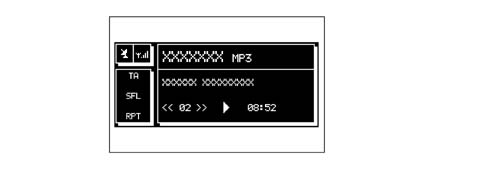
Pressing the right knob (R2) displays the following functions:
- AUDIO SETUP
- PLAYLIST DEFINITION
- PLAYLIST
- PLAYLIST DISPLAY
- COMPRESSION
- TA-TRAFF ANNOUN.
- SCAN - SHUFFLE
- REPEAT
To interrup MP3 CD play, press the button (T14) briefly.
To resuming playing the MP3 CD, press the same button again briefly. To pause the MP3 CD, press the same button for longer.
The 'stop' and 'pause' controls stop a track being played keeping the main screen activated with the details of the last song played shown.
To eject the MP3 CD from the housing (B), press the EJECT button (T3)
Voice activated cellular telephone (tel)
The CONNECT comes with a Dual Band GSM mobile phone (900-1800MHz) with handsfree option.
Frequencies are as follows:
- (Rx) 925-960 MHz / 1805- 1880 MHz
- (Tx) 880-915 MHz / 1710- 1785 MHz
The cellular telephone functions are displayed by pressing the TEL button (T19) or the telephone button (T1) briefly.
If you call up the phone screen using key (T1), the last number called will appear on the display without the call being activated. Press key (T1) again to make the call. Press the ESC key (T24) to go back to the main phone screen.
The display shows the 'main screen' which provides the following information:
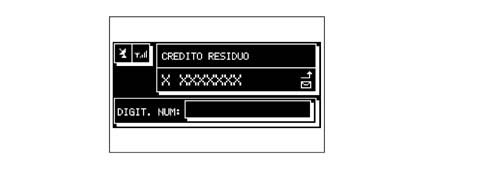
Symbol of the currency and remaining credit (if the service is offered by the network provider).
Box for entering the telephone number.
Intensity of the GSM field. (If the telephone is 'off', the display will show 'TEL OFF).
The GSM service provider activated. (If a SIM card is inserted, validated by the PIN code and no service provider is available, the display will show 'SEARCHING...')
A symbol in the shape of an envelope that indicates that there are one or more unread SMS messages.
A symbol in the shape of an arrow that indicates a call transfer.
A window for entering a telephone number with the words 'enter number'.
Introduction
The cell phone comes with the following convenient functions:
- PIN code (Personal Identification Number) to prevent the phone being used by unauthorised callers
- PIN change
- activation/deactivation of PIN request on activation
- acceptance or rejection of incoming calls
- send a telephone call
- emergency calls (even without SIM card and without entering PIN code)
- reading of phone numbers stored on the SIM card
- input of a new phone number on the SIM card
- deletion of a phone number from the SIM card
- copy of one element at a time from SIM and Connect and vice versa
- information on SIM card status (correct or incorrect entry and space available in memory)
- access to a list of the last 10 numbers dialled to facilitate recurrent calls
- access to a list of the last 10 incoming calls
- SMS message function that allows SMSs to be received and sent
- activation and deactivation of access to the SIM (Subscriber Identification Module) phone card
- access to and modification of lists of frequently dialled numbers and phone list
- manual dialling
- DTMF (Dual Tone Multi Frequency) settings that allow repeat dialling and prevent transmission of individual PINs
- selection of network service provider
- set call reception volume and sound
- display residual credit if SIM card is prepaid
- display signal field intensity
- phone inactive or network service inactive or phone not connected to network
- call signal deactivated
- 'transfer' function activated
- 'preclusion' function activated
- SMS message received and read
- SMS message received but not read
- SMS message written and sent
- SMS message written but not sent
Insert phone card
If a valid SIM card is not inserted when the phone function is called up, a warning message appears on the display.
Inserting a valid SIM CARD renders the telephone operational and gives access to the functions The phone card must be inserted into slot (A) until it clicks home. The invitation to enter the card PIN code confirms that the card has been correctly inserted.
When the card is inserted, the phone operating system can be accessed by pressing the TEL key (T19) or the phone key (T1).
To withdraw the SIM card, press it lightly into its slot and release; The system pushes it out slightly and it can be withdrawn.
Extraction of the SIM card with the phone active may cause a temporary malfunction; before removing the SIM card, the user must turn off the phone using the TEL OFF key (T19) or the CONNECT system using the ON/OFF key (R1).
If the phone malfunctions because the SIM card is extracted with the phone in operation, normal operation will be restored when the car is turned off and on.
Entering 3 incorrect PIN codes in succession blocks the card. The card can be released by entering either the PUK code (Pin Unblocking Key) or the new PIN (minimum of 4 characters, maximum of 8).
The SIM reader is for the 'large' type of SIM Card. 'Small' SIM Cards can only be used with a suitable adapter.
Voice controls
The user can use the voice recognition function to control the CONNECT by voice in order to carry out certain phone functions.
There are two different methods for the voice activation function:
- with voice identification;
- without voice identification.
In the first case the system is capable of recognizing the command by comparing the voice command with a sample memorized previously.
In the second case the system is capable of receiving voice commands irrespective of the voice.
Voice recognition and message storage operations are immediately interrupted by an incoming call; In this case, the entire operation must be repeated at the end of the call. The arrival of SMS text messages does not interrupt operations.
Voice messages
This function allows the user to record and replay six voice messages, in order, with a total maximum duration of 30 seconds for each message. If the memory is full, the oldest message is overwritten. When the time available elapses, the operation ends automatically.
The recording activated by the user can last for a maximum of 30 seconds, and is terminated automatically at the end of this available time.
However, the user can interrupt it manually.
Both the beginning of the recording and the end (either terminated by the user or because the memory has run out), are identified by an appropriate acoustic message (double beep).
The Voice Memo allows you to listen to voice messages from the last message recorded and then all previous messages. Once the buffer is full, the messages are played again from the first (in a continuous loop).
The Voice Memo allows the entire buffer available for recording to be deleted.
Navigation system (nav)
General information
The navigation system in the CONNECT makes it possible to reach a pre-established destination by means of visual instructions and acoustic instructions. The navigation system is fast, convenient, safe and - above all - very flexible to use because it allows you to call up programmed destinations or reference points such as hotels, places of historical interest, public organisations, fuel stations or Alfa Romeo dealers.
The position of the vehicle is determined by means of the GPS (Global Positioning System) on board the vehicle. The GPS system is equipped with an aerial and a receiver module integrated in the telematic system. The system dynamically processes the satellite signals, the signals coming from the milometer, the reversing signal and the information from the gyroscope incorporated in the navigation calculator, integrating them with the current position of the vehicle to produce an 'estimated vehicle point'.
This estimated position tends to differ from the current position as a result of sensor imprecision. To correct this error, every 30 metres an algorithm is activated, called Map Matching, which correlates the journey made by the car with the road network present in the map data base.
The signals coming from the left and right milometers make it possible to determine the movement of the vehicle and whether it has turned off (identified by the difference travelled between the left and right wheels), whilst the reversing sensor identifies the direction of travel.
The Alfa Romeo navigation system helps the driver while driving and advises on the best route to the set destination by means of voice and graphic information.
The suggestions given by the navigation system do not release the driver from full responsability for manoeuvres carried out in traffic while driving the car and for respecting the highway code and other traffic regulations. The responsibility for road safety is always expected from the driver of the vehicle.
GPS reception is difficult under trees, between high buildings, in multi-storey car parks, in tunnels and anywhere where the satellite aerial reception could be obstructed.
If the battery has been disconnected fro the car, the GPS system takes about 15 minutes to become activated.
The GPS navigation system takes a few minutes to pinpoint the new car position after it has been turned off and the car driven without the system active (e.g. on a pick-up truck).
If there is no satellite information, the on board system uses information from the ABS sensors for an analysis of the data.
The GPS satellite aerial should not be covered by metal or damp objects.
This car's instantaneous position is identified in the navigation CD-ROM and shown on the display together with the topographical features of the area memorized on the CD. Access to the data on the CD-ROM requires a brief wait whilst the maps are displayed.
The system constantly compares the information coming from the milometer, from the reversing sensor, from the GPS aerial and from the gyroscope in order to automatically compensate for variations in temperature, pressure or any other eventuality which could affect the position reading in any way.
The precise autoadjustment of the navigation system requires 50/100 km to be covered after first activation and when the tyres are changed.
If the wheel grip conditions are poor (for example slipping on ice), the system will temporarily give an incorrect position reading.
During the autoadjustment the position reading is incomplete.
The navigation system is completely managed by the telecoms system therefore the only operations which may be necessary are replacing the CD-ROM with one with a map for another area or with an updated map.
Navigation cd-rom drive
The navigation system CD-ROM drive is located on the front of the telecoms system and is also used for the audio CD. It is not therefore possible to use the audio player and the navigation system drive simultaneously. The navigation system can, however, operate partially even without the navigation system CD-ROM inserted.
In this case, when the key is pressed to expel the CD-ROM with the navigation function activated (so an audio CD can be inserted), one of two things may happen:
- the system cannot currently compute the required route;
- the route computed before the navigation system CD-ROM was extracted is still valid.
In the first case, the car position alone will be displayed and you will be asked to insert the navigation system CD-ROM.
In the second case, the system is able to provide instructions to the destination and asks the user if the guide is to be maintained or not.
If the user selects and confirms NO, the system continues as in the first case. If YES is selected, the system stores the relevant part of the map; this operation takes a few instants and the display asks the user to wait.
When the CD-ROM is loaded, it is ejected and the system resumes the navigation system function with the maximum scale of '2 km'; in this case, not all the route may be visible.
Under these conditions, navigation is limited and and certain functions and commands will not be available. The information shown in the map will also be restricted.
When the navigation system is no longer able to continue guiding the driver to the destination, or the car leaves the portion of the map that has been loaded, the display asks the user to load the navigation system CD-ROM. If the user does not insert the CD-ROM the system operates as described in the first case above, i.e. suspending the map information and continuing using GPS information (car location and number of satellites available).
When the new CD-ROM is inserted, the system software will automatically be updated with the new maps or new functions. During the operation, a message will be displayed asking the user to wait and at the end the destination memory will be empty.
Operating
The satellite navigation system is activated by pressing the NAV key (T20) which gives access to the main functions.
The main navigator screen displays the following information:
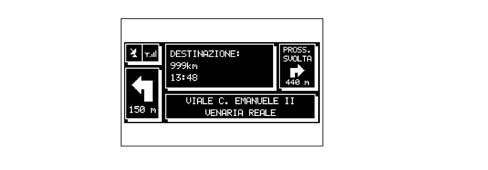
Distance from the destination and arrival time.
Navigation information: next turn/type of junction and distance, current position of the vehicle (town, road).
GPS signal and GSM signal (intensity of the field).
Pressing the right knob (R2) after entering the navigation mode, makes the following functions available:
- ADDRESS SELECTION: this allows a geographical point to be selected (using an address, place of interest, ...)
- RG ACTIVATION: activates/deactivates journey driving. If RG is disabled, the voice messages and pictograms of the junctions are no longer available. If a route is activated when the RG is deactivated, it remains visible on the map whilst the new automatic recalculation of the route is not activated.
- VOLUME: this allows the adjustment of the volume.
- HOME1/HOME2: this starts the calculation of a route towards one of the two pre-set of habitually used destinations.
- INFO: this shows information on the GPS position and the route set.
- DETOUR: this allows the activation of an alternative route.
- SETTING OF ROUTE: this defines the parameters for calculating the route and allows the activation of the junction zoom.
- DESTINATION AND ROUTE: this manages the destination and allows the activation of the calculation of the route.
- VOICE AGENDA: this manages the voice navigation agenda.
On board (trip) computer
To access the on-board computer screen, press the TRIP button (T21).
The following list of information will be displayed on the front section:
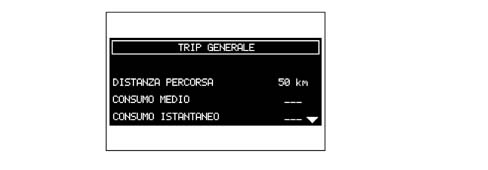
RANGE
JOURNEY DISTANCE
AVERAGE CONSUMPTION
INSTANT CONSUMPTION
AVERAGE SPEED
JOURNEY TIME
ARRIVAL TIME
DISTANCE TO DESTINATION
The distance from the destination and the arrival time are available with the navigation system activated.
The system stops indicating residual range for values lower than 15 km (dashes are shown instead of the range value in km).
In the case of refilling with the fuel warning light on, the system onlyupdates the remaining range figure if, when the refilling takes place, the quantity of fuel in the tank is above about 1/4 of the capacity (18 litres). For lower refuelling values, the range value prior to the refuelling continues to be indicated.
Information and assistance services (targasys)
You can access the 'Services' function by pressing the CONNECT button (T22).
The function allows the use of a series of GSM subscriber services ('TARGASYS) for medical assistance, breakdown assistance and information.
To enable this service, proceed as follows:
CONNECT TARGA SERVICE
Operative information for enabling remote information services.
Connect code registration
Switch on the CONNECT by pressing the knob (R1) and then the CONNECT button (T22).
A message will appear indicating that the SIM Card is not inserted and that the services are not available.
Turn the knob (R2) stopping on te word Settings, then press the same button.
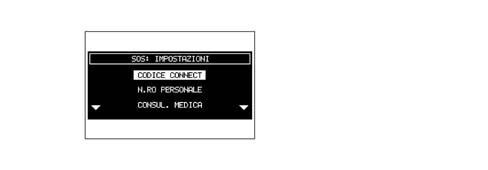
A screen will appear at this point; the CONNECT code can be read on the first line.
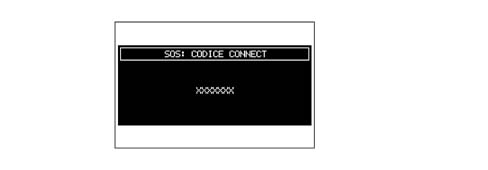
Copy the CONNECT Code onto the CONNECT Targa Service activation form and complete all sections of this form.
Send the form to the fax number given on the actual form (0039 02 937 76 438).
The Contact Centre will guarantee that the data for activating the service will be entered by the next working day.
Activation of connect targa service
Insert the SIM phone card (credit card format) in the special slot (B) with the integrated chip (gold section) facing the engine compartment and the right side of the vehicle; if the SIM card is the plug-in format (small format) then it has to be inserted in the special adapator first before being introduced into the slot.
Only the original adapator which comes with the vehicle and is available from the Parts Dept. by quoting no. 46820098 should be used.
If the SIM card is protected by a PIN, enter the code and confirm by pressing the button (R2).
Press the TEL button (T19).
Using the telephone keypad, dial the Contact Centre freephone number which is given for each language/market in the special form; for easy reference, below is a list of the freephone numbers for the main european countries:
| Freephone number | Country/Language |
|---|---|
| 08000232905 | Holland |
| 0800835183 | Switzerland (French) |
| 0800835184 | Switzerland (German) |
| 0800835185 | Switzerland (Italian) |
| 08001833768 | Germany |
| 0800293045 | Austria |
| 0800917076 | France |
| 08000964823 | Great Britain |
| 080078423 | Belgium (French) |
| 080078424 | Belgium (Flemish) |
| 900976944 | Spain |
| 0800564952 | Italy |
Press the button with the telephone symbol (T1) and wait for the Contact Centre to answer.
Press the CONNECT button (T22); a message will appear saying that the services are not enabled.
Press the ESC button (T24).
Follow the operator instructions. After a few seconds the buttons will be indicated with the words Assistance and Roadside Roadside Rescue; this means that all the CONNECT Targa services have been successfully activated.
Use of 'targa sys' connect function
When the CONNECT button (T22) is pressed, the service call screen appears.
The assistance call menu comprises the following functions:
- Infomobility (*)
- Medical assistance (*)
- Roadside rescue (*)
- Personal number
- Emergency 112
- Settings
(*) Functions requiring subscription to the 'TARGASYS service
'infomobility'
When the 'Infomobility' function is selected and confirmed using knob (R2), a message is sent to the service provider with an information request.
When the provider receives the message, it activates a phone link. When the link is active, the user may ask to forward the information request to the operator.
If the telecoms link with the service provider cannot be activated, a warning message appears on the display. The telecoms system attempts to reconnect to the service provider information service in any case.
Some information will be sent directly by the operator while other information will be sent via SMS messages that are received regardless of which function is active (MAIN, AUDIO, etc.). The message appears directly above the screen active at the time, inside a window that contains functions 'Save', 'Delete', 'Map' and 'Call'.
If the 'Save' option is selected, the message will be stored, while if 'Delete' is selected, it will be eliminated from the display and from memory.
If 'Map' is selected, the point on the geographical map will be displayed automatically, with the possibility of inserting it as the destination of the navigation system. In this case the message will also be stored automatically.
If 'Call' is selected, the telephone number contained in the message will be dialled automatically and the message will be stored.
If a message sequence is received, a special window will be opened for each one and it will be possible to carryout the save, delete, display on map or call telephone number operations.
All message received will be saved unless they are deleted. The list with all the messages is visible at the bottom of the display, in the main screen of the 'Infomobility' function.
Each message is identified by an icon indicating type, date and time sent.
To access individual messages in the list, which may contain traffic information, points of interest or weather information, activate the 'Select' function using knob (R2), then turn to scroll through the list of messages (including the part that cannot be seen). When the message you want to read is highlighted, press knob (R2) to display on the screen.
An icon with a 'T identifies messages with traffic information (e.g. accidents).
When the message contains geographical information to help locate the point, the options 'Delete' and 'Map' are made available when the display appears.
When 'Delete' is selected and confirmed, the message is removed from the list permanently, while 'Map' displays the map that shows the position of the point of interest from the event.
An icon with an 'i' identifies messages with information on points of interest or general information.
When the message is displayed, the 'Delete', 'Map' and 'Call' options are available.
When 'Delete' is selected and confirmed, the message is removed from the list permanently, while 'Map' displays a map that shows the position of the point of interest that may also be used as destination or inserted in the system list. With the 'Call' button, when present, a call can be sent directly to the number indicated in the message.
The icon with an 'i' also identifies messages with general information (weather conditions, atmospheric events, etc.).
When one of these messages, not accompanied by geographical information for location, is displayed, only the 'Delete' option is available, which allows it to be removed from the list permanently.
'medical services'
When this function is selected and activated, a medical assistance request message is forwarded - including the car position to enable location by the TARGASYS operator.
The message is forwarded after a waiting time of 10 seconds.
When Automatic medical assistance is activated by means of the 'Settings' function (described below), the message is sent when the CONNECT key (T22) is pressed with no further need to select a specific function.
To prevent accidental call-outs, when Automatic medical assistance is selected, the user is allowed a time of 15 seconds after pressing the key by accident to stop it. All you have to do it turn knob (R2) to another option.
The number of the medical assistance centre cannot be set by the user.
'roadside assistance'
When this function is selected and activated, after 10 seconds a roadside rescue request message is forwarded - including the car position to enable location by the 'TARGASYS operator.
The number of the roadside rescue centre cannot be set by the user.
For both Roadside Rescue and Medical Assistance requests, if the telecom transmission is not successful, the freephone number for the required service will be dialled automatically, to report the need for assistance (the telephone call will only be successful if there is GSM coverage of the area where the car is).
'personal number'
When this function is selected and activated, a phone call is automatically forwarded to a number set previously by the user.
The setting of this number is described under the next function 'Settings'.
'emergency 112'
When this function is selected and activated, a call is sent out directly to the public emergency services.
'112' is the emergency services number in all countries where this service is available. A 112 emergency call can always be made even if there is no card in place.
OPERATING PROBLEMS
The CONNECT system is capable of detecting and solving both any faults that are produced inside the system and any overheating problems
OPERATING FAULTS: if an internal fault relating to a certain module (audio, telephone, etc.) is identified, the system 'freezes' the last available screen and launches a diagnostic search. The system checks the module involved for a certain length of time to determine the type of fault; if the fault persists when this preset time is exceeded, the best action to solve the problem is implemented (e.g. resetting the hardware for the module involved).
If the system no longer responds to the commands, it can be restarted manually by pressing the TRIP button (T21) 4 times in the space of 3 seconds.
PROBLEMS DUE TO OVERHEATING: if the temperature of one of the system hardware modules (audio, telephone, CD player, etc) exceeds the maximum limit, the module will signal that it is overheated; a dedicated warning message will appear on the display.
The module concerned will be automatically restricted or disabled. In extreme cases the entire system is automatically shut down until the temperature returns to normal and this will be shown on the display, as illustrated in the diagram.
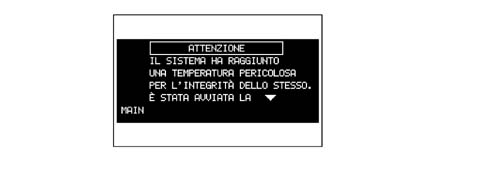
To exit the dialogue window, press the 'ESC button; the module involved will operate on a restricted basis:
- Overheating of the 'Audio' module: if the 'Audio' module overheats, the sound volume is automatically restricted irrespective of the audio source activated (radio, CD, CD Changer). A special warning message for the user will appear on the display.
- Overheatin of the 'CD Player' module: if the 'CD Player' module overheats, no type of CD can be read: no audio CD can be listened to and the navigation functions cannot be guaranteed (unless the navigationsystem was activated previously without a CD). A warning message for the user will appear on the display.
- Overheating of the 'Telephone' module: if the 'Telephone' module overheats, the module will be deactivated (TEL OFF) with the inhibitaion of the information and service functions (SOS). A special message for the user will appear on the display.
- System auto-switching off; in the case of extreme overheating, a warning will notify the user that the system auto shut down procedure has begun. When normal temperature operating conditions are resumed, the user can switch the system back on again.
Gps/gsm/radio aerial
Components
The aerial is fitted in the rear part of the roof, and it consists of:
- fishpole aerial
- aerial mounting with amplifier and supply cable
- radio aerial cable
- telephone aerial cable (1800/900 MHz band)
- GPS aerial cables
1 - Aerial amplifier power supply cable
2 - Radio cable
3 - GSM telephone cable
4 - GPS navigator cable
5 - Aerial base with built-in amplifier
6 - Aerial
Parts & tools for this job For 2000 Alfa Romeo 147
- TOOLDigital multimeterSearch: automotive digital multimeter
- PARTAssorted fuse kitSearch: car fuse assortment kit
- TOOLWire crimper and connector kitSearch: wire crimper connector kit
Links open Amazon search results in a new tab. As an Amazon Associate I earn from qualifying purchases.