
Intergrated control system (ics) panel
- Make
- Fiat
- Model
- Stilo Factory Service Manual
- Year
- 2001–2007
- Section
- Special accessories › Intergrated control system (ics) panel
Intergrated control system (ics) panel
Specifications
There are 4 configuration levels for the system: 'CONNECT, 'RADIONAVIGATOR, 'CONNECT NAV and 'CONNECT NAV +'
CONNECT
Dimensions: 2DIN box with front panel
Modules included:
- Radio
- CD player
- GSM module
- GPS module
- Assistance services
- 192x80 pixel LCD graphic display
- Blaupunkt external CD CHANGER management (if fitted)
- WAP Protocol
Options:
- Integrated module for voice recognition + MP3
RADIO NAVIGATION SYSTEM
Dimensions: 2DIN box with front panel
Modules included:
- Radio
- Audio CD player + CD-ROM MP3 and M.Marelli official
- GPS module
- Autonomous navigation with pictograms
- 192x80 pixel LCD graphic display
- Blaupunkt external CD CHANGER management (if fitted)
CONNECT NAV
Dimensions: 2DIN box with front panel
Modules included:
- Radio
- CD player
- GPS module
- GSM module
- Autonomous navigation with pictograms
- Assistance services
- 192x80 pixel LCD graphic display
- Blaupunkt external CD CHANGER management (if fitted)
- WAP Protocol
Options:
- Integrated module for voice recognition + MP3
CONNECT NAV +
Dimensions: 2DIN box with front panel
Modules included:
- Radio
- Audio CD player + CD-ROM MP3 and M. Marelli official
- GPS module
- GSM module
- Autonomous navigation with maps
- Assistance services
- 7' TFT colour display
- Blaupunkt external CD CHANGER management (if fitted)
- Integrated module for voice recognition
- WAP Protocol
Internal module description
The modules which make up the system or to which the system can be connected to obtain information from or request services are different.
CD ROM player
The CONNECT systems are equipped with a CD ROM player capable of reading and managing both CD ROMS and audio Compact Discs. The Audio supports cam be normal commercial audio CDs or CD ROMs containing files in MP3 format (all levels) if the vehicle is suitably equipped. The other ROM type supports available at 'RADIONAVIGATOR / 'CONNECT NAV / 'CONNECT NAV +' level are the official Marelli ones and contain both an updated copy of the CONNECT management software and the map database needed for navigation.
CD Changer
The CONNECT (at any level) is prepared for operating an outside CD Changer and accepting the analogue audio output. The version planned is the Blaupunkt CD Changer.
GSM Module ('CONNECT/CONNECT NAV/'CONNECT NAV +')
The 'CONNECT, 'CONNECT NAV and 'CONNECT NAV +' are equipped with a Dual Band GSM module and a large format SIM Card reader (which allows the user to insert the SIM Card). There is also an external microphone (for hands-free and voice recognition usage) and preparation for the connection of a handset.
General specifications:
Audio music power: 4x35W
5 band graphic equalizer
Easily managed menu for adjusting radio settings and possible outside interfaces (CD-Changer)
Remote control from steering wheel
Possibility of interface with outside CD-Changer via ASCI-BUS line.
Speed volume control (via CAN network)
If the voice recognition module is present, some of the controls can be voice-activated.
Radio specifications
RDS
RDS - TMC (Traffic Message Channel): 'Radionavigatore', 'Connect Nav', 'Connect Nav +' only
EON (Enhanced Other Network)
TA (Traffic Announcements).
Tuning to the following bands: USW (87,5-108 MHz) (FM), MW (153-279 kHz) (AM), LW (531-1602 kHz) (AM)
Possibiilty of memorizing: 24 FM stations (6 of which can be programmed in the autostore), 6 MW stations, 6 LW stations, 6 stations can be programmed through the autostore on the MWST band
2 Scan modes (brief listening to a station and automatic moving on to the next one ): Scan of frequency band used; Scan of stations programmed.
Possibility of selecting programmes through PTY (on FM bands only)
Local / Distant setting possible
Audio specifications:
Bass
Balance
Fader
Loudness
Treble.
H-FI system activation control
5 equalizer curves: BEST, Rock, Jazz, Classical, MANUAL (can be set using 5 band graphic equalizer)
Soft mute
CD specifications:
Motorized loading and ejection
TPM function (Track Program Memory)
Shuffle function
Repeat
Skip
Pause
Compression: activates the CD noise dynamic reduction circuit.
CD Naming: CD identification (max 30, including CDC)
CD MP3 specifications:
Play List Function (like TPM for audio CD)
Functions associated with Play List: Scan, Repeat (one track or all), Pause, Skip.
Maximum number of MP3 tracks considered for each CD: 999 ( if the number of MP3 files contained in the CD ROM is greater than this limit the first 999 will be considered).
Compression: activates the CD noise dynamic reduction circuit.
Blaupunkt CD Changer with 5 discs in dashboard specifications:
Scan function
Track repeat or all function
Shuffle CD or shuffle all function
CD Naming
Compression: activates the CD noise dynamic reduction circuit.
Possible system states.
The possible CONNECT states from the point of view of power supply and operation in general, are: OFF state, normal state, stand-by state. Operation still depends on the 'Configuration of the system'. The system configuration memorizes which functions the user has selected and activated. The functions include: Tuner, CD, CD Changer, Telephone, Service Call and Video (dark on/off).
OFF state
All the CONNECT functions are disabled and the various hardware modules are not supplied.
NORMAL state
In the NORMAL state, the CONNECT is fully activated and all the system's functions are managed in accordance with the system configuration. The internal modules are operative as are the internal communication lines. When exiting from this state, the system's configuration is memorised; later on the return to the normal state takes place (except for the dark on/off which is always set at off so that the TFT display is always activated).
STAND-BY state
In this state, the CONNECT is partially activated, but appears to the user exactly the same as in the OFF state. In any case the only internal module that is working completely is the GPS.
Switching on
The user can switch the system on (move from OFF state to NORMAL state) by pressing the ON/OFF button or the SOS button, irrespective of the state of the key. If the key is inserted (+key activated at the first turn of the key) with the system OFF, the CONNECT can go to the STAND-BY state (if this was the system state before the last switching off) or continue with the anti-theft procedure (exchange of codes with the Body Computer Node) to then reach the NORMAL state (obviously the usual functions will only be available if the results of the tests have ben positive, otherwise the STAND-BY state will persist).
since the anti-theft procedure described below requires the CONNECT to communicate with the CAN network and is not enabled to reactivate the network if it is down, the CONNECT normally operates without authentication if it is switched on using the ON/OFF button or the Service Call button and the key is in the OFF position. The moment the user operates the key (with the system already activated) the authentication procedure will be activated.
Switching off
The user can switch the system off in different ways depending on the state of the actual system.
NORMAL state
If the key is removed, and neither a phonecall nor a Service Call is in progress, the system will switch off (in other words move to the OFF state), with the system configuration and the backup data being saved first. In the case of a phonecall or a Service Call in progress a time out will be activated (20 minutes operation without the key and without any user intervention at the front panel or steering wheel controls) before the CONNECT is switched off.
If the system is in the NORMAL state with the key off, it can be switched off for the following reasons:
- automatically if the above mentioned time out expires,
- through user intervention by pressing the ON/OFF button (unless a Service Call is activated).
STAND-BY state
Switching off (movement to the OFF state) takes place through the absence of a key signal (+Key not activated).
Change to STAND-BY (fictitious switching off)
From the NORMAL state, you can change to the STAND-BY state (operation which appears to the user to be a switch-off, but in actual fact leaves the CONNECT active as above and only prevents its use) when the user presses the ON/OFF button while the key is active. You can exit from this state and return to NORMAL by using the ON/OFF button again or the Service Call button.
Anti-theft function
The CONNECT remains automatically locked if there is no connection to the CAN network, if the supply is disconnected (battery disconnected), the Master Code must be entered manually to allow authentication with the Body Computer and thus operation.
LANGUAGES AVAILABLE
The languages available for both the strings displayed (menu) and the voice navigation messages are:
- French
- English
- German
- Italian
- Spanish
- - Portugese (European)
The voice recognition language can be set independently from the menu and navigation message language. The languages available are the same as those listed above.
AUDIO
The standard audio sources are available (radio tuner, audio CD/MP3 and CD Changer) whose specifications are described in detail later on in the section. The PTY31 (Program Type) and Traffic Announcement alarms, the sources linked to other modules such as the telephone, the telephone rining, the voice recognition and the voice synthesis for navigation are viewed as separate functions.
Standard source
One of the sources is active (possibly interrupted by a Traffic Announcement). The navigation messages are available.
Telephone call in progress
A telephone call is active. If it is an incoming call, at the end of the conversation, you go back to the source which was active before the telephone call. The navigation messages are available.
Ringing
Indication by ringing of an incoming call. The navigation messages are available.
Voice recognition
The dialogue between voice recognition and user is active. The navigation messages are available.
PTY31 alarm
Caused by the receipt of a PTY31 message by the radio Tuner. The navigation messages are available.
Management of steering wheel controls
The audio module may be partly managed by athe steering wheel controls,.
Tuner function
FM, MW and LW type tuner with RDS, EON, PTY and TP management. If a voice recognition module is fitted, some of the controls can be voice-activated.
Audio CD function
The Audio CD/MP3 source and its operation can be selected at the CONNECT from the various audio sources.
There are different commands available to the user either via direct buttons (front panel/steering wheel buttons), selected from a screen menu. If a voice recognition module is fitted, some of the controls can be voice-activated.
Outside CD Changer management
The Audio CD Changer source and therefore the function can be selected at the CONNECT from the various audio sources. The function is only available at the CONNECT if an outside CD Changer of the type described previously is connected.
There are different commands available to the user either via direct buttons (front panel/steering wheel buttons), selected from a screen menu. If a voice recognition module is fitted, some of the controls can be voice-activated.
LOCATION AND MANAGEMENT OF NAVIGATION
The navigation module receives direction change and progress data from the vehicle sensors. This data is accumulated and processed using a special algorhythm also taking into consideration the current position given by the GPS satellites and makes it possible to calculate the Estimated Location Point of the Vehicle.
Navigation ('RADIONAVIGATORE/'CONNECT NAV/'CONNECT NAV +' only)
The navigation module is capable of carrying out the following functions.
Functions for interfacing with other modules
Acquisition of RDS-TMS traffic information from Tuner module
The module receives traffic information from the tuner through RDS-TMC messages in the geographical areas where they are available. In any case, the information referred to is only textual (message useful for the driver) or graphic (icons which are positioned on a map).
Route Guidance
Route Guidance involves all the activaties of extracting, managing and processing the information required for guiding the user to the destination.
These activities are basically:
- Route calculation: Calculation of route between current position and destination; Calculation of route with multiple destinations; Recalculation of the route in the case of deviation from the current route; Calculation of alternative route.
- Actual route guidance: - Identification of the car's point on the route (and calculation of the distance to the destination); Identification of junctions on the route; Identification of manoeuvres at the junctions on the route (and graphic and voice instructions for the user); Calculation of the distance to the next junction at which the user has to make a turn; Junction zoom function in urban area.
- Digital Map: The official M.MARELLI CD ROM contains the basic map data which is made available to all the other system functions. Access to any map data (segments, areas, services, locations, etc.) required by other modules takes place via one of the functions available at this CD ROM.
- Complete Database Management: If the map CD ROM is present then the navigation function uses the entire database available (map list, points of interest, ...).
- Reduced database management with no CD-ROM (listening to music CD): It is possible to listen to an audio CD using the CD player during navigation. Simply follow the procedure described. The map CD must be inserted in the CD player for the entire period whilst the destination is being entered and the route calculated. At the end of this processing the CD ROM can be removed by pressing the eject button. At this point the system: 1) automatically loads the route calculated in the memory; 2) ejects the map CD. The audio CD you wish to listen to can now be inserted. Under these circumstances only part of the map information (names of towns and names of roads) is available and it relates to the individual segements of the route. In any case, the reduced database present in the CONNECT memory makes it possible to deviate from the route with automatic recalculations without having to reinsert the CD-ROM. However, the efficiency of this re-calculation is highly dependent on the characteristics of the map near the original route. The moment the route data in the memory is no longer sufficient to continue the navigation, there will be a request to reinsert the map CD. If the system cuts out during navigation without a CD ROM, when it is switched back on the map CD must be inserted to access the navigation functions.
Functions seen by the user
Map display ('CONNECT NAV +' only)
If the Navigation function is active, the user may decide to display the map representation of the territory, with the following characteristics:
- Possible scales of representation: from 1:10 • 000 up to 1:20 • 000 • 000.
- North up or Heading up available
- Shading of characteristic areas (parks, stretches of water, etc.).
- Road colouring according to the importance of the road.
- Town names.
- RDS-TMC icon
- POI icons(only categories: Restaurants, Hotels, Areas and Service Stations, Car Parks).
Entering location
Both the method of entry and the possible use are described
Method of entry:
Address: This involves giving the system the following location data: Borough; Road name: simply enter of the words of which it is made up; Street number
Junction (2nd road) This allows the point to be defined as a junction between two roads. The first is defined as in the previous case (Borough, place-name), the second road is selected from a list of roads which intersect the first in the same borough.
Points of interest (POI). This consists of entering the following sequence of information in order to select a particular POI (in relation to which certain information can be obtained).
Request for name: the following must be entered borough, type of POI (hotel, station, etc.), the name of the POI (Mercure, Novotel, etc.).
Request for services close to the destination: it is necessary to enter the type of POI (hotel, station, etc.), the choice is made from the list of those closest to the destination
Request for services near the car: (similar screen to 'Close to desitnation') it is necessary to enter the type of POI (hotel, station, etc.), the choice is made from the list of those closest to the location of the vehicle.
Request for services close to a general address: (similar screen to 'Close to destination) it is necessary to enter the type of POI (hotel, station, etc.), the choice is made from the list of those closest to the location of the vehicle.
Diary
Selection of the locality among those previously entered by the user in the diary
Previous destination memory: selection of locations from those used as previous destinations.
Usage
Once a specific geographical locality has been selected, one of the following activities may be carried out:
Single or multiple destinations: The system calculates the optimum route to reach the location(s) set. Once the intermediate destinations (way-points) have been entered, the sequence and therefore the order in which the various locations will be reached can be altered.
Relocation: This makes it possible to set the location of the vehicle manually. Its only purpose is to relocate the car if the following two conditions arise simultaneously:
- The vehicle is transported with the engine switched off (e.g.: ferry)
- The GPS constellation is not in view (e.g.: the vehicle is in a closed environment)
Diary memorizing: The location can be memorized in a diary so that it can be easily recalled at a later date.
The system allows a descriptive name to be linked to the locality.
If the voice recognition module is present, a sample voice can be associated with the addressed entered in the diary.
Auto location information
Name of street travelled on and locality. The name of the street travelled on and the borough it belongs to constantly appear in a specific window, if the display of the map has been selected.
Arrow on map: An arrow shaped icon represents the car's location on the map (if the latter is displayed). The centre of the symbol refers to the vehicle's point.
Traffic news information: Starting with the RDS-TMC information described previously, the user receives the following traffic information.
Icon on map: The system may be configured so as to display icons on the maps corresponding to any traffic jams. Only some types of event are displayed.
Explanatory text: An explanatory text is associated with each event. There are two ways of accessing this text:
- If there is a map then the icon is selected and, on confirmation, the system provides the descriptive text corresponding to that event.
- From the menu, access the list of types of event, select the type and access the list of all corresponding events.
Route Guidance
Voice messages: These form part of the general set of CONNECT voice messages and are pre-recorded in a woman's voide (TBD).
Junction zoom function: The system can be configured to show, as a manoeuvre is approaching, the junction enlarged in great detail with explanations of the route to follow.
Pre-defined pictogram type junction drawings: The navigation screen permanently shows simplified pictograms of the next two manoeuvres to be carried out as well as the map ('CONNECT NAV +') or the full screen pictogram for the next manouevre ('CONNECT NAV and 'CONNECT NAV +' only).
Name of the road to be taken: When approaching a junction, the system indicates the name of the road to take at the end of the manoeuvre.
Repetition of pictograms in instrument panel: The simplified pictograms described above are also shown on the instrument panel display
Specific configurations of the navigation function
Selection of display mode ('CONNECT NAV +' only)
MAP preferences ('CONNECT NAV +' only):
- Map design:
- North up
- Heading up
- Automatic (becomes North up for less detailed scales)
- Junction zoom YES/NO
- Drawing of characteristic areas YES/NO
- Written design: YES/NO (indication of names on map).
- Icon design: YES/NO (indication of icon on map of: hotels, restaurant, etc.)
The modifications must be confirmed by pressing the OK button.
Configuration of route calculation:
- Less time
- Shorter distance
- Motorway YES/NO
ATLAS fucntion: This function makes it possible to use digital maps like normal road maps. It is possible to search for locations and, if necessary, use them for navigation purposes (entering into diary, driving to destination) irrespective of the position of the vehicle.
Assistance Services ('CONNECT/'CONNECT NAV/'CONNECT NAV +' only)
Being defined (temporary information)
There are plans for the following functions to be activated manually through a special (SOS) button which will make it possible to make an automatic service call to a service provider (TBD):
- Medical assistance
- Mechanical assistance
- Emergency 112
- Personal number
- Settings
Operating modes
- Pressing SOS button: The 'Assistance Services' screen appears on the CONNECT display with the 'Medical Assistance' function shown. The user can set the system as follows: if within 10 secs of pressing the SOS button the user does not modify the default selection, using the buttons on the front section, the call will be made to the Service Provider for 'Medical Assistance'. Otherwise the user can select 'Mechanical assistance' (in this case, the call will go to the Service Provider called 'Mechanical ass.'), or the user can exit from the service screen by cancelling the call. If the user does not subscribe to the Service Provider, the only calls that can be activated are to 112, a personal number and other settings.
Telephone module
The telephone module allows normal telephone activities, the management of short messages, support for Service Calls to the Service Provider (described in the appropriate section) and WAP internet access (Wireless Access Protocol).
Telephone functions
Thanks to the telephone module, you can:
- accept an incoming phone call.
- refuse an incoming telephone call.
- send a telephone call.
SIM data base access functions
The possibilities regarding the SIM Card database are:
- reading the list of telephone numbers stored on the SIM;
- entering a telephone number on the SIM.
- cancelling a telephone number from the SIM.
- copying the contents of the SIM agenda onto the CONNECT telephone agenda and viceversa.
- copying the contents of the agenda of the SIM inserted onto another SIM.
Information is also given on the state of the SIM (SIM Card inserted correctly or not) and on the available space in the SIM memory.
Last numbers function
The module is capable of storing the last 10 numbers called to in its memory to make it easier for the user to call numbers used regularly.
SMS message functions
The module manages SMS messages for both the user and a Service Provider. It is therefore possible to:
- display messages received and not yet read (complete list or selected message).
- display messages received already read and memorised (complete list or selected message).
- memorise a received message.
- delete a message (just received or already memorised).
- send a message to a particular number entered by the user.
- define the number of the reference Service Provider for SMS messages.
GSM state display function
It is possible to obtain information on:
- quality of aerial signal
- name of network operator
- presence of any SMS messages received and not yet read.
Configuration function
'call divert': it is possible to divert incoming calls to another telephone number specifying the type (Voice, Data ...)
network operator management: the module manages both the selection of the network operator (manual or automatic search) and the use of a list of preferred operators (with display, deletion, insertion and overwriting).
security: use of PIN, PUK code, display of number of attempts for entering PIN left before request for PUK, change of PIN code.
Access to a WAP site involves loading the data in the memory (in technical terms: the deck is loaded) and the first page ('card') is only shown at the end of the operation. The text, the links and the possible selections and input are shown in the centre section of the screen. The right part of the display shows the software keys (vertical softkey) which make it possible to activate the possible card actions (6 max., usually in English). There may be the following functions, for example:
- Next, Help, Back: the presence, the number and the operation of these 'keys' depends on the contents of the card.
The card list softkey allows direct access to a card contained in the deck which has been loaded.
The lower bar contains the browser functions which can be activated using the keys which can be reconfigured, described below:
- 'Home': access to page known as Home.
- 'Previous': displays the previous card.
- 'GO: access to a specific page (entering address or bookmard).
- 'In agenda': saves the current address in the user bookmark file.
- up arrow, down arrow: moving up/down in the text window, if the card cannot be displayed on a single screen (the position within the page is visible through the scroll bar on the left).
An hour-glass is shown whilst the data is being loaded.
Selection of elements
To highlight / select 'active elements' (links, selections, input, softkeys) contained on the card, use the selector knob on the left (rotation). Only elements shown on the screen can be highlighted. If the card occupies more than one screen, the up arrow or down arrow options will be activated.
Card selection
It is possible to select one of the cards contained in the deck loaded directly.
It is possible to access a WAP site by specifying the address or by selecting it from the bookmarks memorized (if the operation is allowed by the Provider).
In Agenda.
It is possible to memorize the WAP site address in the agenda (bookmarks) giving it a name, if desired. The memorizing takes place by pressing the OK button.
General method of use
In order to use the telephone module the PIN code must be entered by the user each time the CONNECT system is switched on after it has been switched off (unless 'exclude PIN request' is specified in the configuration parameters). If the PIN has not been entered then the user can only make emergency calls (112 in Italy) and not normal calls or Service Calls.
If an incorrect PIN is entered three times, the module compulsorily requests the PUK code to release activity.
Management of steering wheel controls
The telephone module may partly be managed by the steering wheel buttons.
Repetition of audio state on instrument panel display
Via the CAN network, the CONNECT module sends various information to the instrument panel, relating to the operating state of the telephone section
Voice recognition
Voice recognition module with dependent speaker operation (telephone agenda, navigation agenda, radio station memory) and independent speaker operation for radio controls, CD, CDC, telephone and services, navigation. The dependent speaker function makes it possible to combine a voice command (pre-recorded by the user) with a telephone number in the directory, a programmed radio station, a destination in the (personal) destination directory.
The independent speaker function makes it possible to activate general usage commands (e.g.: 'radio autostore', 'CD play', Navigator Zoom', ...)
Voice command:
After having pressed the VR button the user can make a voice command. The module compares the sample with those stored in the memory and if it is recognized it allows the command to be activated (calling one of the numbers in the telephone directory, selecting one of the stations programmed as a valid audio source, starting the autostore procedure for radio stations on the current band, moving to the CD source, etc.). The system guides the user with voice information (e.g.: after having pressed the VR button the user says: 'Call number' and the Connect responds: 'Number, please').
Dependent Speaker Operation
Recording radio voice command: Whilst programming a radio station in one of the positions available on the radio bands (FM1, FM2, FM3...) the user can make a voice command; when the user requests it, a learning stage is initiated where the module requires the voice command to be entered and repeats it to confirm that the recording has taken place.
Recording a telephone voice command (navigator): Whilst entering a name and number into the telephone directory, the user can make a voice command for this item in the same way as for the radio stations.
Recording navigator voice command: Whilst entering a destination into the navigator directory, the user can make a voice command for this item in the same way as for the radio stations.
Deleting voice command: The voice commands described above can always be deleted or altered.
Independent Speaker Operation
The system does not require any learning stage in order to use this function (recording of voice samples by the user). Although the terminology has been designed to take into account the composition of sentences in common usage, it is advisable to read the table of key words in the Connect handbook. The key words for the management of the integrated CD player are given by way of example.
Languages available: The following languages are available for requests and dialogue with the user: English, German, French Italian, Spanish, Portugese (European)
Voice message recordings
This module, defined from now on as the Voice Memo, allows the user to record and obviously replay voice messages for a total maximum duration of 3 minutes. The messages are recorded in sequence and if they are memorized a suitable warning message is displayed.
Recording: the recording activated by the user can last a maximum of 3 minutes and when the time available has elapsed it is automatically ended. However, the user can interrupt it manually.
Voice Memo management
The following functions are available:
- Play: reproduces the message
- Stop: interrupts the playback or recording
- SKIP: skips to the next message
- SKIP: skips to the previous message
- Record: starts the recording
- Delete: deletes the entire message memory (individual frames cannot be deleted).
BOOK
There are two different directories inside the CONNECT: one for telephone usage and the other for navigation usage. The aim for both is to facilitate the entering operation (of a telephone number or destination) required from the user not making them have to go through a rather long process every time.
This operation can be done once only and the result is memorized in the CONNECT, associating a mnemonic name; thereafter it will be sufficient to identify one of the possible memorised choices, selecting it from a list or entering the mnemonic name.
Both the directories are also stored in a back up memory; this means that the information recorded remains even after the system has been switched off and on again.
Telephone book
The fields in this telephone directory are:
- name: mnemonic label for fast access to the directory.
- telephone number: number which is used by the CONNECT for a possible call.
- position: origin of the item in the directory.
- Voice recognition: voice sample for activation through voice recognition.
The name and number can be entered by the user during the creation of a new item in the book. In this case, the origin field will indicate that the item is memorised permanently in the CONNECT internal book. Or the Name and Number may be present on the SIM Card which the user has inserted in the CONNECT SIM Reader. The system will also display this information as items in the telephone directory. With this aim in mind, after inserting the Card, the module which manages the directory will read all the items on this Card and, if the name/number pair is not already in the CONNECT directory, it will produce a copy, creating new temporary items. In this case the 'position' field will indicate that the item comes from the SIM Card.
These types of items are deleted from the directory the moment it is extracted or the system is switched off.
The following telephone directory functions are available to the user:
- entry of new item
- cancelling all the items in the diary
- listening to / cancelling all the voice samples recorded by the user
- voice selection (opening the detailed window).
Detailed window:
- sending call to number selected
- modifying individual item (name, number, listening / altering /
cancelling individual sample voice:
- cancelling individual item
- saving individual item in 'frequent number' list
It is also possible to copy all the items on the CONNECT telephone list onto the SIM Card and viceversa.
It is also possible to copy the contents of the agenda of the SIM Card which is inserted onto another SIM Card.
In any case, the contents of the destination agenda will be completely overwritten.
Navigator book
The fields present in the Navigator book are:
- name: mnemonic label for fast access to the directory.
- description of the geographical place defined by the user: string consisting of name of town / name of road or name of associated POI ...
- Voice sample
- co-ordinates: place co-ordinates (not visible to the user and for internal use for locations or route calculations).
The item can be entered into the agenda whilst the destination is being entered. It is also possible to take a voice sample to be used for recalling the address using the voice recognition function.
The directory functions available to the user are the same as those for the telephone function:
- - cancelling existing item
- voice selection
- modification.
The Radio Receiver Node (NRR) is contained in a twin DIN housing.
There are three versions: Radio CC, Radio CD and Radio CD MP3
All versions are prepared for connection with the low speed CAN interface at the B-CAN to allow dialogue with the other system nodes. The following are transferred through this interface:
- Anti-theft code.
- Switching on control (for switching off logic).
- Volume control depending on the speed of the vehicle.
- Lighting control.
- Interface with external NQS display.
General characteristics
Music audio power: 4x35W.
5 band graphic equalizer.
Large siz alphanumeric display (20 characters for RDS functions+control flags).
Preparation for connection to hands-free kit (outside telephone).
Easy management menu for adjusting radio settings and possible outside interfaces (CD-Changer, telephone).
Remote control from steering wheel.
Possible interface with outside CD-Changer via ASCI-BUS line.
Radio specifications:
Autostore
RDS (Radio Data System)
TA (Traffic Announcements)
Memorization possibilities:
24 FM stations (6 of which can be programmed using autostore).
6 MW stations.
6 LW stations.
6 AM stations (MW + LW) which can be programmed with auatostrore on the AMST band (AM Store).
2 Scan modes (brief listening to a station and automatic moving on to the next one):
Scan on frequency band used.
Scan of programmed stations.
Possiblity of selecting programmes using PTY (on FM bands only).
Audio specifications:
Bass
Treble
Balance
Fader
Loudness
5 equalization bands: PRESET (manufacturer's date equalization), RocK, Jazz, Classical, CUSTOMER (can be set by user)
HI-FI system active control
Audio Clip Detect:automatic limitation of volume if the amplifier detects output signal distortion
Soft mute
'TAPE specifications:
Electronic autoreverse
Pinch roller release (PRR)
Motorized loading and ejection
Dolby B
Fast forward and reverse or arbitary number of tracks (AMS)
Scan function
CD Specifications:
Motorized loading and ejection
Pause
FF / REW
Skip Track
Track Scan function
Mix function
Track Repeat
TPM function (Track Program Memory)
CD naming (10 positions, including CDC)
CD compression: limiting volume according to CD signal input level
CD MP3 specifications:
Track Skip
Folder Skip
Random: Track, Folder, Disc
Scan
DISPLAY function: alternate display of track title and name of folder currently played. Names with more than 20 characters will be shortened to the 20th character.
Blaupunkt 5 disc CD-Changer specifications:
Motorized loading and ejection
CD selection
Pause
FF / REW
Skip Track.
Track Scan function
Mix function
Track Repeat
TPM function (only combined with CD radio)
CD Naming: 10 positions including CDC (only combined with CD radio)
CD compression: limiting the volume according to the input level.
SYSTEM ACTIVATION
Access to the CONNECT Nav+ is possible in two ways:
- Automatic turning on with the ignition key in the ON position
- Manual turning on using the ON button
Automatic turning on
When the ignition key is turned to the ON position the CONNECT Nav+ system comes on automatically and all the functions described in this chapter are either activated or can be activated.
Manual turning on
When the ignition key is in the OFF position and the ON button is pressed, the CONNECT Nav+ system comes on with all the following modules available:
- MAIN
- AUDIO
- NAV
- MAP
- TEL
In this way the SETUP and TRIP modules can be activated, however none of the following operations can be validated: parameter change, language change, unit of measurement change or any other type of adjustment to the CONNECT Nav+ system. These limitations are normal when the system is switched on using the ON button because when the ignition is switched OFF the vehicle's internal transmission devices are not operational. The system starts to work when the ignition key is in the ON position.
TURNING THE SYSTEM OFF
There are two different ways of switching the CONNECT Nav+ off:
- switching offindependent of the ignition key
- switching off dependent on the ignition key
To select the switching off mode, see the Power OFF submenu in the SETUP menu.
Switching off independent of the ignition key
When this mode is activated the CONNECT Nav+ system can be switched off by pressing the ON button.
The message 'SWITCHING OFF PROCEDURE IN PROGRESS, WAIT A FEW MOMENTS will appear on the display.
With the ignition key in the OFF position there is a delay of 20 minutes for the switching off if the system has a set destination or if there is a telephone call is progress.
Switching off dependent on the ignition key
When this mode is activated the CONNECT Nav+ system can be switched off by turning the ignition key to the OFF position.
There is a 20 minute delay in switching the system off if there is a destination set or a telephone call is in progress.
With the key switched OFF, the following information: TIME, DATE and OUTSIDE TEMPERATURE is not available because in this condition the NODES that allow this information to be transmitted are not operational (network resting)
VIEW OF CONNECT NAV + (Fig. 1)
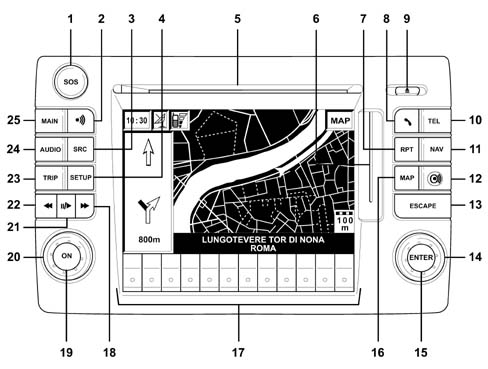
BUTTONS KEY
There are 30 buttons at the front of the Connect Nav + plus two knobs (made up of a ring nut and a button).
Some controls have multiple functions that depend on the active system operating conditions.
The activation of the function selected is controlled, in some cases, by how long the button is pressed for (briefly or at length), as described in the table below.
| Key | Pressing the button briefly (less than 1 second) | Pressing the button at length (more than 1 second) |
|---|---|---|
| 1 | Display of the emergency or assitance call menu (medical, mechanical, ...) with logic adapted for an emergency call. | |
| 2 | Activation/deactivation of voice recognition. | Memorizing of voice message. |
| 3 | Selection of operating mode:FM1/2/3/AST - MW/LW/AMAST - LW - CD - CDC. | |
| 4 | SETUP Mode. | |
| 5 | CD housing. | |
| 6 | SIM card housing. | |
| 7 | Repetition of last voice instruction. | |
| 8 | Send telephone call. Accepting an incoming phonecall. | Refusing incoming phonecall and automatically stopping dialling of new telephone number. If a call is already in progress, it interrupts it. |
| 9 | Ejecting the navigation CD-ROM and audio CD. | |
| 10 | Activating telephone mode. | Deactivating telephone mode. |
| 11 | Activating navigation mode. | Deactivating navigation mode. |
| 12 | Targasysmode. | |
| 13 | Exit from selection list or move to a derived or higher menu. | |
| 14 | Knob for selecting desired function in system menu. | |
| 15 | Confirming choice of function selecting using knob. | |
| 16 | MAP mode. | |
| 17 | Multifunction buttons whose function depends on the mode activated identified by a window in the display above the buttons. In some cases a window covers several adjacent buttons: the function of all these buttons is the same. | |
| 18 | - Radio: Move the radio frequency of 50 kHZ (FM)/1 kHZ (AM) towards the next station starting from the station currently tuned into. - CD: move to the next track. - MP3: move to the next track. | - Radio: move to radio frequency up to the first radio station that can be tuned into next. - CD: move to the next track. - MP3: move to the next 10 tracks/'folder not empty'. |
| 19 | Switching system on/off. | |
| 20 | Volume adjustmemt knob. | |
| 21 | CD/CDC reproduction/stop. | CD/CDC pause |
| 22 | - Radio: Move the radio frequency of 50 kHZ (FM)/1 kHZ (AM) towards the next station starting from the station currently tuned into. - CD: move to the previous track. - MP3: move to the previous track. | - Radio: radio frqeuency move to the first radio station tuned into previously - CD: move to the previous track. - MP3: move to the next 10 tracks/'folder not empty'. |
| 23 | Activation of Trip mode. | |
| 24 | Audio mode activation. | Audio module deactivation (radio, CD/CDC). The audio module is switched on again by pressing the AUDIO button: the audio state and parameters are immediately restored |
| 25 | Activates the Main mode. | Dark mode: the display is completely darkened The display is lit up again by pressing the MAIN, TEL or SOS buttons or by receiving a telephone call. |
STEERING WHEEL CONTROLS
The controls for the main functions of the CONNECT Nav+ system are duplicated on the steering wheel for easier operation.
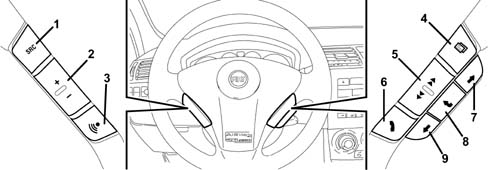
1 - Source button (SRC)
2 - + and - button: volume adjustment
3 - voice recognition button
4 - Connect mode button
5 - Scan button
6 - telephone button
STEERING WHEEL CONTROLS
Source: the SRC button changes the audio source, starting from the current one and following a repeated order: FM1/FM2/FM3/FMAST/MW/LW/AMAST/CD/CDC (Note AST = Autostore).
Volume: the '+/-' buttons adjust the volume; if they are pressed for more than 2 seconds, they work continuously until they are released.
Voice recognition: if button '3' is pressed briefly, the voice recognition is either activated or deactivated. If it is pressed for a long time the voice recording is activated and can be interrupted by pressing the button again briefly or for longer.
Connect mode: button '4' can be used to select the various CONNECT NAV + modes, i.e.: MAIN, AUDIO, TEL, NAV starting from the module currently selected.
Scan: the rocker switch '5' makes it possible to:
- a) in Radio mode: search for the previous radio station or the next one that can be tuned into;
- b) in CDE mode: move to the previous or next track.
Telephone: button 6 is used to access the telephone mode.
The activation of the function selected is controlled, in some cases, by how long the button is pressed for (briefly or at length), as described in the table below.
Condition telephone | Pressing briefly | Pressing for a while |
|---|---|---|
| Incoming call | Acceptance of a call | Refusal of a call |
| Call in progress | Interception of a call | |
| Waiting | The last number selected appears or, by pressing it again within 5 seconds the call is sent | Using the list of telephone numbers (last call or agenda) if followed, respectively, by SCAN Pressing the button for longer or briefly sends the call. |
| New automatic setting | Interrupts the new phone number. |
If button 6 is pressed for a while, a menu appears on the panel display where the last numbers called can be selected from the list or the telephone directory and, once the choice has been made, the user can scan the list. All these operations are carried out using button 5.
The user can make the call by pressing button 6.
Selection buttons (7 and 9):these buttons carry out the same functions as the Connect right ring nut (14).
Enter button (8):this button confirms the selection made previously using buttons 7 and 9.
CODE RECOGNITION AND ACTIVATION PROCEDURE (SWITCHING ON THE COMPONENT)
There is an ANTI-THEFT function for the Connect (NIT) and the radio (NRR) which is designed to prevent their operation if they are stolen.
The NIT and NRR components automatically remain locked if there is no connection to the CAN.
If the connection is to the CAN of another vehicle, the MASTER CODE must be entered manually which allows the storage of the EXCHANGE CODE by the NBC which is needed for the operation of the NIT or the NRR.
The MASTER CODE is programmed on the NIT/NRR assembly line and is on the Code Card.
The EXCHANGE CODE is produced randomly by the NIT/NRR and is memorized in the NBC using a special procedure.
The MASTER CODE and the EXCHANGER CODE are different
The anti-theft function logics are described below.
1) Automatic authentication each time the NIT/NRR is switched on.
2) Memorizing of the EXCHANGE CODE in the NBC in the following 2 ways:
- automatic programming the first time the NIT/NRR is switched on on the vehicle production line
- manual programming
Automatic authentication each time the NIT/NRR is switched on
When the NIT/NRR modes are switched on and recognize the connection to the CAN, an authentication procedure is automatically initiated.
The NIT/NRR checks whether the NBC contains the EXCHANGE CODE programmed previously.
If the check is successful, the NIT/NRR starts working, otherwise it is ready to receive the MASTER CODE on the Code Card in the possession of the owner manually.
When the EXCHANGE CODE is transmitted between the NIT/NRR and the NBC it is encrypted.
Programming the EXCHANGE CODE in the NBC
Automatic: when a new NIT/NRR is supplied for the first time, it starts to programme the EXCHANGE CODE in the NBC As soon as the NIT/NRR receives confirmation from the NBC that the programming has taken place, the automatic procedure is interrupted and is not repeated.
Manual: if the automatic code programming procedure is no longer activated and the automatic authentication procedure fails after another key on, the NIT/NRR remains locked and is ready to receive the MASTER CODE on the Code Card manually. If the code entered is correct, the NIT/NRR will start the EXCHANGE CODE programming procedure in the NBC to allow the automatic authentication.
Each NIT/NRR has its own MASTER CODE and therefore its own Code Card.
The manual entering procedure is necessary if the NBC is replaced or an NIT/NRR already initialized on another vehicle is fitted.
If an incorrect code is entered, the NIT/NRR remains locked for 1 minute before accepting a code again.
The waiting time is doubled (2 mins, 4 mins, 8 minsetc. up to a max. of 24 hours) as unsuccessful attempts are made to enter a code.
The 'Emergency / Assistance' telematic functions in the NIT are not subject to the anti-theft function described previously; therefore apart from the outcome of the exchange procedure and code check between the NBC and NIT, the user can press the SOS button for the Emergency / Assistance functions that work even if the CAN is faulty.
DESCRIPTION OF MAIN FUNCTIONS AND MODULES (most important screens)
When the CONNECT NAV+ is switched on, the 4 main modules are activated:
- AUDIO
- TELEPHONE
- NAVIGATOR
- TRIP COMPUTER
and the following functions:
- VOICE RECOGNITION
- ASSISTANCE SERVICES AND S.O.S.
- SET UP
AUDIO MODULE
To access the Connect Nav+ audio module screens, press the AUDIO button.
There are 3 sections in the left part of the screen; the following is displayed in the larger one at the top:the frequency band, the frequency and name of the radio station tuned into at the time and other information concerning the radio station.
The two smaller sections show the 6 radio stations programmed in the 6 memory positions for each frequency band.
A menu will appear on the right of the screen where the user can make the following radio settings:
- TA-Traff.Ann.
- AF - High Freq.
- RDS
- PTY-Prog.Type
- AUTOSTORE
- BAND SCAN.
The user can enter the NEXT MENU from the menu where they can scan the 6 preset stations: PRESET SCAN
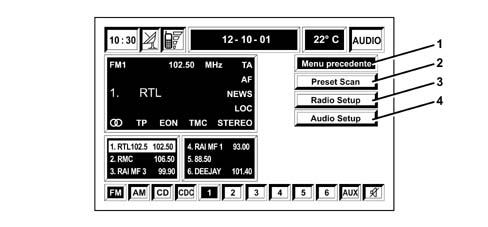
1 - Previous menu
2 - Preset scan
3 - Radio setup
4 - Audio setup
AUDIO MODULE
The radio SET UP (RADIO SET UP) (LOC/DX, MONO/STEREO, REGIONAL, ETC...) and the AUDIO SET UP (BASS, TREBLE, LOUDNESS, EQUALIZER, ETC.) can be made.
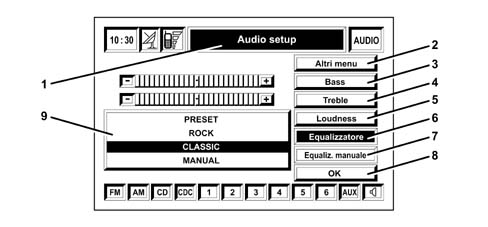
1 - Audio setup
2 - Other menus
3 - Bass
4 - Treble
5 - Loudness
6 - Equalizer
7 - Manual equalizer
8 - Enter button
9 - Preset equalizers
AUDIO MODULE
As far as the equalizing is concerned the following preset adjustments can be used:
- ROCK
- JAZZ
- CLASSIC
or the manual equalizer can be used where the user manually adjusts the 5 frequencies as illustrated in the diagram
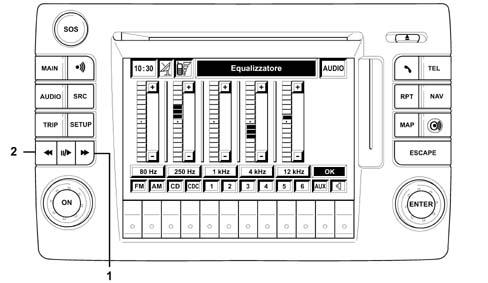
1 - Radio station frequency manual search button
2 - Radio station frequency manual search button
AUDIO MODULE
Pressing buttons 1 and 2 implements the manual search for the radio station frequency.
The ring nut 20 adjusts the audio volume.
Pressing button 3 (SRC) changes the audio sources in the following order:
- FM1
- FM2
- FM3
- FMAST
- LW
- MW
- AM
- AMAST
- CD
- CDC
The 17 buttons are known as MULTIFUNCTION because they activate the function shown by the symbol in the window in the display just above the button.
The diagram below illustrates the menu on the right of the display in CD or CDC mode.
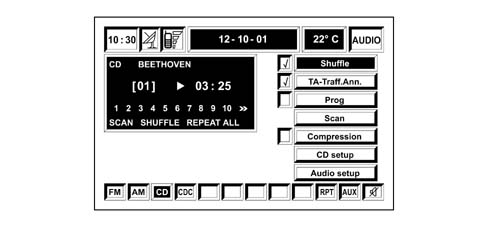
CD - MP3 mode
The Connect Nav+ system can recognize the type of compact disc inserted.
During the recognition stage the words 'CD reading in progress...' will appear on the display and the system recognizes whether a music CD with music tracks recorded in MP3 mode is inserted (i.e., for example, music files with the extension mp3).
The names of the tracks in MP3 format should not contain characters with open or closed brackets '(' ')', otherwise the Connect Nav+ will not be capable of reproducing the tracks concerned.
The Connect Nav+ automatically structures the files on the CD in mp3 format in folders, creating sequential lists of all the folders contained by MP3 format tracks.
A CD could contain throusands of mp3 files; in this case a maximum limit for the files managed is set; in effect, the system will only consider the first 999 music tracks and the following will appear on the display for about 7 seconds:
Only the first 999 tracks of the MP3 CD inserted will be managed by the system
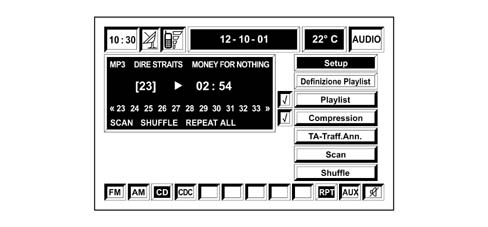
Once the MP3 CD is inserted and recognized by the system, the main screen will show the following functions:
- Set Up
- Playlist definition
- Playlist
- Compression
- TA-Traff.Ann.
- Scan
- Shuffle
Refer to the 'Owner's Handbook' for the usage instructions
TELEPHONE MODULE
The Connect Nav+ system comes with a Dual Band GSM hands free mobile phone.
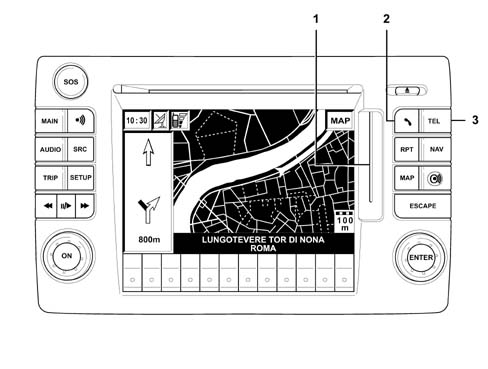
1 - SIM card housing
2 - Send a telephone call. Accepting an incoming phonecall.
3 - Telephone mode activation
TELEPHONE MODULE
Irrespective of whether a SIM card is present or the PIN code has been entered, once the telephone module is activated emergency calls can always be made by dialling 112.
When the telephone module is activated and there is no valid SIM card inserted, a warning message will appear on the display.
Inserting a valid SIM CARD renders the telephone operational and gives access to the functions
The card should be inserted in the special housing with the chip at the front on the right in relation to the direction of travel.
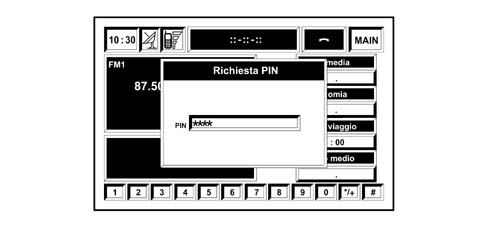
If the SIM card is correctly inserted the PIN code is requested. as illustrated in the diagram below.
Extraction of the SIM card with the phone active may cause a temporary malfunction; switch off the telephone by pressing the TEL button for a while or switch off the Connect Nav+ using the ON button before extracting the SIM card.
TELEPHONE MODULE
After entering the valid PIN code the following screen is displayed where the string where the user can display the phone number to be called is shown in the left part of the display.
The lower section contains the symbols with the numbers from '0' to '9' and the symbols ' */+ ' and ' # ' like on normal telephone keypad.
The right part of the display has a menu containing the following items:
- OTHER MENUS
- FREQUENT NUMBERS
- LAST INCOMING NOS.
- LAST NOS. DIALLED
- AGENDA
- WAP
- VOICE MEMO
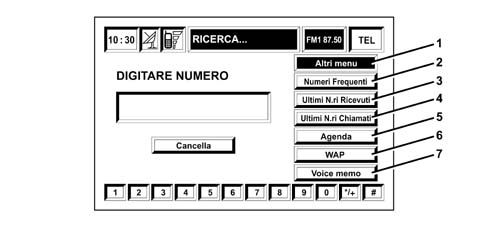
1 - Other menus
2 - Frequenct numbers
3 - Last incoming numbers
4 - Last numbers dialled
5 - Agenda
6 - Wap
7 - Voice memo
TELEPHONE MODULE
The Telephone Module functions on the Fiat STILO are the same as on a hand held type mobile phone, therefore in addition to the function of entering/modifying the PIN code and emergency call without the SIM card there is also:
- recall of telephone numbers stored on the SIM card
- input of new phone numbers on the SIM card
- deletion of phone numbers from the SIM card
- information on the SIM card status (correctly or incorrectly inserted)
- list of the last 10 numbers dialled
- list of the last 10 incoming calls
- SMS management
- DTMF settings
- selection of network service provider
- setting of call reception volume
- display residual credit if SIM card is prepaid
- display of signal field intensity and other status warnings with symbols and writing
Incoming calls
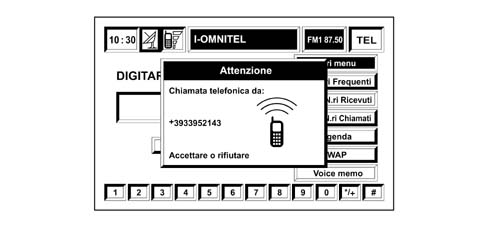
Irrespective of whatever mode the Connect Nav+ system is in, if there is an incoming call, a dialogue box is superimposed on the current display window as illustrated in the diagram below:
Incoming calls
To accept the call, press button 8 briefly (Fig. 1).
To end the conversation, press button 8 briefly (Fig. 1).
To refuse the call, press button 8 for a while (Fig. 1).
Outgoing calls
To make a call enter the Telephone mode (TEL button), dial the number using the lower 12 buttons; if an international prefix is required ('+'), press button '0' for a while.
After having dialled the telephone number, press button 8 briefly (Fig. 1).
WAP mode
WAP stands for: WIRELESS APPLICATION PROTOCOL.
Thanks to WAP technology Internet access using a mobile phone is possible when a computer is not available.
WAP navigation is not very different from using a PC but the same performance as offered by internet access using a PC and ADSL (Asymmetic Digital Subscriber line - technology that makes it possible to transfer data at high speed through normal telephone lines using special modems) should not be expected because with WAP the graphics are very inferior and the information is reduced to the basics.
WAP technology is particular so it is not possible to access regular websites using mobile phones like one would using an internet PC.
In effect web pages use languages such as HTML (Hyper Text Markup Language: international language for electronic texts) that are displayed on the PC using BROWSERS (such as: NETSCAPE NAVIGATOR, INTERNET EXPLORER, etc.).
WAP is based on a different language: WML (Wireless Markup Language) with its own scripts. There is usually a programme written in a special language for carrying out tasks linked to the operating system with their own image formats and it also requires a special BROWSER or MICROBROWSER to display these WEB pages.
These BROWSERS are incorporated inside the latest generation WAP mobile phones: the settings requested (indicated below) simply have to be made and access can be gained to the desired WAP sites.
The addresses for WAP are also in 'HTTP://'; the logic is the same as the WEB.
The WAP pages are located at an HTTP server and the technical operation is as follows: when a WAP address is keyed into the mobile phone, the telephone sends an HTTP request for a WML page at a WEB server.
The request is received by the WAP GATEWAY, via the GSM network, where, thanks to a coding/decoding procedure, it is forwarded to the WEB server.
At this point the page requested returns to the WAP GATEWAY which, by means of coding/decoding, routes it to the mobile phone where the request came from.
This is what takes place when the requests are already in WML format (for mobile phones).
What often happens however is that the pages requested are in HTML format (for PCs) and in this case the WAP GATEWAY acts as an HTML - WML transformer in real time.
If the sites are complex with complicated graphics the results on the mobile phone display may be illegible.
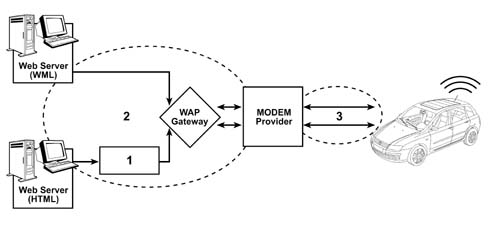
1 - HTML - WML converter
2 - Internet (TCP/IP)
3 - GSM network
WAP mode
The table below contains the configurations and settings for the mobile phone for the 4 current service providers in Italay in order to be able to use WAP:
| Configurations | ||||
|---|---|---|---|---|
| Blue | Ominitel | Tim | Wind | |
| Homepage | http://blu.it/ | http://wap.2000.it/ | http://wap.tim.it/ | http://wap.inwind.it/ |
Phone number | +393800004449 | +3992002821 | +393359009002 | +393285258500 |
| User name | leave blank | leave blank | leave blank | leave blank |
| Password | leave blank | leave blank | leave blank | leave blank |
| IP Address | 10.135.088.062 | 10.128.201.076 | 213.026.205.001 | 212.245.244.011 |
| IP Carrier | 9201 | 9201 | 9203 | 9201 |
| Type of transport | data | data | data | data |
| Type of connection | continuous | continuous | continuous | continuous |
| Type of call data | ISDN | ISDN | ISDN | ISDN |
| Call speed data | 9.600/Autobauding | 9.600/Autobauding | 9.600/Autobauding | 9.600/Autobauding |
| Connection security | no | no | no | no |
| Type of authentication | normal | normal | normal | normal |
S.M.S
In TEL ambientit is possible, from the main menu, to access the 'OTHER MENUS screen where the user can use the SMS (Short Message Service) where short messages can be read and sent, with a maximum length of 160 characters using the GSM telephone.
Refer to the 'Owner's Handbook' for the usage instructions.
Remember that in order to be able to use the SMS service there is a telephone number set by the service provider that the user intends to use.
To set this telephone number, select 'Centre Number' from the 'SMS menu.
Then compose the telephone number for the Services Centre using button 17 (the telephone number for the services centre is supplied by the network manager for the SIM)
The following menu is displayed by selecting 'OPTIONS in 'OTHER MENUS:
- Network operator: which allows the choice of Network Providers to be managed.
- PIN: which allows the management of the PIN code.
- Information: which allows the display of information relating to the GSM module (name of the Provider, IMEI code (International Mobile Equipment Identity), etc.)
- Unidentified: which allows the phone number to be witheld from the person called
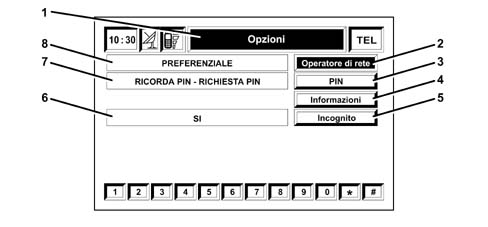
1 - Options
2 - Network operator
3 - PIN
4 - Information
5 - Unidentified
6 - Yes
7 - PIN recall - PIN request
8 - Preference
S.M.S
If 'SETTINGS is selected the following menu will be displayed:
- Ring volume: which allows the telephone ring volume to be adjusted
- Repeat Selection: if the line is engaged, there is an automatic repeat function (the number of times is set by the system)
- Call transfer: this allows the call transfer to be activated or deactivated
- Call number transfer: to introduce the telephone number to which the call should be transferred
- Call warning enabled: activates or deactivates the announcement of an incoming call
- OK: to confirm the selections
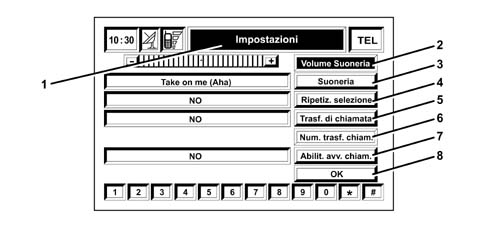
1 - Settings
2 - Ring volume
3 - Ring
4 - Ring repeat
5 - Call transfer
6 - Call transfer number
7- Call warning enabled
8 - Enter button
NAVIGATOR MODULE
The Navigator makes it possible to reach a destination, set by the user, by means of visual and acoustic instructions.
The navigation module, incorporated in the NIT, receives data concerning advancement (forward speeds and reverse) and changes in direction from information made available by the NBC on the CAN and, together with the information received by the GPS satellites via the GPS aerial on the roof of the vehicle, it is possible to calculate the estimated location of the vehicle.
There is no gyroscope inside the navigator module because if there are no signals coming from the satellites the navigator knows the movements of the vehicle from the information received from the CAN.
The first time it is activated and every time after the battery has been disconnected, the GPS takes about 15 minutes to become activated.
The precise autoadjustment of the navigation system requires 100 km to be covered after first activation and when the tyres are changed.
If the engine is off and the vehicle is moved with the system switched off (e.g. on a pick-up truck), at the next key on the GPS system will take a few minutes to determine the new position of the vehicle.
The navigation system CD ROM drive is located at the front of the Connect Nav+ system and is also used for audio CDs.
It is not therefore possible to use the audio player and the navigation system drive simultaneously The navigation system can, however, operate partially even without the navigation CD inserted.
Route Guidance
The main function in the navigation module is known as route guidance and involves all the activities of extracting, managing and processing the information required for guiding the user to the destination they have set.
These activities are basically:
- ROUTE CALCULATION: Calculation of the route between the current position and the destination; Calculation of route with multiple destinations; Recalculation of the route in the case of deviation from the current route; Calculation of alternative route.
- ACTUAL ROUTE GUIDANCE: Identification of the location of the vehicle along the route (and calculation of the distance to the destination); Identification of junctions on the route; Identification of manoeuvres at the junctions on the route (and graphic and voice instructions for the user); Calculation of the distance to the next junction at which the user has to make a turn; Junction zoom FUNCTION in urban area.
- DIGITAL MAP: The official M.MARELLI CD ROM contains the basic map data which is made available to all the other system functions. Access to any map data (segments, areas, services, locations, etc.) required by other modules takes place via one of the functions available at this CD ROM.
- COMPLETE DATABASE MANAGEMENT: If the map CD ROM is present then the navigation function uses the entire database available (map list, points of interest, ...).
- REDUCED DATABASE MANAGEMENT WITH NO CD-ROM (LISTENING TO MUSIC CD): It is possible to listen to an audio CD using the CD player during navigation. Simply follow the procedure described. The map CD must be inserted in the CD player for the entire period whilst the destination is being entered and the route calculated. At the end of this processing the CD ROM can be removed by pressing the eject button. At this point the system: 1) automatically loads the route calculated in the memory; 2) ejects the map CD. The audio CD you wish to listen to can now be inserted. Under these circumstances only part of the map information (names of towns and names of roads) is available and it relates to the individual segements of the route. In any case, the reduced database present in the CONNECT memory makes it possible to deviate from the route with automatic recalculations without having to reinsert the CD-ROM. However, the efficiency of this re-calculation is highly dependent on the characteristics of the map near the original route. The moment the route data in the memory is no longer sufficient to continue the navigation, there will be a request to reinsert the map CD. If the system cuts out during navigation without a CD ROM, when it is switched back on the map CD must be inserted to access the navigation functions.
If the key is turned to the ON position the Connect and the Navigator are activated and, after having displayed the warning reminding the customer that the navigator provides assistance whilst driving in traffic but it is always the driver's responsibility to follow road traffic regulations, if the ENTER button is pressed the location of the vehicle is determined using the satellites and then the position of the vehicle is displayed using the co-ordinates as illustrated below:
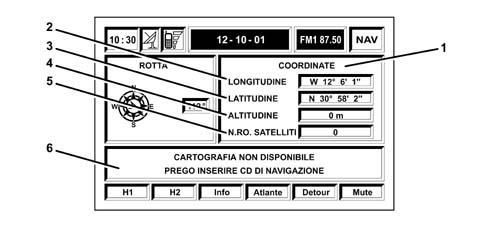
1 - Co-ordinates
2 - Longitude
3 - Latitude
4 - Altitude
5 - No. of satellites
6 - Map not available, please insert navigation CD
Route Guidance
After the location the following screen is displayed with the map showing the position of the vehicle and, on the left, the main menu:
- OTHER MENUS
- ADDRESS SELECTION
- RG ACTIVATED
- VOLUME
- SETTING OF ROUTE
- SCALE
The menu items are described below in more detail; whilst for the items used frequently, refer to the 'OWNER'S HANDBOOK
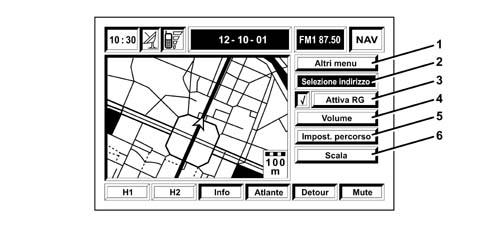
1 - Other menus
2 - Address selection
3 - RG activated
4 - Volume
5 - Route setting
6 - Scale
Route Guidance
The user can access the menus listed below from this menu:
- from 'OTHER MENUS:
- PREVIOUS MENU
- CHANGE SCREEN
- CANCEL THE DESTINATION
- MAP PREFERENCES
- VOICE AGENDA
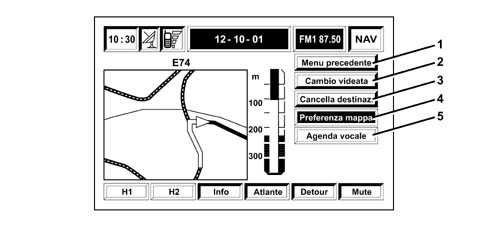
1- Previous menu
2 - Change screen
3 - Delete destination
4 - Map preference
5 - Voice agenda
Route Guidance
from 'ADDRESS SELECTION:
- OTHER MENUS from where access can be gained to: PREVIOUS MENU, HOME1, HOME2
- ADDRESS
- PLACES OF INTEREST
- LAST DESTINATIONS
- AGENDA
- RDS-TMC (not available for the Italian market)
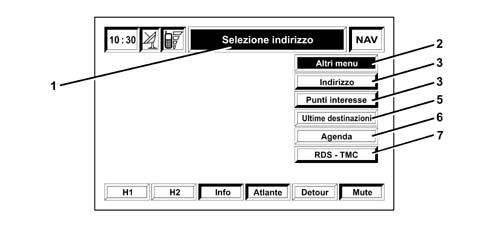
1- Address selection
2 - Other menus
3 - Address
4 - Places of interest
5 - Last destinations
6 - Agenda
7 - RDS - TMC
Route Guidance
The item RDS-TMC allows the system to identify events close the vehicle or near an address by receiving information transmitted by certain radio stations that offer this type of service.
The events are divided into 3 categories:
- TRAFFIC: information relating to traffic and road conditions
- WEATHER: weather information
- INFO: general information
- ALL: all types of information
This information helps the driver in driving to the destination but cannot be used in setting a destination.
Below is a list of the symbols for TDS-TMC transmission:
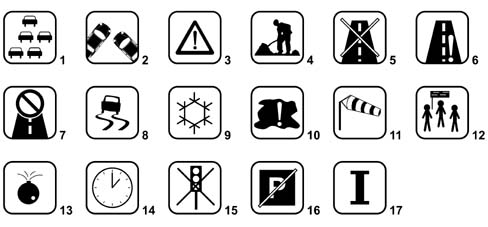
1- Tail-back
2 - Accident
3 - General danger
4 - Work in progress
5 - Road closed
6 - Carriageway restriction
7 - No through road
8 - Slippery road
9 - Ice/snow
10 - Fog
11 - Wind
12 - Procession, demonstration
13 - Risk of explosion
14 - Delays
15 - Traffic lights out of order
16 - Parking
17 - Forecasts
Route Guidance
from 'RG ACTIVATED.
This item activates or deactivates navigation voice messages. It does not have sub-menus.
From 'VOLUME:
This item allows the volume of the navigation voice messages to be adjusted. It does not have sub-menus.
From 'ROUTE SETTING:
- ROUTE TYPE
- MOTORWAY
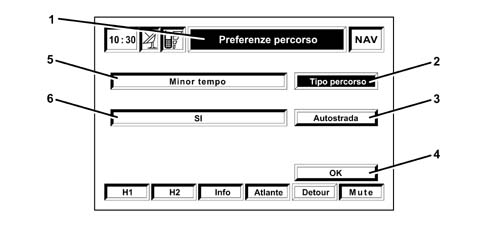
1 - Route preference
2 - Route type
3 - Motorway
4 - Enter button
5 - Yes
6 - Less time
Route Guidance
The first function makes it possible to select the TYPE of ROUTE: LESS TIME or SHORTER DISTANCE; the second function can be used to calculate the route with PREFERENCE FOR MOTORWAYS or AVOIDING MOTORWAYS.
From 'SCALE:
this item activates a window where the user can select the scale of the map displayed on the screen.
Refer to the 'Owner's Handbook' for the usage instructions.
TRIP COMPUTER MODULE
The Trip Computer module, incorporated in the Connect, manages and calculates a great deal of information that is displayed on the screen providing the user with journey related data.
Some information comes directly from the Navigator module, some from the various vehicle Nodes; for this reason the Trip Computer only works fully when the key is in the ON position so that the network is awake and can transfer the information required by the Trip.
Pressing the TRIP button (23 in Fig. 1) activates the TRIP COMPUTER module and the screen with the following information is displayed:
- ARRIVAL TIME
- DISTANCE TO DESTINATION
- SPEED LIMIT
- RANGE
- INSTANT CONSUMPTION
- JOURNEY TIME
- JOURNEY DISTANCE
- AVERAGE SPEED
- AVERAGE CONSUMPTION
The Trip module calculates the following data using the information made available to it by the other CAN nodes.
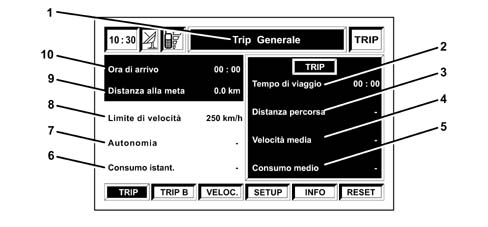
1 - General trip
2 - Journey time
3 - Distance travelled
4 - Average speed
5 - Average consumption
6 - Instant consumption
7 - Range
8 - Speed limit
9 - Distance to destination
10 - Arrival time
TRIP COMPUTER MODULE
as can be seen in the diagram, 6 symbols containing the following items are displayed in the lower part of the screen:
- TRIP
- TRIP B
- SPEED
- SET UP
- INFO
- RESET
To select these items, press the buttons under the screen (17 in Fig. 1).
Pressing Trip (symbol on the screen) displays information relating to the Main Trip, whilst pressing the Trip B button displays the same information but relating to Trip B.
The Main Trip and Trip B can be zeroed separately, by pressing the RESET button.
Pressing the SPEED button displays a screen where the user can set a speed limit and decide whether to enable the alarm buzzer if this speed limit is exceeded.
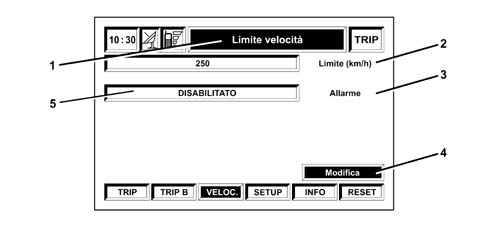
1 - Speed limit
2 - Limit (km/h)
3 - Alarm
4 - Change
5 - Disabled
TRIP COMPUTER MODULE
By pressing SET UP the user can change the units of measurement for the following items which will then be used in displaying the Trip data:
- UNITS OF MEASUREMENT DISTANCE (km/mi)
- UNIT OF MEASUREMENT CONSUMPTION (l/100km - km/l - mpg)
- ACT. TRIP B IN PANEL (activates or deactivates the display of Trip B in the Instrument Panel)
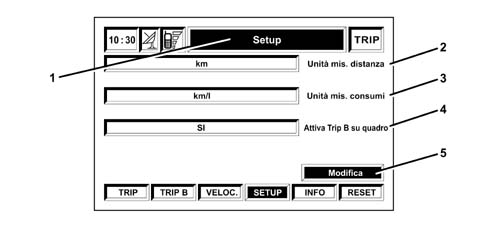
1 - Setup
2 - Unit of measurement - distance
3 - Unit of measurement - consumption
4 - Activates trip B in panel
5 - Change
TRIP COMPUTER MODULE
The following is displayed when INFO is pressed:
- RECOMMENDED VALUES
- PERSONAL INFO
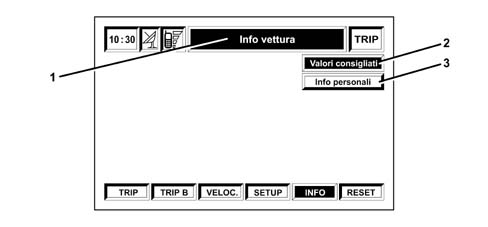
1 - Vehicle info
2 - Recommended values
3 - Personal info
TRIP COMPUTER MODULE
Selecting 'RECOMMENDED VALUES displays information relating to the planned maintenance programme intervals.
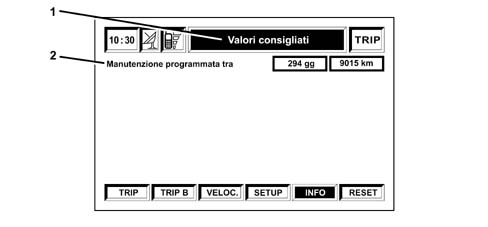
1- Recommended values
2 - Service due
TRIP COMPUTER MODULE
Selecting 'PERSONAL INFO activates access to an agenda where it is possible to store events that need to be remembered on a given date and/or when a certain mileage is reached.
To memorize events press ENTER
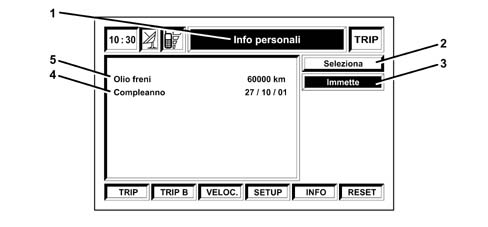
1 - Personal info
2 - Select
3 - Enter
4 - Birthday
5 - Brake fluid
TRIP COMPUTER MODULE
the screen where the user can enter information will appear.
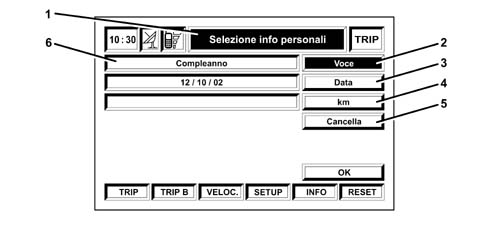
1 - Personal info selection
2 - Item
3 - Date
4 - km
5 - Delete
6 - Birthday
TRIP COMPUTER MODULE
When the time is reached a window showing the ITEM entered by the customer will appear on the Connect display.
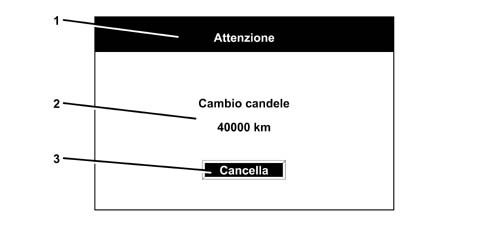
1 - Warning
2 - Change spark plugs
3 - Delete
VOICE RECOGNITION function
This function makes it possible to manage the Connect Nav+ system activities through the user's voice.
With the VOICE RECOGNITION function the user can give the Connect system commands using the telephone hands free microphone.
To activate the function, press the Connect button (1) or the button with the same symbol on the steering wheel controls (2).
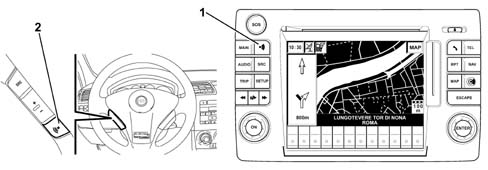
VOICE RECOGNITION function
Conversations between the user and the Connect consist of key words on a scale with 4 levels.
Below is a complete list of the key words and levels:
Voice recognition conversation table
The following conversations are possible between the VR module and the user.
There are first level key words that enable a series of commands linked to a particular ambient. - These commands remain available until the user pronounces another level one key word.
The words in the following table are activated by default,
| Level 1 key words | Level 2 key words | Level 3 key words | Level 4 key words | Notes |
|---|---|---|---|---|
| Radio | Tuner | |||
| CD player | Integrated CD player | |||
| CD magazine | CD magazine | |||
| Navigator | Navigator | |||
| Call | Call a number from the list | |||
| Compose | Call a number | |||
| Recall | Recall | |||
| PIN code | PIN code input | |||
| List | Reading the list | |||
| Interrupt | Interrupt conversation |
If the user takes too long to pronounce a second or third level word, necessary for completing the command, the VR module asks: 'Pardon ' inviting the user to continue.
The key words in the same box are synonyms.
Tuner
| Level 1 key words | Level 2 key words | Level 3 key words | Level 4 key words | Notes |
|---|---|---|---|---|
| Radio | Tuner | |||
| Foward | Station forward search | |||
| Backward | Backwards search | |||
| FM | Select an FM band | |||
| [1...3] | ||||
| MW / Medium Wave | Select MW band | |||
| LW / Long wave | Select LW band | |||
| Station/Memory | Select a station in the band. | |||
| [1-6] | ||||
| Autostore | If an FM station is tuned into, it goes to the FM ST band. If an MW station is tuned into, it goes to the MW ST band. Otherwise the command has no effect. | |||
| Search | Autostore operation request. Valid if the current band is FM ST or MW ST. | |||
| Frequency (1) | Tuning into a particular frequency | |||
[0...9] 'Punto' Delete Cancel Interrupt Repeat Send |
If a particular command is pronounced and carried out, the Tuner menu second level words and all the first level words remain valid for the subsequent commands.
(1) After the 'Frequency' command the VR module will ask: 'Frequency please ?'
Integrated CD player
| Level 1 key words | Level 2 key words | Level 3 key words | Level 4 key words | Notes |
|---|---|---|---|---|
| CD player | Integrated CD player | |||
| Stop / Off | Stop | |||
| Start / Play | Play | |||
| Pause | Pause | |||
| Backward | Skip to previous track | |||
| Forward | Skip to next track | |||
| Track / Number | Track selection through direct selection | |||
| [1-20] | ||||
| Random | Random activation |
If a particular command is pronounced and carried out, the CD Player menu second level words and all the first level words remain valid for the subsequent commands.
CD loader
| Level 1 key words | Level 2 key words | Level 3 key words | Level 4 key words | Notes |
|---|---|---|---|---|
| CD loader | CD loader | |||
| Stop / Off | Stop | |||
| Start/Play | Play | |||
| Pause | Pause | |||
| Backward | Skip to previous track | |||
| Forward | Skip to next track | |||
| Track/Number | Numerical track selection | |||
| [1...20] | ||||
| Random | Random activation | |||
| Disc | ||||
| [1...5] | Numerical disc selection | |||
| Backward | Previous disc selection | |||
| Forward | Next disc selection |
If a particular command is pronounced and carried out, the CD loader menu second level words and all the first level words remain valid for the subsequent commands.
Navigator
| Level 1 key words | Level 2 key words | Level 3 key words | Level 4 key words | Notes |
|---|---|---|---|---|
| Navigator | Navigator | |||
| Destination (1) | ||||
| [Speaker Dependent] | Selecting a destination | |||
| Display | ||||
| Map | Selection of map display | |||
| Route | Selection of route display | |||
| Hotels | Highlight hotels on map | |||
| Restaurants | Highlight restaurants on map | |||
| Car parks | Highlight car parks on map | |||
| Service stations | Highlight service stations on map | |||
| Nothing | Do not highlight anything on map | |||
| Enlarge / Zoom | Zoom in | |||
| Reduce | Zoom out | |||
| List of destinations | ||||
| Read | Request reading of destinations list | |||
| Delete | ||||
| Destination (1) [Speaker Dependent] | Request deletion of destination | |||
| All | Request deletion of all destinations |
If a particular command is pronounced and carried out, the Navigator menu second level words and all the first level words remain valid for the subsequent commands.
(1) after the command 'Destination' or 'Delete - Destination' the VR module will ask: 'Destination please ?'.
Telephone
| Level 1 key words | Level 2 key words | Level 3 key words | Level 4 key words | Notes |
|---|---|---|---|---|
| Call (1) | Call a number from the list | |||
| [Speaker Dependent] | ||||
| Dial (3) | Calling a number | |||
[0-9] Plus Cancel Delete Interrupt Repeat Send | ||||
| Recall | Recall | |||
| PIN code (4) | PIN code input | |||
[0..9] Cancel Delete Interrupt Repeat Send | ||||
| List | ||||
| Read | Reading general list | |||
| Delete | ||||
| Name (2) | ||||
| [Speaker Dependent] | Deleting a name from the general list | |||
| All | Deleting the entire general list |
If a particular command is pronounced and carried out, the first level words will remain valid for subsequent commands.
(1) After the command 'Call' the VR module will ask: 'Name please ?'.
(2) After the command 'Delete - Name' the VR module will ask: 'Name please ?'.
(3) After the command 'Dial' the VR module will ask: 'Number please ?'.
(4) After the command 'PIN code' the VR module will ask: 'PIN code please ?'.
Interrupt conversation
| Level 1 key words | Level 2 key words | Level 3 key words | Level 4 key words | Notes |
|---|---|---|---|---|
| Interrupt | Interrupt conversation |
Conversation
Below is a table containing several service words for the management of the conversation.
| Key words for correction | |
|---|---|
| Key word | Function |
| Interrupt | The operation in progress will be interrupted |
| Delete | The NIT will forget the last information provided by the user |
| Cancel | The NIT will forget all the information provided by the user |
| Repeat | The NIT will repeat the information received from the user |
| Send | The NIT will carry out the service required |
| No | |
| Yes | |
ASSISTANCE AND EMERGENCY SERVICES function
The buttons that activate these two functions are: S.O.S. (1 in Fig. 1) and the green coloured CONNECT button (12 in Fig. 1).
If the S.O.S. button is pressed the following menu will be displayed:
- MEDICAL SERVICES
- ROADSIDE ASSISTANCE
- PERSONAL NUMBER
- EMERGENCY
- SETTINGS
MEDICAL SERVICES and ROADSIDE ASSISTANCE are services managed by Targasys and can be activated on request for a charge. This request is made by the customer or the dealership by faxing a form that has to be completed with the customer's details.
Refer to the 'Owner's Handbook' for the usage instructions.
The following screen is displayed if the green CONNECT button (12 in Fig. 1) is pressed:
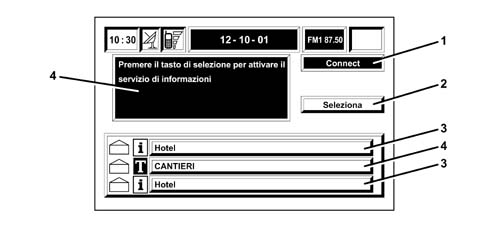
1 - Connect
2 - Select
3 - Hotel
4 - Yards
5 - Press the selection button to activate the information service
ASSISTANCE AND EMERGENCY SERVICES function
the following services are available:
- CONNECT
- SELECT
They are also charged for and available from Targasys; a whole range of useful information and services are available.
Refer to the 'Owner's Handbook' for the usage instructions.
SET UP function
The SET UP function makes it possible to set up a series of parameters and operating modes for the vehicle and the Connect Nav+ system.
The current setting and language appear on the screen when the SET UP button is pressed; the following symbols are shown in the lower part of the display:
- LANGUAGE
- DATE AND TEMP.
- VEHICLE
- CONNECT
Press the buttons under the screen to activate them.
If the LANGUAGE button is pressed the list of the languages that can be selected is displayed:
- ITALIAN
- ENGLISH
- FRENCH
- GERMAN
- SPANISH
- PORTUGUESE
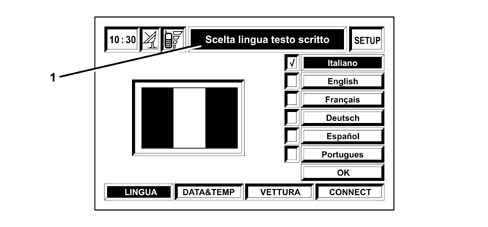
1 - Selection of written text language
SET UP function
By pressing DATE & TEMP. the screen that allows the user to alter the date and time and to change the unit of measurement for the temperature (C° / F°) is displayed
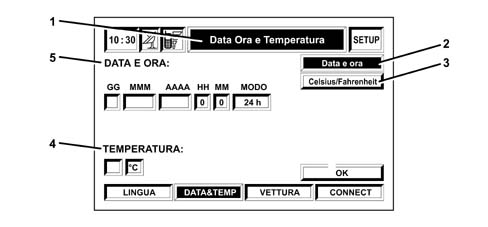
1- Date, time and temperature
2 - Date and time
3 - Celsius / Fahrenheit
4 - Temperature
5 - Date and time
SET UP function
Pressing VEHICLE gives access to a particular SET UP for the vehicle divided into 2 different menus.
The first menu consists of:
- NEXT MENU
- INSTRUMENT PANEL BUZZER VOLUME: this is for the adjustment of the instrument panel fault/warning signals volume.
- INSTRUMENT PANEL BUTTONS VOLUME: this is the adjustment and, if necessary, exclusion of the volume for the buttons on the left side of the panel
- DOOR LOCKING WITH VEHICLE MOVING: this is the activation or deactivation of the automatic locking of the doors when a speed of 15 km/h is exceeded.
- DRIVER'S DOOR RELEASE ONLY: this is the activation or deactivation of the independent release of the driver's door.
- INDEPENDENT BOOT RELEASE: this is the activation or deactivation of the independent boot release.
- OK: this confirms the settings made.
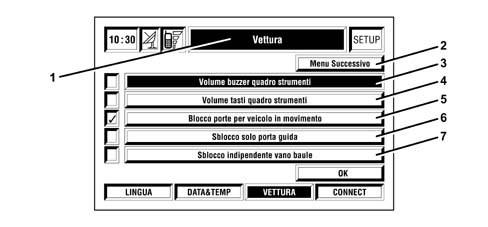
1 - Vehicle
2 - Next menu
3 - Instrument panel buzzer volume
4 - Instrument panel buttons volume
5 - Door locking with vehicle moving
6 - Driver's door release only
7 - Independent boot release
SET UP function
The 'NEXT MENU is only activated if the vehicle is equipped with PASSIVE ENTRY and/or a RAIN/DUSK SENSOR and/or a PARKING SENSOR; activating it gives access to the screen that allows the activation of the AUTOCLOSE function (for Passive Entry only, it activates the central locking when the CID is moving away), the adjustment of the lights sensor setting and the parking sensor.
Pressing CONNECT gives access to the following menu:
- INSTRUMENT PANEL: this activates the RADIO INFO REPETITION IN THE INSTRUMENT PANEL, the TEL INFO REPETITION IN THE INSTRUMENT PANEL and the NAV INFO REPETITION IN THE INSTRUMENT PANEL.
- VIDEO AND SOUND: this allows the adjustment of the screen brightness and colour and the adjustment of the buttons sound.
- POWER OFF: this allows the choice of the type of switching off for the Connect: SWITCHING OFF DEPENDENT ON THE IGNITION KEY or SWITCHING OFF INDEPENDENTLY OF THE IGNITION KEY.
Refer to the 'Owner's Handbook' for the usage instructions.
SELF-DIAGNOSIS
There is an autodiagnostic function on the Fiat STILO Connect Nav+ system known as ASSISTANCE.
To activate this function, proceed as follows:
With the Connect on (key on) press the SET UP button
Then press the buttons with the CONNECT symbol at the bottom right of the screen
In this screen press the buttons with the CONNECT symbol 3 more times: the ASSISTANCE symbol will appear under the INSTRUMENT PANEL, VIDEO AND AUDIO and POWER OFF symbols
Select ASSISTANCE, press ENTER
By being positioned on SPEAKER TEST and pressing ENTER a sound test will be carried out on all the speakers to check their efficiency.
By being positioned on NEXT MENU and pressing ENTER the screen with the results of the tests carried out by the Connect will be displayed:
The Connect constantly carries out an internal diagnosis, a diagnosis of the FM/AM and GPS aerials and a diagnosis of the speakers. There is no diagnosis of the GSM aerial.
The modules inside the Connect are not checked during the internal diagnosis, only their connection to one another.
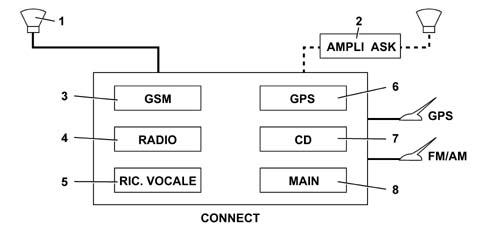
1 - Speakers (4)
2 - HI-FI AKS amplifier
3 - GSM module
4 - Radio module
5 - Voice recognitino module
6 - GPS module
7 - CD module
8 - Main module
Overheating
If the temperature inside a Connect module exceeds a set level, the module itself will signal this overheating.
The display will show module xxxxxx has been disabled. The maximum volume level has been limited.
The module concerned will be automatically restricted or disabled.
In extreme cases the entire system is shut down (with the driver warned) until the temperature returns to normal.
Connect rear view
The diagram below illustrates the rear view with the connectors highlighted
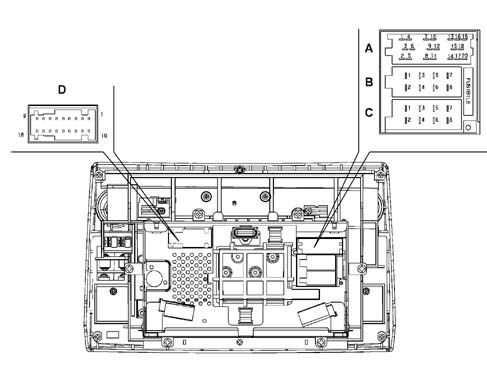
Connect rear view
Connector A
| Pin | Function |
|---|---|
| 1 | N.C. |
| 2 | N.C. |
| 3 | N.C. |
| 4 | N.C. |
| 5 | N.C. |
| 6 | 12V CONTROLLED BY IGNITION FOR ASK AMPLIFIER |
| 7 | N.C. |
| 8 | N.C. |
| 9 | N.C. |
| 10 | INPUT 1 FOR STEERING WHEEL BUTTONS |
| 11 | INPUT 2 FOR STEERING WHEEL BUTTONS |
| 12 | REFERENCE FOR STEERING WHEEL BUTTONS |
| 13 | Rx CD CHANGER BUS |
| 14 | Tx CD CHANGER BUS |
| 15 | 12V PERMANENT FOR CD CHANGER |
| 16 | 12V CONTROLLED BY IGNITION FOR CD CHANGER |
| 17 | GND CD CHANGER BUS |
| 18 | AUDIO REFERENCE FROM CD CHANGER |
| 19 | LEFT AUDIO SIGNAL FROM CD CHANGER |
| 20 | RIGHT AUDIO SIGNAL FROM CD CHANGER |
Connector B
| Pin | Function |
|---|---|
| 1 | + RIGHT REAR SPEAKER |
| 2 | - RIGHT REAR SPEAKER |
| 3 | + RIGHT FRONT SPEAKER |
| 4 | - RIGHT FRONT SPEAKER |
| 5 | + LEFT FRONT SPEAKER |
| 6 | - LEFT FRONT SPEAKER |
| 7 | + LEFT REAR SPEAKER |
| 8 | - LEFT REAR SPEAKER |
Connector C
| Pin | Function |
|---|---|
| 1 | Bus B-CAN B |
| 2 | INPUT FROM BOSE AMPLIFIER |
| 3 | Bus B-CAN A |
| 4 | KEY ON INPUT (+KEY) |
| 5 | 12V FOR AUTOMATIC AERIAL |
| 6 | N.C. |
| 7 | 12V PERMANENT |
| 8 | GND SUPPLY |
Connector D
| Pin | Function |
|---|---|
| 1 | N.C. |
| 2 | SERIAL LINE FOR TELEPASS |
| 3 | N.C. |
| 4 | N.C. |
| 5 | N.C. |
| 6 | INPUT FROM PRIVACY HANDSET) |
| 7 | AUDIO SIGNAL TO PRIVACY HANDSET (MIC. OUT) |
| 8 | MICROPHONE INPUT FROM PRIVACY HANDSET (MIC. IN) |
| 9 | INPUT FROM MICROPHONE FOR HANDS FREE |
| 10 | N.C. |
| 11. | N.C. |
| 12 | ELECTRONIC EARTH |
| 13 | CRASH OUTPUT NEGATIVE SIGNAL FROM AIR BAG CONTROL UNIT |
| 14 | N.C. |
| 15 | N.C. |
| 16 | MICROPHONE INPUT FROM PRIVACY HANDSET (MIC. IN REF) |
| 17 | AUDIO SIGNAL TO PRIVACY HANDSET (MIC. OUT REF) |
| 18 | INPUT FROM MICROPHONE FOR HANDS FREE (MIC. IN REF) |
Parts & tools for this job For 2001 Fiat Stilo
- TOOLDigital multimeterSearch: automotive digital multimeter
- PARTAssorted fuse kitSearch: car fuse assortment kit
- TOOLWire crimper and connector kitSearch: wire crimper connector kit
Links open Amazon search results in a new tab. As an Amazon Associate I earn from qualifying purchases.