
Connect panel
- Make
- Fiat
- Model
- Croma Factory Service Manual
- Year
- 2005–2010
- Section
- Special accessories › Connect panel
CONNECT PANEL
CONNECT NAV +
Dimensions: 2DIN box with front panel integrated in the vehicle dashboard.
The system includes:
- radio
- CD ROM reader
- GPS module
- dual band telephone GSM module
- navigation system with maps
- assistance services
- 6.5" TFT colour display
- Blaupunkt external CD changer system (if present).
- MP3
- built-in voice recognition module
- WAP protocol
- steering wheel controls
Internal modules description
CD ROM reader
The Connect is equpped with a CD ROM reader capable of reading and managing both CDs (audio/MP3) and management CDs (system or navigation maps).
CD changer
The Connect is also designed to operate external CD Changer and to accept analogue audio output. The device is a Blaupunkt CD changer with 5 discs located in the oddments compartment on the passenger side.
GSM Module
The Connect is equipped with a dual band telephone module and a SIM card reader (where the user can insert the SIM card).
There is an external microphone (hands-free and voice recognition usage).
Radio - CD module
General specifications:
- music audio power: 4x35W
- 5 band graphic equalizer
- easy to manage menu for the adjustment of the radio settings and any external interfaces (CD-Changer)
- remote control from the steering wheel
- possibility of interface with outside CD Changer.
- speed dependent volume control
- possibility of activating certain commands via voice recognition module.
Radio specifications:
- RDS
- RDS - TMC (Traffic Message Channel)
- EON (Enhanced Other Network)
- TA (Traffic Announcements)
- tuning to the following bands: USW (87.5-108 Mhz) (FM); MW (153-279 khz) (AM); LW (531-1602 khz) (AM);
It is also possible to store:
-24 FM stations (6 of which can be memorized through autostore);
-6 MW stations;
-6 LW stations;
- 6 stations that can be memorized through autostore on the AMST band;
- 2 scan modes (short lislten to a station and automatic transfer to the next):
- scanning the frequency band used;
- scanning programmed stations;
- possibility of selecting programmes via PTY (on FM bands only);
- setting sensitivity: local / distance.
Audio management:
- bass
- balance
- fader
- loudness
- treble
- Hi-Fi system active control
- mute
There are 5 equalizing curves:
- best (manufacturer''s equalizing data);
- rock;
- jazz;
- classical;
- manual (can be set via 5 band graphic equalizer).
CD specifications:
- motorized loading and ejection
- TPM function (Track Program Memory)
- shuffle function
- repeat
- skip
- pause / stop
- compression: the CD noise dynamic reduction circuit
- CD naming: CD identification (20 characters max)
MP3 CD specifications:
- play list function (such as TPM for audio CD)
- functions associated with the play list:
- scan;
- repeat (one track or all);
- pause;
- skip;
- maximum number of MP3 tracks considered for each CD: 999 (if the number of MP3 files contained in the CD is higher than this limit, only the first 999 will be considered).
- compression: activates the CD noise dynamic reduction circuit.
Blaupunkt 5 disc CD changer specifications (in the passenger side oddments compartment):
- scan function
- repeat function
- shuffle function
- CD naming
- compression: activates the CD noise dynamic reduction circuit.
Management of controls from steering wheel
- the audio module can be managed by the buttons on the steering wheel.
System activation
The CONNECT system may be activated in two different modes:
- Automatic activation with the key inserted and turned to the ON position
- Manual activation by means of ON button
-- Emergency manual activation by means of SOS button
Automatic activation
When the ignition key is turned to ON position, the CONNECT system turns on automatically to make all the functions described in this chapter active or enabled.
Manual activation
With the ignition key in OFF position, the CONNECT system comes on when the ON button is pressed to make the following modes available:
- MAIN
- AUDIO
- NAV
- TEL
- SOS and SERVICE (Targasys)
In this mode, the SETUP and TRIP modules can be activated but it is not possible to validate any parameter change, language change or measurement unit change or any other type of adjustment envisaged by the CONNECT system. These limitations are normal when the system is activated by means of the ON button. When the vehicle is not running (key extracted or OFF position), the data transmission devices inside the vehicle are not operational. When ignition key is turned ON, the system begins to work.
System deactivation
The CONNECT system may be activated in two different modes:
- deactivation independent of the ignition key;
- deactivation dependent on the ignition key.
To choose the deactivation mode, see the Power OFF submenu in the SEPUP menu.
Deactivation independent of the ignition key
When this mode is active, the CONNECT system may be turned off by pressing the ON button.
The display shows the message DEACTIVATION PROCEDURE IN PROGRESS, WAIT A FEW MOMENTS.
With the ignition key extracted or in the OFF position, the system deactivates with a delay of 20 minutes if a system destination has been set or if a phone conversation is in progress.
Deactivation dependent on the ignition key
When this mode is active, the CONNECT system may be turned off by turning the ignition key to the OFF position.
Front of the connect nav+
FRONT VIEW
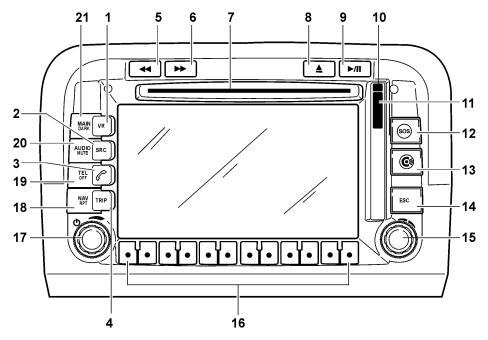
KEY TO PUSHBUTTONS
There are 28 buttons and two rotary selectors (a wheel and a pushbutton) on the front panel of the CONNECT.
Some keys perform multiple functions that depend on the system operating conditions active at that time.
Activation of the selected function is controlled, in some cases, by the length of time for which the button is pressed (short or long push) as described in the following table.
| Keys | Short press on key (less than 2 second) | Prolonged press on key (longer than 2 seconds) |
|---|---|---|
| 1 | Activation or interruption of the Voice Recognition function | Activation or interruption of the Voice Recognition function. Activation of the Voice Memo function, this can be interrupted by a further short or long press on the button |
| 2 | Choice of audio source:FM1/2/3/AST –MW/LW/AMAST – CD – CDC | |
| 3 | - Send the selected phone call - Reselect the last number dialled and then press the key with 5 seconds to send a call to the number - Accept incoming phone call | - Refuse incoming phone call - Stop dialling a new phone number - Interrupt a phone call already in progress |
| 4 | Activate TRIP on-board computer mode | |
| 5 | Radio mode: search for the first radio station at a lower frequency CD mode: select the previous track. MP3 mode: select the previous track. | Radio mode: activate scanning function for lower frequencies, station scanning will stop at the first station with an audible signal. CD mode: select the previous track. MP3 mode: move to the previous 10 tracks or the previous folder. |
| 6 | Radio mode: search for the first radio station at a higher frequency CD mode: select the next track. MP3 mode: select the next track. | Radio mode: activate scanning function for higher frequencies, station scanning will stop at the first station with an audible signal. CD mode: select the next track. MP3 mode: move to the next 10 tracks or the next folder. |
| 7 | CD housing | |
| 8 | Eject navigation CD-ROM or audio CD | |
| 9 | Play/stop for CD/CDC | Pause for CD/CDC |
| 10 | SIM CARD housing eject key | |
| 11 | SIM CARD housing | |
| 12 | Activate SOS mode (assistance functions and services) | |
| 13 | Targasys mode activation | |
| 14 | Exit from a selection menu or leave a submenu of a higher menu | |
| 15 | Knob for selecting the required function. Press to confirm | |
| 16 | Multifunction key. Function depends on active mode. The function is always identified by graphic buttons that appear on the display. In some cases the area of the graphic button may cover several adjacent multifunction buttons: the function of the keys under this area is the same | |
| 17 | Knob for adjusting volume level. Press to turn the system on/off | |
| 18 | Activate navigation mode | Activate/deactivate the MUTE function for navigation information |
| 19 | Activate phone mode | Phone on/off |
| 20 | Activate Audio mode | Activate/deactivate the MUTE function for audio sources |
| 21 | Activate Main mode | Dark mode: The display is darkened completely. The display is lit again by pressing the MAIN, TEL, SOS buttons or by receiving a phone call |
Controls on the steering wheel
The controls for the main functions of the CONNECT are duplicated on the steering wheel for greater ease. The configuration used for the CONNECT NAV+ is 8+3 buttons
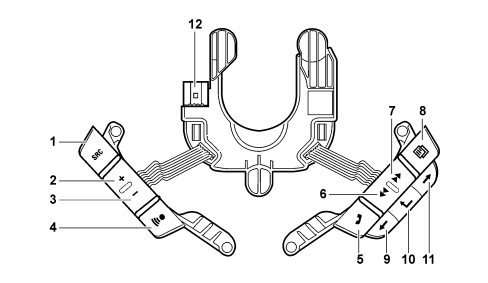
1 - SOURCE
2 - VOL +, volume increase
3 - VOL -, volume decrease;
4 - Voice recognition button (VOICE)
5 - Phone button TEL
6 - SCAN +
7 - SCAN -
8 - MENU button
9 - Backwards function selection button
10 - Function confirmation button
11 - Forwards function selection button
12 - Steering Wheel Node (NVO)
Activation of the selected function is controlled, in some cases, by the length of time for which the button is pressed (short or long push) as described in the following table.
| Key | Short press on key (less than 2 second) | Prolonged press on key (longer than 2 seconds) |
|---|---|---|
| VOL +/- | Raises or lowers volume level | Raises or lowers volume level |
| VOICE | Activation or interruption of the Voice Recognition function | Activation of the Voice Memo function, this can be interrupted by a further short or long press on the button |
| SOURCE | Select operating mode: FM1/2/3AST-MW / LW / AMAST - CD - CDC | |
| SCAN +/- | The “SCAN +/-” buttons allow: - In Radio mode: to search for the next or previous radio station - In CD/MP3/CDC mode: to move to the previous or next track | |
| TEL | - Send the selected phone call - Reselect the last number dialled and then press the key with 5 seconds to send a call to the number - Accept incoming phone call | - Refuse incoming phone call - Stop dialling a new phone number - Interrupt a phone call already in progress |
| MENU | The MENU button is used to select the various CONNECT modes: MAIN, AUDIO, TRIP, TEL, NAV, MAIN etc starting from the current active mode |
The function of the wheel behind the right keys is the same as the right selector on the front panel: it is used to set the required function and then confirm it by pressing the wheel
Functional description
Power supply management
Events that interact with the power supply management
The events that directly or indirectly allow the user to interact with the general system operating state are:
- + key: physical signal linked to the key status (panel/engine on).
- on/off button: present on the Connect front panel.
- SOS button: present on the Connect front panel.
Possible system states
Possible Connect statuses from the viewpoint of power supply and operation in general are as follows: off state, normal state, stand-by state.
Operation still depends on the "system configuration". The configuration of the system memorizes which functions the user has selected as active.
The functions are: tuner, CD, CD Changer, telephone, service call and video (dark on/off).
- off state: all Connect functions are disabled and the various hardware modules are not supplied with power.
- normal state: in the normal state, the Connect system is fully active and all system functions are managed in accordance with the system configuration. Internal modules are operational, as are the internal communication lines.
- stand-by state: in this status, the Connect system is active but looks exactly as though it were OFF to the user. In any case the only internal module that is fully operational is the network communcation.
PLANNED ACTIONS
Switching on
The user can switch the system on (change from off state to normal state) by pressing the ON/OFF button or the SOS button irrespective of the key status.
If the key is inserted with the system OFF, the Connect continues with the anti-theft procedure (exchange of codes with the body computer node) to then reach the normal state (obviously typical functions will be available if, and only if, the authentication has been successful, otherwise the system will go on stand-by).
Deactivation
The user can switch the system off using different methods that depend on the status of the actual system (see table below).
Normal state
If the key is removed and neither a telephone call or a call to the call centre is in progress, the system switches off (or moves to the OFF state; obviously after the system configuration and the backup data is saved). If a phone call or a service call is in progress, there will be a timed delay (20 minutes operation without the key or without any intervention by the user on the buttons on the front panel or the steering wheel) before the Connect is switched off.
If the system is in the normal state with the key off, it may switch off for the following reasons:
- automatically if the time out described above elapses,
- through the intervention of the user pressing the on/off button (unless a service call is in progress).
Move to stand-by
It is possible to move from the normal state to stand-by (an operation that will look to the user like the system has been switched off but which in reality leaves the Connect activated) when the user presses the on/off button whilst the key is activated.
It is possible to exit this state and return to the normal state still using the on/off button or the service call button.
ROLLING FUNCTIONS
The CONNECT states are summarized in the table below.
| INITIAL CONDITIONS | ACTION / EVENT | FINAL CONDITION | |
|---|---|---|---|
| Key status | CONNECT status | CONNECT status | |
| OFF | ON | - ON/OFF button pressed - Timed delay of 20 minutes expired | OFF |
| - Change from + Key to ON state | ON | ||
| OFF | - ON/OFF button pressed - SOS button pressed | NORMAL TIMED DELAY (automatic switching off after 20 minutes) | |
| - Change from + Key to ON state | ON | ||
| ON | ON | - ON/OFF button pressed | STAND BY |
| - Change from + Key to OFF state | NORMAL TIMED DELAY (automatic switching off after 20 minutes) if a phone call or an SOS procedure is in progress | ||
| NORMAL TIMED DELAY (automatic switching off after 20 minutes) if the automatic switching off at the Key off function is not activated | |||
| OFF, if the automatic switching off at key off function is not actived | |||
| STAND BY | - ON/OFF button pressed - SOS button pressed | ON | |
| - Change from + Key to OFF state | OFF | ||
Communication with the can
Anti-theft function
The Connect remains automatically blocked if there is no connection to the CAN.
In this case it is necessary to enter the master code manually to allow authentication with the body computer and operation.
Languages available
The following languages are available for both strings of displayed text (menus) and navigation voice messages:
- French
- English
- German
- Italian
- Spanish
- Dutch
- Portuguese
The change of voice command language requires a special CD to be inserted (setup CD).
Navigation management and location
Dead-reckoning
The navigation module receives data concerning the advance and change in direction from the vehicle sensors.
This data is accumulated and processed by a specific algorhithm which, also taking into consideration the current position obtained by the GPS satellites, and comparing them with map CDs, makes it possible to caculate the estimated positon of the vehicle (location of the vehicle).
Navigation
The navigation module is capable of carrying out the following functions.
Interface functions with other modules:
- Acquisition of RDS-TMC traffic information from tuner module: the module receives traffic information from the tuner module via RDS-TMC messages in the geographical areas where they are available. In any case the information referred to is only the textual type (useful message for the driver);
- Route guidance: route guidance involves all the activities of extracting, managing and processing the information required for guiding the user to the destination they have set.
The information that is useful for the driver is basically:
- calculating route between current position and destination;
- recalculating the route in case of deviation from the current route;
- calculating an alternative route;
- identifying a service centre along the route;
- calculating the distance to the destination;
- identifying junctions along the route;
- identifying manoeuvres at junctions along the route (and graphic and voice instructions for the user);
- calculating the distance to the next junction where the user has to make a turn.
Digital mapping
The map database, contained in a specific CD ROM, is made available to all the system functions.
Reduced database management with no CD-ROM (listening to a music CD)
It is possible to listen to an audio CD in the CD player during the navigation process. simply following the procedure described.
The map CD should be inserted in the CD player for the entire duration of the entering the destination and route calculation activities.
At the end of this processing, the CD ROM can be removed using the eject button and at this point the system:
1. suggests loading the route calculated in the memory
2. if the answer is yes, eject the map CD.
The audio CD can now be inserted to start listening.
In these conditions only some of the map information is available (town names and road names) and it is only relevant to some sections of the route. In any case the reduced data base in the Connect memory makes it possible to deviate from the route with automatic recalculation without the need to reinsert the CD-ROM (however, the effectiveness of this recalculation is extremely dependent on the length of the original route).
When the route data in the memory is not sufficient to continue the navigation process, there is a request to reinsert the map CD.
If the system is switched off during navigation without a CD ROM, the next time it is switched back on, the map CD must be inserted to access the navigation functions.
Complete data base management
If a map CD-ROM is present for the entire mission, the navigation function uses the entire data base available (map list, points of interest, etc.).
FUNCTIONS SEEN BY THE USER
Map display
If the navigation function is activated the user can select the map representation of the area with the following features on the display:
- possible scales (from 1:10·000 up to 1:20·000·000);
- possibility of north up or heading up or bird view depending on the scale of the map set;
- representation of specific areas (parks, water, etc.);
- names of towns;
- POI symbols (Points of Interest, categories: restaurants, hotels, service stations, car parks).
Information from Connect
Car location information:
- name of road and area;
- the name of the road being driven along and the area appear constantly in a special window.
Traffic information
The user is provided with the following traffic information starting with the RDS-TMC information described previously.
- symbol on map: the system can be configured to display the symbols on the map corresponding to any traffic jams (some types of event are already displayed).
- Explanatory text: an explanatory text with each event. The types of event can be accessed from the menu, having selected the type, a list of all corresponding events is accessed.
- Route guidance: pre-recorded voice messages with a female voice.
- Junction zoom function: the system can be configured to show the junction, just before a manouevre, greatly enlarged with explicit instructions on the route to take.
- Junction drawings with pictograms: the navigation screen permanently displays simplified pictograms for the next two manouevres to be made off the map.
Specific configurations for navigation function
There are three possible options for calculating the route:
- quickest
- shortest
- motorway yes/no
Atlas function: this function makes it possible to use digital maps like a normal road map.
Assistance services
The following functions can be activated manually by means of a special (SOS) button which allows an automatic call to be sent to the service centre:
- medical consultation (subscription service);
- roadside assistance (subscription service);
- private number;
- emergency 112
Operating procedure
1. SOS button pressed
2. Assistance Services screen on the Connect display with Medical Consulation function highlighted.
3. The user can set the system so that, within 25 seconds of pressing the SOS button, the default setting is not altered (by intervening on the front buttons), the call to the service provider for medical consulation will be sent automatically.
4. The user can select roadside assistance (in this case the call will be made to the roadside assistance service provider) or exit the assistance screen (cancelling the call).
5. If the user does not subscribe to the service provider, the only functions that can be activated are the emergency 112 call and a call to a private number or consulation of the settings menu.
Infomobility – connect button
There is also the possibility, by subscribing to a special service, of taking advantage of a series of external driving aid services (e.g. traffic information, directions on the location of businesses, etc.).
Pressing the Connect button activates the display of a menu that makes it possible to select/display Infomobility messages that may have been memorized previously. If the services are activated, by selecting the Connect item it is possible to request information, via a telephone link, from the TargaSys Service Provider. The service centre operator will call the user back.
The response may be provided during the phone conversation or it will be completed by sending specific SMS text messages containing the information.
Information received by SMS (if containing geographical co-ordinates and a phone number) can be stored in the memory and used directly by the user - via the Connect - to set up a phone call and/or start the navigation to the destination.
Phone module
The phone module allows normal phone activity, text messages, support for Service Calls to the Provider (described in the relevant chapter) and Internet access by means of WAP (Wireless Access Protocol).
The following functions are available to the user:
Phone functions
The phone module is used to:
- accept an incoming phone call;
- refuse an incoming call;
- forward a phone call.
SIM Data Base access functions
It is possible to work on an inserted SIM as follows:
- read the list of phone numbers saved on the SIM card;
- enter a phone number on the SIM;
- delete a phone number from the SIM;
- copy the contents of a SIM phoneboook to the Connect phonebook and viceversa.
Last number functions
The module is able to store the last 10 numbers called to help the user with repeat calls.
SMS message functions
The module manages text messages for the user and also from the service provider. It is therefore possibile:
- to display received messages that have not yet been read (full list or selected message);
- to display received messages that have been read or saved (full list or selected message);
- save a received message;
- delete a message (recently received or already saved);
- send a message to a particular number entered by the user;
- set up the Service Provider number for text messages.
Phone module status display function
Information on the following is shown on the screen:
- intensity of the phone signal received by the aerial;
- network operator''s name;
- presence of text messages received but not yet read;
- presence of any call divert.
Configuration functions
- "call divert": it is possible to divert incoming calls to another phone number;
- network operator management: the module manages both the selection of the network operator (manual or automatic search) and the use of a list of preferred operators;
- security: use of PIN, PUK and PIN code change.
WAP
Access to a WAP site requires data to be loaded into the memory: the screen shows the text, links and selection input options.
The functions that allow the activation of possible card action are also displayed (max 6, usually in English). For example, the following functions may be shown: next, help, back.
Procedure for general use
Before the phone module can be used, the user must enter a PIN security code whenever the Connect system is turned on after being turned off (unless "exclude PIN request" has been set under Settings).
Unless the SIM card is inserted or the PIN code is entered, the system can be used only for emergency calls (112 in Italy) and not normal user calls or for the service call function.
If an incorrect PIN is entered three times, the module is bound to request the PUK code to release the block.
Voice recognition
Voice recognition module with speaker dependent functions (phonebook, navigation address book, radio station memory) and speaker independent functions for radio, CD, CDC, phone and navigation system.
The speaker dependent function allows a sample voice command (prerecorded by the user) to be associated with a phone number in the phonebook and/or a destination present in the destination list (personal).
The speaker independent functions allow the activation of general controls (e.g.: "radio autostore", "cd play", "navigator zoom", ...).
AVAILABLE USER FUNCTIONS
Voice command
After pressing the VR key, the user can speak a voice command.
The module compares the sample with those in the memory and, if it is recognized, it allows the command to be activated.
Speaker dependent functions
Telephone voice command recording:
whilst entering a number or name in the telephone directory, the user can associate a voice command with this item; the user initiates a learning stage where the module requests the entering and repetition of the voice command, notifying that it has been recorded.
Navigator voice command recording:
when entering a destination in the navigation system address book the user can associate a voice command with this item in the same way as with the telephone address book.
Voice command cancellation:
The voice samples described above may be deleted or modified.
Speaker independent functions
The system does not require an initialisation stage to use this function (i.e. recording of voice samples by the user). Although the terminology has been designed to include commonly used phrases, it is nevertheless advisable to read the keyword table in the Connect User Handbook.
As an example, the keywords for the CD player are given below.
| CD PLAYER | |||
|---|---|---|---|
| Level 1 | Level 2 | Level 3 | Notes |
| CD player | CD player | ||
| Stop | Stop playback | ||
| Play | Playback | ||
| Pause | Pause | ||
| Backwards | Go to the previous track | ||
| Forwards | Go to the next track | ||
| Track / Number | Direct selection of track | ||
| [1..20] | Track number (e.g. command: "Track five") | ||
| Random | Shuffle mode | ||
Languages available
The following languages are availalbe for requests and communication with the user:
- French
- English
- German
- Italian
- Spanish
- Dutch
- European Portuguese
Record voice messages
This module, known as the Voice Memo, allows the user to record and re-enter voice messages up to about 3 minutes long.
The messages are recorded sequentially in the frame and a warning message is displayed if the memory contains messages.
ADDRESS BOOK
Connect contains two different address books: one for the phone and the other for the navigation system.
Phonebook
The following fields are present in the phone book:
- name: memorable label for fast access to the list;
- number: number used by Connect for calls;
- location: support for where the item is stored (SIM/CONNECT);
- voice recognition: voice sample for activation via voice recognition.
The following phone book functions are available to the user:
- Select item (open detailed window).
- Enter new item
- Listen to/delete all voice samples recorded by the user
- Delete all items in the phonebook.
Detailed window
- Select item (open detailed window).
- Send call to the selected number
- Modiy single item (name, number, listen/modify/delete single voice sample)
- Save an individual item in the Frequent Number list.
Navigation system address book
The following fields are present in the navigation address book:
- name: memorable label for fast access to the list;
- description of geographical location defined by user: string consisting of town name/street name or name of associated POI;
- voice sample;
- co-ordinates: place co-ordinates (not visible to user and used internally for localisation or route calculation).
The functions available to the user for the navigator address book are similar to those available for the phone book:
- Delete existing item
- Select item
- Modify
SET UP
It is possible to interact with the Connect system Set Up. The menu makes three main groups of functions available:
- Language and Date: makes it possible to select the type and format of the information.
- Vehicle: makes it possible to configure the behaviour of some vehicle devices (if the vehicle is not fitted with the special equipment, the corresponding item cannot be selected):
- Panel buzzer volume
- Panel buttons volume
- Door locking whilst moving
- Independent driver''s door unlocking
- Independent boot unlocking
- Autoclose
- Dusk sensor sensitivity
The Connect allows several device operating parameters to be configured:
- Brightness
- Contrast
- Display lighting mode
- Connect switching off mode
Rear view of the connect
CONNECT rear view
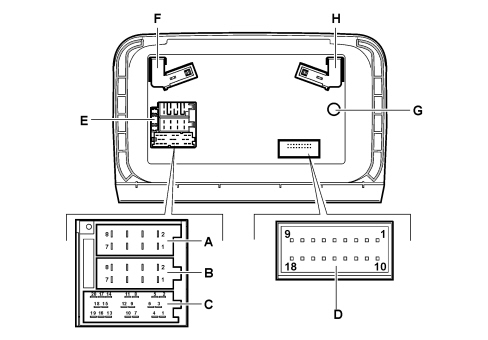
A - Supply connector (connector A, 8-way)
B - Speaker output connector (connector B, 8-way)
C - Auxiliary functions connector (connectors C/D/E, 6+6+8 way)
D - Integrated telephone function connector (connector F, 18-way)
E - 10A fuse
F - GSM aerial
G - RADIO aerial
H - GPS aerial
Connector A/B pin out (8+8 way)
| PIN | FUNCTION |
|---|---|
| A1 | B-CAN B (CAN-H) |
| A2 | Positive signal (HI-FI amplifier) |
| A3 | B-CAN A (CAN-L) |
| A4 | INT |
| A5 | n.c. |
| A6 | n.c. |
| A7 | +30 Supply |
| A8 | Earth |
| B1 | + Right rear speaker |
| B2 | - Right rear speaker |
| B3 | + Right front speaker |
| B4 | - Right front speaker |
| B5 | + Left front speaker |
| B6 | - Left front speaker |
| B7 | + Left rear speaker |
| B8 | - Left rear speaker |
Connector C/D/E pin out (6+6+8 way)
| PIN | FUNCTION |
|---|---|
| 1 ÷ 5 | n.c. |
| 6 | Positive signal for external audio amplifier enablement |
| 7 ÷ 12 | n.c. |
| 13 | CDC DATA IN |
| 14 | CDC DATA OUT |
| 15 | +30 CDC |
| 16 | Positive signal for CDC power supply enablement |
| 17 | CDC DATA GND |
| 18 | Audio ref. CDC |
| 19 | Audio left CDC |
| 20 | Audio right CDC |
Connector F pin out (18 way)
| PIN | FUNCTION |
|---|---|
| 1 ÷ 8 | n.c. |
| 9 | Microphone input |
| 10 ÷ 11 | n.c. |
| 12 | Earth |
| 13 ÷ 17 | n.c. |
| 18 | Microphone reference |
The microphone for the hands-free function is located in the front courtesy light.
AERIALS ON ROOF
There are two different types of aerial located on the rear part of the roof.
The single function aerial (am/fm) and the triple function aerial (am/fm, GSM and GPS) are phantom-power type aerials and therefore do not have a separate supply lead.
Depending on the vehicle trim level, in other words whether there is a radio CD or CD-MP3 or a navigator (NIT), affects the type of aerial mounting.
On a vehicle where there is radio CD or radio CD-MP3, a single function support (am/fm) is fitted.
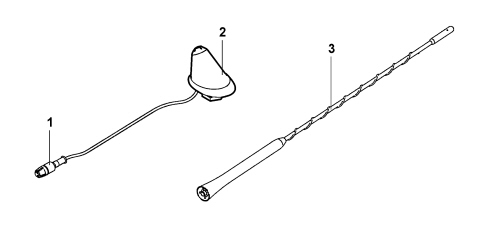
1 - Radio coaxial connecting lead
2 - Aerial mounting
3 - Stem
If the customer requests the telephone preparation option, a triple function aerial mounting will be fitted (am/fm and GSM connection) and stem.
If there is a NIT (infotelematic node) a triple function support and stem will be fitted (am/fm, GSM and GPS).
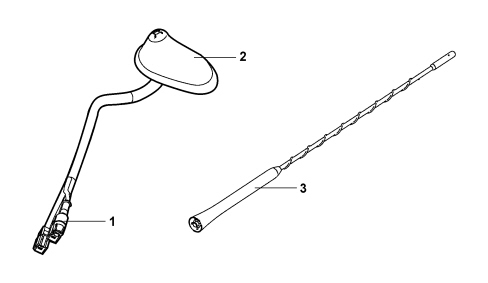
1 - RADIO / GPS / GSM connectors
2 - Aerial mounting
3 - Stem
Parts & tools for this job For 2005 Fiat Croma
- TOOLDigital multimeterSearch: automotive digital multimeter
- PARTAssorted fuse kitSearch: car fuse assortment kit
- TOOLWire crimper and connector kitSearch: wire crimper connector kit
Links open Amazon search results in a new tab. As an Amazon Associate I earn from qualifying purchases.