
Blue & Me
- Make
- Fiat
- Model
- 500 Factory Service Manual
- Year
- 2007–2024
- Section
- Accessories › Blue & Me
Blue & Me
“Blue & Me”
Blue&Me based on Windows Mobile is a personal telematic system which allows the use of applications for communication and entertainment, specially designed for use in vehicles.
The Blue&Me system is available in two versions:
- standard version, (C1-V2) with hands-free function for Bluetooth mobile phones with voice commands, SMS voice player and media player with USB port,
- Blue&Me Nav de-luxe version (C3) which, in addition to the previous functions, includes a satellite navigation system which uses the USB port, with map pre-loading and shows the navigation information on the control panel reconfigurable multifunction display.
The Blue&Me Nav de-luxe version is described in
See descriptions 5580M ON-BOARD NAVIGATOR
The Blue&Me system installed on the vehicle has the following functions available:
- Telephone hands-free
- SMS reader
- Multimedia player.
Blue & me hands-free system
Thanks to its complete integration with the voice commands, the controls on the steering wheel and the information in the on board multifunction display information, the Blue&Me system allows Customers who have a mobile phone with Bluetooth to use it even if it is in their jacket pocket or handbag without ever having to take their hands off the steering wheel.
In order to use the voice commands the voice recognition system does not require any preparation process. The system is capable of recognizing the voice commands given, irrespective of gender, by the tone of voice and intonation of the person giving the instructions and no training or pre-registration is required.
It is also possible to listen to music stored on a USB device, selecting the tracks and play modes using either the controls on the steering wheel or voice commands.
At the key on the display will only show the Blue&Me logo for 2 seconds as illustrated below for dot-matrix panels and where the Blue&Me and Blue&Me NAV option is present.

Later on, the check will continue normally with the activation of the remaining information described above and the display of the logo is concluded.
Components and their location
The Blue&Me system components are:
- Blue&Me control unit
- Radio with Tel-IN and Tel-MUTE inputs
- Microphone in ceiling courtesy light
- Controls on the steering wheel
- Display in control panel
- USB port (centre tunnel).
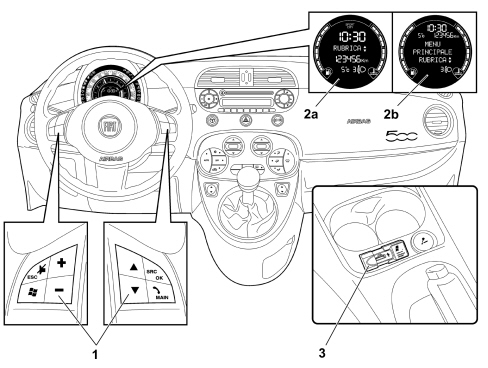
1. Controls on the steering wheel
2a. Multifunction display
2b. Reconfigurable multifunction display
3. USB port
Blue&me control unit
The Blue&Me control unit is connected via the B-CAN to the radio node and the Body Computer which, in turn, is connected to the controls on the steering wheel.
The Blue&Me control unit is fitted on a dedicated bracket and is secured to the rear side frame (left side).
Blue&me control unit electrical specifications
Operating voltage range: 6 - 16 Volt.
Nominal supply voltage: 13.5 Volt.
Voltage limit for 1 min.: 24 Volt.
Max current absorption: 220 mA (C1-V2) 500 mA (C3).
Standby current absorption: 1.7 mA.
Connectors
There are two (32 pin) connectors on the control unit which, depending on the Blue&Me version, may or may not be used. The table below illustrates the usage of the connectors depending on the Blue&Me version:
| Connectors | A | B | USB |
|---|---|---|---|
| C1-V2 | X | O | X |
| C3 | X | X | X |
X: Present.
O: Missing.
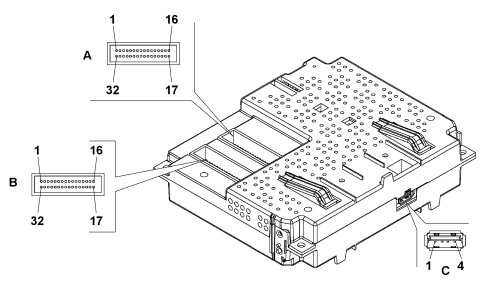
| Connector A pinout | |
|---|---|
| Pin | Description |
| 1 | n.c. |
| 2 | n.c. |
| 3 | USB D ( + ) |
| 4 | USB signal earth (GND) |
| 5 | Audio output (L) |
| 6 | USB cable screening |
| 7 | TEL out ( + ) |
| 8 | MIC ( + ) |
| 9 | n.c. |
| 10 | n.c. |
| 11 | n.c. |
| 12 | n.c. |
| 13 | n.c. |
| 14 | B CAN ( A ) |
| 15 | Earth |
| 16 | + 30 |
| 17 | n.c. |
| 18 | n.c. |
| 19 | USB D ( - ) |
| 20 | Signal USB |
| 21 | Audio output (earth) |
| 22 | Audio output (R) |
| 23 | TEL out ( - ) |
| 24 | MIC. screening |
| 25 | TEL ( mute ) |
| 26 | n.c. |
| 27 | n.c. |
| 28 | n.c. |
| 29 | n.c. |
| 30 | B CAN ( B ) |
| 31 | n.c. |
| 32 | + 15 |
USB: USB port that can be used as an alternative to the one located at the base of the centre console.
| Connector C pin out | |
|---|---|
| Pin | Description |
| 1 | Bus signal |
| 2 | USB D ( - ) |
| 3 | USB D ( + ) |
| 4 | USB signal earth (GND) |
Microphone in ceiling courtesy light
The microphone is fitted in the ceiling near the front courtesy light.
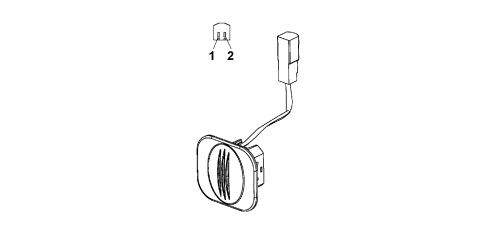
| Connector pin out | |
|---|---|
| Pin | Description |
| 1 | Signal |
| 2 | Earth |
Microphone electrical specifications
Operating voltage range: 7.4 - 8.5 Volt.
Nominal supply voltage: 8 Volt.
Max current absorption: 5 mA.
Standby current absorption: 1 mA.
Usb port
The USB port is located on the centre tunnel near the handbrake lever.
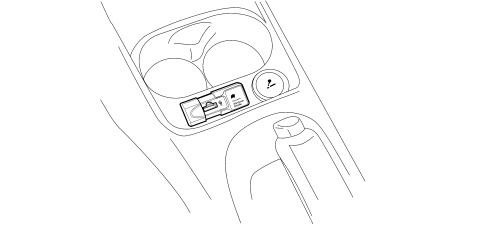
Controls on the steering wheel
Via the controls on the steering wheel, the Blue&Me and radio share the source of controls and each piece of equipment responds to its own controls depending on the button activated and the operating mode activated at the time (in this case the Blue&Me will inhibit the radio from carrying out the commands from the steering wheel when the hands-free function is activated).
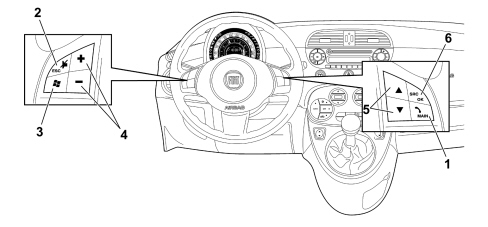
The table below lists the functions for the controls on the steering wheel.
| Key | Brief press (< 1s) | Long press (> 1s) |
|---|---|---|
| 1 | - Activation of Blue&Me Main Menu. - Confirmation of menu option selected. - Accept incoming phone call. - Change from one telephone conversation to another in second call mode (call notification). - Selection of message displayed. | - Refuse incoming phone call. - Ending of phonecall in progress. |
| 2 | - Deactivation of voice recognition. - Interruption of voice message. - Interruption of SMS message reading. - Exit from Blue&Me Main Menu. - Exit from a sub menu and return to the previous menu option. - Exit from the current selection with memorizing. - Deactivation/reactivation of the microphone during a phone conversation. - Resetting the volume of the call tone for the incoming phonecall. - Activation/Deactivation of multimedia player pause function. | |
| 3 | - Activation of the voice recognition. - Interruption of the voice message in order to give a new voice command. | - Repetition of the last voice message given by the system. |
| 4 | - Adjustment of audio volume for Blue&Me functions: hands-free, SMS reader, multimedia player, voice announcements. | |
| 5 | - Scrolling through Blue&Me menu items. - Selection of multimedia player tracks. - Scrolling through SMS messages in the list. | |
| 6 | - Confirmation of menu option selected during manual interaction. - Transfer of the telephone conversation in progress from the hands-free system to the mobile phone and vice versa. - Audio source selection (Radio, CD, CD Changer, Multimedia Player). - Selection of SMS message displayed. |
For many functions, the controls on the steering wheel (1) and (6) are interchangeable and the preferred button can be selected. For both operating modes for the controls on the steering wheel (short or prolonged press), the function is activated when the button is released.
Blue&me menu
The Blue&Me Main Menu shows the options in a list via the control panel multifunction display. The available options makes it possible to activate the functions of alter the Blue&Me system settings.
To activate the Blue&Me Main Menu press the TEL/MAIN button after which it should be possible to start interacting with the system using the controls on the steering wheel.
- Press the buttons (5) to navigate through the menu items.
- Press the SRC/OK or TEL/MAIN buttons to select the option shown on the display.
- Press the MUTE/ESC button to exit from the item shown on the display or from a sub menu.
- To answer an incoming phonecall whilst another phone conversation is in progress, press the TEL/MAIN button and the system will switch to the incoming call and place the other call on hold.
- To transfer a phone conversation from the hands-free system to the mobile phone, press SRC/OK.
When displaying the names in the directory, if the number of letters exceeds the maximum permitted, the name will be cut short.
Last calls
This sub menu makes it possible to see a list of recent calls either made or received. This list is downloaded from the mobile phone memory and updated when using the hands-free.
Address book
This sub menu makes it possible to see the address book telephone numbers and select one to make a call.
If the telephone directory contains a lot of names they will be grouped together in alphabetical sub menus. The number of people within a sub menu depends on the number of names in the telephone directory.
Sms reader
This sub menu makes it possible to read the last SMS message received, call the SMS message sender or delete the last SMS message received. Up to 20 text messages can be stored i a dedicated list and listened to, the sender called or they can be deleted. It is also possible to choose the notification mode for text messages received.
The SMS message reader sub menu, in turn, contains the following items:
1) Read message: reading the latest message received.
2) Message player: Activation of message reader menu.
2a) Read latest message: Reading the latest message received.
2b) Messages received: Access to list of received messages.
2b 1) Read: Reading the message selected from those in the message list.
2b 2) Call: Activation of calling the number.
2b 3) Delete: Deleting the message selected from the message list.
2b 4) Forward: Move on to the next message.
2b 5) Back: Move on to the previous message.
2c) Delete messages: Delete all the messages in the message list.
2d) Type of notification: Activation of notification settings function.
2d 1) Deactivate player: Deactivation of SMS message player.
2d 2) Visual and acoustic: Signalling, both visual through control panel display and acoustic through a bip, of a new incoming message.
2d 3) Visual only: Visual signalling only, through control panel display, of a new incoming message.
Multimedia player
This sub menu makes it possible to scroll through digital audio tracks by folder, artist, type, album or play lists. Tracks can be selected and played using this sub menu.
The multimedia player sub menu, in turn, contains the following items:
1) M.M. Player: Activation of M.M. player menu
2) Sound: Activation of reproduction of digital audio.
3) Stop: Interruption of reproduction of digital audio.
4) Next: Advance to menu option or next music track.
5) Previous: Advance to menu option or previous music track.
6) Activate random reproduction: Activation of random track reproduction function.
7) Deactivate: Deactivation of random track reproduction function.
8) Activate continuous play: Activation of continuous playing of music tracks function.
9) Dectivate continuous play: Deactivation of continuous playing of music tracks function.
10) Track information: Display of information relating to track being played.
11) Folders: Activation of multimedia player folders menu.
12) Artists: Activation of multimedia player artists menu.
13) Genres: Activation of multimedia player genres menu.
14) Albums: Activation of multimedia player albums menu.
15) Playlist: Activation of multimedia player playlist menu.
16) Activate automatic play: Activation of automatic play function for audio and insertion of USB device in vehicle.
17) Deactivate automatic play: Deactivation of automatic play function for audio and insertion of USB device in vehicle.
18) Any: Activation of automatic playing of all digital audio tracks present.
19) Multi media file settings: Activation of multi media player menu.
Settings
This sub menu makes it possible to manage the names in the phone directory, register a new device or access the hands-free system identification code.
The settings sub menu, in turn, contains the following items:
1) Settings: Activation of settings menu.
1a) User details: Activation of User details menu.
1a 1) Delete users: Delete registration data for all users.
1a 2) Delete directory: Delete the current telephone directory.
1a 3) Copy directory: Transferring the phone directory for the mobile phone to the hands-free system.
1a 4) Add contacts: Transferring the phone directory for the mobile phone to the hands-free system. (management of individual contacts).
1a 5) Delete all:Deleting registration data and the entire phone directory for all phones registered.
1b) Registration: Activating registration procedure for a new mobile phone (*).
1c) Update: Activation of Blue&Me update function.
1d) Suspend: Temporary suspension of updating procedure in progress.
1e) Resume: Continue updating procedure previously suspended.
1f) Advanced options: Activation of Advanced options menu.
1f 1) System code: Display of hands-free system identification code.
1f 2) Connection code: Activation of GPRS code menu.
2) Multi media file settings: Activation of M.M. player menu.
3) Random reproduction: Activation/Deactivation of random audio track reproduction function.
4) Continuous play: Activation/Deactivation of continuous playing of audio tracks function.
5) Automatic play: Activation/Deactivation of automatic play function for audio tracks and insertion of USB device in vehicle.
(*) To download and manage updates on Blue&Me, make sure that your telephone number is activated in the GPRS Data Plan If this is not the case, contact your service provider.
Telephone voice commands
1) Call number:Activation of vocal insertion of a telephone number.
1a) One:Entering the digit "1".
1b) Two: Entering the digit "2".
1c) Three: Entering the digit "3".
1d) Four: Entering the digit "4".
1e) Five: Entering the digit "5".
1f) Six: Entering the digit "6".
1g) Seven: Entering the digit "7".
1h) Eight: Entering the digit "8".
1i) Nine: Entering the digit "9".
1l) Zero: Entering the digit "0".
1m) Plus: Entering the "+" symbol.
1n) Astertisk: Entering the "*" symbol.
1o) Hash: Entering the "#" symbol.
1p) Delete: Deleting the last group of digits entered.
1q) Start again: Eliminating all the groups of digits entered with the possibility of entering a new number.
1r) Repeat: Repetition of the telephone number entered and recognition by the hands-free system.
1s) Call:Call the number entered vocally.
2) Call name: Activation of calling a name in the mobile phone directory copied to the hands-free system.
2a) Name: The voice command "Name" is the name under which the person is stored in the mobile phone directory.
3) Last call received: Composition of phone number of last person who called.
4) Last call made: Composition of last phone number of last caller.
5)Call: Access to last calls.
5a) Made: Composition of last phone number of last caller.
5b) Received: Composition of phone number of last person who called.
VOICE COMMANDS ALWAYS AVAILABLE
1) Help: Activation of Help function which provides list of voice commands available at the current level.
2) Canel: Cancels voice interruption and deactivation of voice recognition system.
3) Repeat: Repetition of the last message supplied by the hands-free system.
LANGUAGES AVAILABLE
The following languages are available, both for the text strings displayed (menu) and for voice recognition and text to speech messages:
- French
- English
- German
- Italian
- European Spanish
- Dutch
- European Portuguese
- Brazilian Portuguese
- Polish
The language change can be made by the user following the simple instructions on the official FIAT website (www.fiat.com) selecting the Blue&Me window.
System functions
The following system functons are available:
- Automatic connection of the telephone via Bluetooth.
- Manual interaction from the menu or with voice recognition and synthesis.
- Complete transfer of telephone directory to the system.
- Display of caller name or number on the instrument panel display (if already in the phone book).
- Possibility of dialling a number by voice command, digit by digit or calling a number stored in the user phone by pronouncing the name.
- Searching for a number in the directory by scrolling through the panel display using the controls on the steering wheel.
- Mute function available through controls on the steering wheel.
- Reproduction of personalized telephone ring in the radio system.
- Compatibility with 90% of the telephone market and possibility of upgrading to maintain compatibility with new standards and future telephones.
Up to 5 users can be memorized in the Blue&Me system, but only one telephone can be connected at a time.
If several phones are registered, the Blue&Me system will automatically connect at the key on to the last mobile phone that made or received a phone call.
In each case, only one mobile phone can be connected to the Blue&Me via Bluetooth.
Connection with bluetooth telephone
The system is connected to a mobile phone with a Bluetooth interface and hands-free profile.
The first connection between the mobile phone and the Blue&Me (pairing procedure) is regulated by a password; the user connects by keying in the password shown on the instrument panel into their own mobile phone after having activated the procedure in the menu for Bluetooth connections.
Bluetooth hands free profile
The Bluetooth system comes on independently at the Key on and starts the search for Bluetooth (mobile) devices to connect with immediately.
The equipment switches off independently at the Key off releasing any Bluetooth connection that may be activated: there is a delay of 30 seconds (provisional figure) to suppress accidental switching off of the engine (in traffic, at traffic lights, etc.).
If a phonecall is in progress, the conversation is kept activated (except for the display in the control panel) even after the car is switched off; the control unit and the radio finally switch off at the end of the conversation.
List of compatible mobile phones
The current hands-free system with Bluetooth technology is compatible with all mobile phones that support Bluetooth 1.1 and a 1.0 hands-free probile (refer to the Bluetooth connection specifications in the mobile phone user manual).
As a result of the different possible software versions available on the market for different models of mobile phone, some additional functions (e.g.: second call management, call transfer from hands-free system to mobile phone and vice versa, etc.) may not correspond exactly to the description in the mobile phone user manual.
In any case, the possibility of carrying out a hands-free conversation will not be compromised.
The table below lists the mobile phones which, at the time this manual was updated, have undergone a full test on operation with the Bluetooth hands-free system; there are also other models listed for which full operation has not been tested.
| Make | Models compatible with Blue&Me | Other models potentially compatible |
|---|---|---|
| Asus | P505 | |
| Audiovox | SMT 5600/Orange (HTC) C500 | |
| BlackBerry | 7100, 7290, 8700i | |
| Hewlett Packard | iPAQ 63xx, iPAQ 6515 | |
| i-Mate | SP3, SP5/SP5m | JAM, Jamin, Jasjar, K-Jam, PDA2K, Smartphone 2, SP3i |
| LG | U880, U8550 | U8210, U8360, Chocolate |
| Motorola | A830/A835, E398, Razr K1/Capri, MPX 220, V3 Razr, V500, V501, V525, V535, V600, V635 | A780, A1000, E550, E680, E1000, PEBL V6, ROKR E1, V80, V545, V547, V557, V600i, V620 |
| Nokia | 3230, 3600/3620/3650/3660, 6230/6230i, 6280, 6310/6310i, 6600, 6620, 6630, 6680/6681, 6810/6820/6822, 7600, 7610, 8800, 8910/8910i, 9500, N70, N-Gage | 3250, 6021,, 6260, 6650, 6670, 7280, 7710, 9300, N90, N-Gage, N-Gage QD |
| Palm | Treo 650 | |
| Panasonic | P341i, X11, X70, X88 | |
| Qtek | 8010, 8300/8310, 9100, S200 | 8080, 8020, 8100, 8200, 9000, 9090, S100 |
| Sagem | MYX-8, MYV-76 | |
| Samsung | SGH-D600, SGH-D820, SGH-E770, SGH-i300, SGH-i750 | SGH-D500, SGH-E340, SGH-E620, SGH-E720, SGH-E860, SGH-E880, SGH-S500i, SGH-Z130, SGH-Z140/SGH-140V, SGH-Z500 |
| Sendo | X, X2 | |
| Sharp | GX15/GZ100, GX25, GX30i/GX31/GX32, TM 200 | |
| Siemens | SL75 | CX75/M75, S65, S66, SX1, SK65, SL55 |
| Sony Ericsson | K700/K750i, P910i, T68/T68i, T606/T608/T610/T616/T618/T628/T630/T637, V800, Z600/Z608, Z1010 | K600i/V600i, K608i, S700/S700i/S710, W800/W800i, Z520i, W600i |
| SPV | ||
| Telit | C500, C600 | Neo |
The FIAT official website (www.fiat.com), in the Blue&Me window, contains an up to date list of mobile phones that are compatible with the Blue&Me system.
We wish to point out that because of the different possible software versions available on the market for the different models of mobile phones, some functions may not correspond exactly to the description.
Operating procedures
Incoming call
When the signal of an incoming call reaches the phone:
- the radio is turned to mute, the ringing of the mobile phone is produced through the speakers and the number/name of the caller (if available) is shown on the instrument panel display
- at this point the user can accept or reject the call
- during the conversation the user listens to the other person on the radio audio system and speaks via the microphone
- when the conversation is over the radio returns to its status prior to the call (volume, mode, etc.)
When a conversation is in progress, the user can carry out the following operations:
- alter the volume of the conversation using the radio Vol + and Vol - buttons. The level set can be reset at the end of the conversation: the next one will be at the radio default volume.
- move the conversation in progress from the Bluetooth control unit to the mobile phone on (and vice versa) to speak in private (local privacy)
- momentarily interrupt the conversation with the remote user (keeping them on hold) to talk privately with any passenger in the vehicle without being overheard by the user on the line (remote privacy)
- answer another incoming call and switch from one conversation to the other
- refuse another incoming call.
The last 2 functions in the list are linked to the presence on the GSM network, the user profile and the mobile phone of the necessary specifications and authorizations to manage 2 calls simultaneously.
Outgoing call
The user can make a call in 4 ways
- using their own mobile phone keypad
- using the list of recent calls
- using their own mobile phone list
- dictating the number they wish to call.
Media player
The Blue&Me multimedia player makes it possible to play digital audio stored on a USB device via your vehicle sound system simply by connecting it to the USB port on the vehicle at the base of the centre console next to the current socket/cigar lighter.
The following operations can be carried out using the multimedia player:
- reproduction of digital audio: it is possible to reproduce all digital audio files (.mp3 - .wma - .wav) or a personalized playlist (in .m3u or.wpl format);
- selection of audio depending on the category: it is possible to reproduce all digital audio that belongs to a certain category, for example an album, an artist or a musical genre;
- use the reproduction functions: it is possible, whilst playing tracks, to use certain functions such as Play, Stop, Next track, Previous track, Random and Continuous play.
The multimedia player does not support audio files compressed with other formats (e.g. .aac files downloaded from itunes for ipods) and DRM protected audio files (Digital Right Management).
If there are audio files on the USB device that are not supported, they will be ignored.
Compatible digital audio files
The multimedia player supports the reproduction of audio files in the following formats:
| Extension | Audio extension |
|---|---|
| .wma | - It supports WMA standards version 1 and WMA version 2.(WMA2 = 353, WMA1 = 352). - It supports WMA Voice audio formats |
| .mp3 | - MPEG–1 Layer 3 files (sampling frequencies 32 kHz, 44.1 kHz and 48 kHz) and MPEG–2 layer 3 (16 kHz, 22.05 kHz and 24 kHz). The following bit rates are supported: 16 kbps, 32 kbps, 64 kbps, 96 kbps, 128 kbps, and 192 kbps. - It also supports the Frunhofer MP2.5 extension (sampling frequencies 8 kHz, 11.025 kHz e 12 kHz). |
| .wav | Audio in digital format, without data compression. |
Sms voice player
If the telephone supports this function, the system includes the SMS messages voice player: it involves an application that allows the Customer to listen to the automatic reading of the incoming message on their mobile phone via the vehicle audio system.
The Blue&Me SMS message reader allows the Customer to:
- be informed, by means of a warning message in the instrument panel multifunctiondisplay, of the arrival of a new SMS message on their mobile phone giving the name/number of the sender and Blue&Me can also read the message
- manage the SMS messages received list on a mobile phone connected to the Blue&Me system
- reread SMS messages already received and memorized.
- make a voice call, using the controls on the steering wheel or voice commands, to the sender of the SMS message received.
- delete individual SMS messages or the entire list of SMS messages received using the controls on the steering wheel or voice commands.
The Blue&Me system is also capable of recognizing and reading any abbreviations (for example, "TVB" will be read as "Ti voglio bene" - I love you) and interpreting the most frequently used symbols (e.g. :-) will be read as "Smile") in text messages.
Some mobile phones available may not support the transmission of interlinked SMS messages (with more than 160 characters). Therefore, refer to the user manual for the mobile phone.
BLUE&ME SYSTEM SERVICE OPERATIONS
Control unit replacement
The battery terminals must be disconnected before removing the old control unit.
Order a new control unit from the Parts Dept. who will send a pristine component. once fitted, the initial default data must be transferred to it by carrying out the PROXI ALIGNMENT procedure using the Examiner.
Once a new control unit is installed it is necessary to:
- update the software;
- check and, if necessary, set the voice message language correctly;
- carry out the pairing operation for the telephones to be connected.
Operations using the examiner
To carry out the software updating operations, a special operating system must be temporarily installed on the Examiner, using the special "WINDOWS MOBILE FOR AUTOMATIVE EXAMINER CD" CD-ROM supplied together with the traditional Examiner software updates.
In addition, as already pointed out, a USB "pen" is required for transferring the data to the system control unit.
The pen should have the following specifications:
- USB standard version 1.0, 1.1, or 2.0
- minimum memory of 256 MB
- compatibility with WINDOWS XP or WINDOWS 2000.
Whilst this "pen" is being used for the above mentioned operations, it will be "formatted" and therefore all data stored in it previously will be lost !
Never disconnect the vehicle battery terminals during any of the operations indicated.
Always follow the sequence described below (for all of the operations):
- switch on the Examiner following the traditional operating methods
- insert the "WINDOWS MOBILE FOR AUTOMOTIVE EXAMINER CD"
- switch off the Examiner
- insert the USB "pen" in the special port at the back of the Examiner
the "pen" is NOT "recognized" if it is inserted with the Examiner on.
restart the Examiner.
At this point the Examiner will work temporarily with the special operating system and it is capable of transferring the data necessary for the following operations to the USB pen:
- individual language setting
- multi language setting
- software update
Only one of these three operations can be carried out at a time; in order to carry out two operations on the same system (e.g. language change and software update) the instructions illustrated previously must be repeated twice separately.
follow the instructions until the pen preparation operations are completed (the Examiner will advise you)
remove the USB "pen"
extract the WINDOWS CD
switch off the Examiner
Alternatively, these operations can be carried out using a personal computer, using "Windows XP".
take the USB "pen" to the vehicle.
with the ignition OFF, insert the USB "pen" in the special USB port in the control unit or in the external one, located at the base of the centre console next to the current socket/cigar lighter.
turn the ignition key ON
At this point the control unit will carry out the operation requested (language change or software update):
at the end a message in the instrument panel display will warn of the end of the operation and check the success of the operation (e.g. check the language of the voice messages giving an instruction).
Never disconnect the vehicle battery terminals during any of the operations indicated
Diagnosis
The control unit is connected via the B-CAN to the radio node and the Body Computer; therefore the diagnostic activities are carried out, in the same way as for all the other CAN "nodes", via the special diagnostic socket and the Examiner equipment.
Parts & tools for this job For 2007 Fiat 500
- TOOLDigital multimeterSearch: automotive digital multimeter
- PARTAssorted fuse kitSearch: car fuse assortment kit
- TOOLWire crimper and connector kitSearch: wire crimper connector kit
Links open Amazon search results in a new tab. As an Amazon Associate I earn from qualifying purchases.